How the dimension panel works
Dragging elements into target cells
When one or several elements are dragged from the dimension panel, SmartInsight highlights the valid target cells, namely those in which elements can be dropped.
The main behaviours are detailed below:
| When... | Then... |
|---|---|
| the matrix is empty, or has no rows/columns defined | - the cell below the update button will be the first row header - the cell to the right of the update button will be the first column header. |
| a dimension already in use is dragged | - the cells occupied by other elements of the same hierarchy will be valid (the cell into which it is dropped will be overwritten). - the first available empty cell at the headers level of the dimension belonging to the same hierarchy will be valid. |
| an unused dimension is dragged | - the cells occupied by other dimensions will be valid, for row headers and column headers (the cell into which it is dropped will be overwritten). - empty cells of the first free level of headers will be valid. |
| several dimensions are dragged simultaneously with auto-complete | the cells will filled in on the basis of the information provided with the drag operation. The system will duplicate and relate the dragged elements to those present in the matrix. |

IMPORTANT: it is not possible to drag a dimension already present on the filters panel.
IMPORTANT: it is not possible to drag the dimension’s elements node, if hierarchies rather than groups are present on the dimension. It is never possible to drag “period”, “period length”, “amount type” or “currency” dimension nodes to the matrix.
Example of header setting in empty matrix
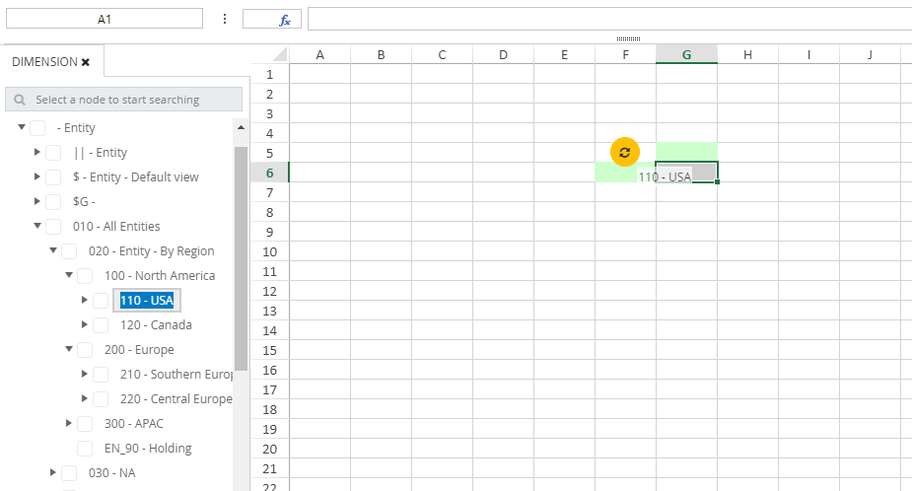
In this example, the position of element “110 - USA” is defined as a header (Entity dimension, hierarchy 010).
By dragging this element into cell F6, this cell will be set as the first-level of row headers. By dragging it to cell G5, this cell will be set as the first level of column headers.
Example of valid cells with populated matrix
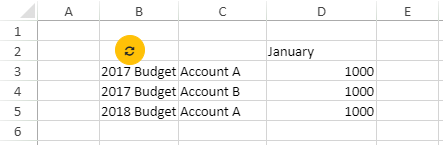
In this example, the row headers have two levels:
- Level -1: Scenario hierarchy
- Level -2: Entity hierarchy
The column only has one level:
- Level -1: Period hierarchy
Example of valid cells for a dimension already in use
In this example, by dragging 2019BDG, which belongs to the same hierarchy as 2018BDG and 2017BDG, only the following cells will be valid:
- The cells occupied by other elements of the same hierarchy, i.e. B3:B5.
- The first available empty cell at the headers level of hierarchy 2019BDG, i.e. B6.
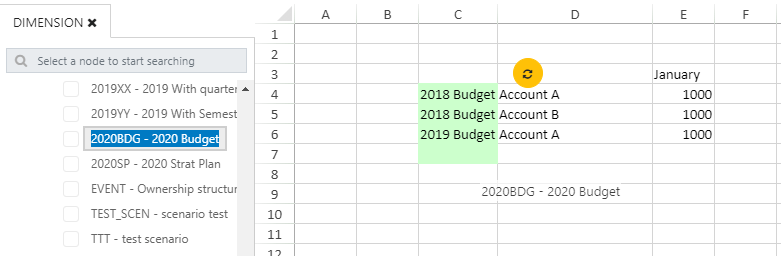
In these cases, the cell into which 2019BDG is dragged will be overwritten.
Example of valid cells for an unused dimension
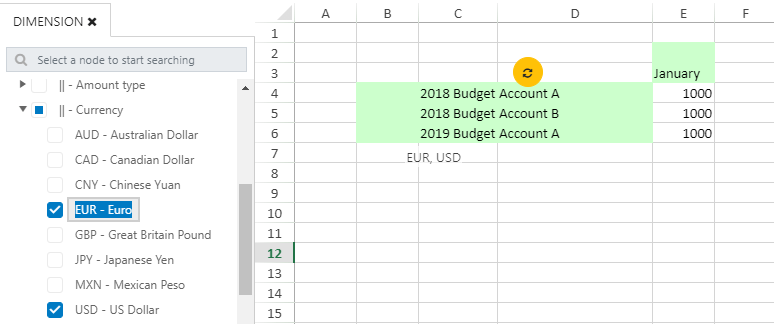
In this example a dimension that is not being used is dragged.
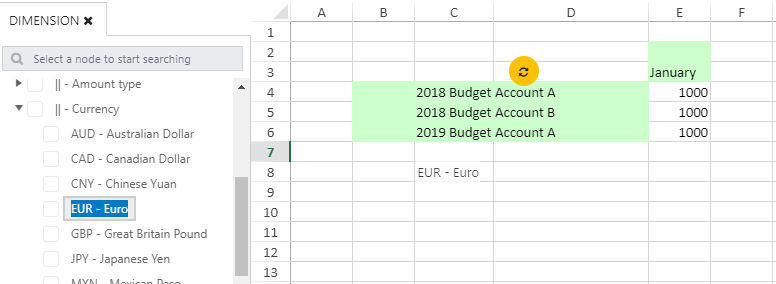
By dragging EUR, which belongs to the Currency hierarchy, the following cells are highlighted:
- The cells occupied by other dimensions, i.e. C4:D6 for the row headers and E3 for the column headers.
- The empty cells at the first free level of headers, i.e. B4:B6 for row headers and E2 for column headers.
For example, by dragging EUR to C5 (occupied by 2018 Budget), the entire entity hierarchy column will be replaced with EUR.
Example of valid cells for several dimensions with auto-complete
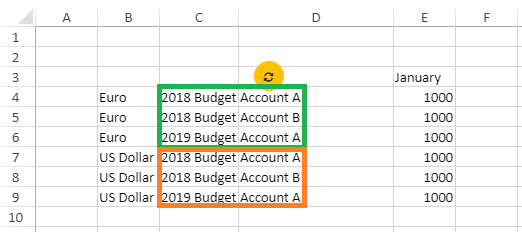
In this example, the EUR and USD dimensions (Currency hierarchy) are dragged to row headers level -3. SmartInsight recopies the highlighted headers to add EUR and USD to the left:
In this example, however, EUR and USD have been added to row header level -1 after a new column has been added to the spreadsheet. SmartInsight recopies the rows one at a time to add EUR and USD to the right:
Restriction for accounts
The first account dragged from the dimensions tree and dropped on an empty row (or column) is considered the reference element for that row (or column). Then, by manually entering or editing the code of an account in a cell below (or to the right, for filters on column headers), that code will be searched for in the subtree of the reference account.
Example reference account
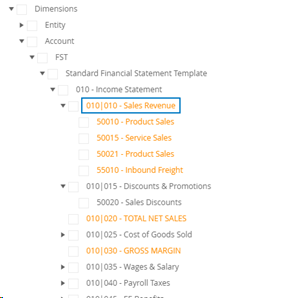
In this example, the following behaviours are obtained:
| Reference account | Behaviour |
|---|---|
| 010 | 015 |
| 010 | 015 |
| 50010 from node 010 | 010 |
Particular cases
Some particular cases are detailed below:
- Reference elements from the FST (financial statement template) and Control groups can also be dragged as reference elements. The system searches for the elements included in the hierarchy to which the reference element belongs.
- By entering, in the matrix, a formula element contained in the tree of the FSTs or control groups in a cell from the first row/column, the subsequent elements will be interpreted as placeholders.
- If the manual entry generates multiple results, the first element to be found will be entered.