Functioning of formulas
Introduction
Below are the main features for using formulas within SmartInsight. An example of a matrix with enabled formulas is shown below.
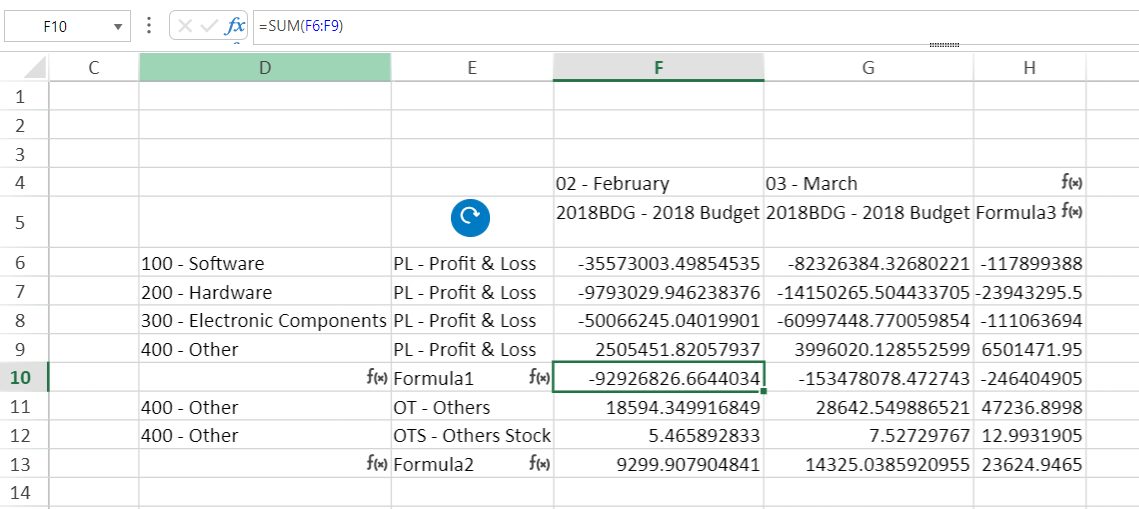
Matrix formulas
SmartInsight supports the handling of formulas in matrix, row or column, even after refresh.
In order to use formulas in a matrix, the rows or columns in which the formulas are to be entered must be specially enabled. Otherwise, the formulas and text entered in the matrix cells would be cleared at each matrix refresh. When enabling or disabling formulas, all cells related to the specific row/column are cleared.
Enabling formulas
In order to use formulas in a matrix, you must first select one and only one row or column header cell, and through the pop-up menu, using the Enable formulas command, the action will be applied to the entire related row or column.
It will also be possible to insert formulas on the first empty row or column immediately following the last matrix header; it will still be possible to add new dimensional elements in the rows or columns following these formulas.
Formula-enabled rows and columns are distinguishable by the symbol  in the relevant header cells. Moreover, it is not possible to drag&drop dimensional elements onto a formula header cell.
When enabling a formula in a matrix, whether in a row or column, the system will clear the descriptions of the relevant headers and values in the matrix cells, allowing the user to manually enter free text in the header and formulas in the value cells.
The user can complete the formula (to the right if set on rows or downwards if set on columns) by using the Fill row with formula/Fillcolumn with formula command in the pop-up menu, to be activated on a cell that already contains a formula.
Once formulas have been enabled on a row or column, you can:
- write formulas in the value cells within the enabled row/column;
- extend a formula on the enabled row/column, to the right for rows and downwards for columns;
- write free text in the header cells within the enabled row/column;
- keep formulas and text intact after matrix refresh;
- keep the formulas and text entered when saving the SI.
Disabling Formulas
The user may decide to remove a formula in several ways:
- Deletion of an entire row or column of the sheet.
- Removal of the formula from the pop-up menu ( Disable formulas option) to be used only on the header cells of a formula.
The latter option clears the values contained in relative cells at both the value and header level. The user can then use the related row or column as a placeholder to add new dimensional elements or turn it into a formula with the command in the pop-up menu (Enable formulas).
By manually deleting the contents of one or more cells, the row or column will remain enabled when writing formulas.
Disclaimer
The perfect functioning of the formulas is not guaranteed when the following features co-exist:
- Remove 0 values
- Do not repeat headers
- Copy/Paste and Cut/Paste from cells containing a formula to cells without a formula and vice versa
- Drill up
- Hide 0 rows and Hide 0 columns
- In the case of Move to left/Move to right within rows or Move up/Move down within columns, the contents of formula headings are not moved.