The structure of the matrix
Introduction
Below are the main features of the matrices created and used by SmartInsight. For further details on the matrix concept, see Form matrices.
Structure of a matrix
The matrix described below represents a typical matrix.
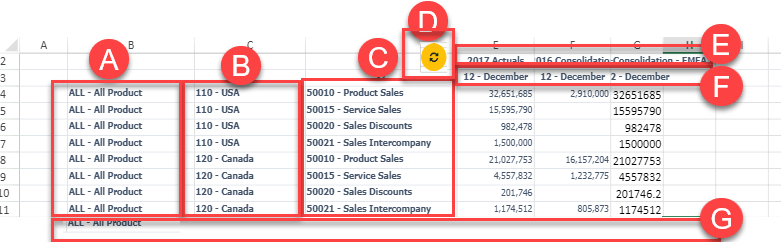
| Element | Description |
|---|---|
| A | Third level of row header |
| B | Second level of row header |
| C | First level of row header |
| D | Refresh button |
| E | Second level of column header |
| F | First level of column header |
| G | Row placeholder |
Rows and columns management
The matrix data are defined via the dimension tree. The rows and columns of the matrix can be populated with dimensional elements in three main ways:
- dragging one or more elements from the dimensions panel to the spreadsheet
- with rows/columns that have already been created, using drill-down
- with rows/columns that have already been created, by typing the dimension code or description
Matrix formulas
SmartInsight supports the handling of formulas in a matrix, enabling the user to write formulas instead of cells of values in a matrix. The user also has the option of extending a formula over an entire row or column.
For further information, please refer to the relevant page.
Multimatrix Smartinsight
In the SmartInsight, several matrices can be created and linked to different workspaces.
In the presence of several matrices, the flags Segment, Hide 0 rows and Hide 0 Columns cannot be used. Whereas, the Display mode and Do not repeat headers flags are applied to all existing matrices.
Matrix filters can be managed through the dedicated panel, even in the case of SmartInsight containing several matrices. When you select a matrix cell, you will be able to display the general filters associated with it in the dedicated panel. The user can add or remove filters at the matrix level, for each available dimension. Moreover, filters can be moved at row or column level and vice versa.