The web forms page (data entry)
Processes tile > select process > select scenario and period (if present) > select step tab > select entity > (Workflow) if present, click task form > Open Form in Web
Introduction
This page is similar in both navigation and data entry modes. The page in data entry mode is described below.
If a web form is run in data entry mode, the editable cells of the form can be changed. On saving, the changes are applied to the CCH Tagetik application database.
Note: in data entry mode, a web form can only be run directly from the web interface from the processes cockpit.
What it looks like
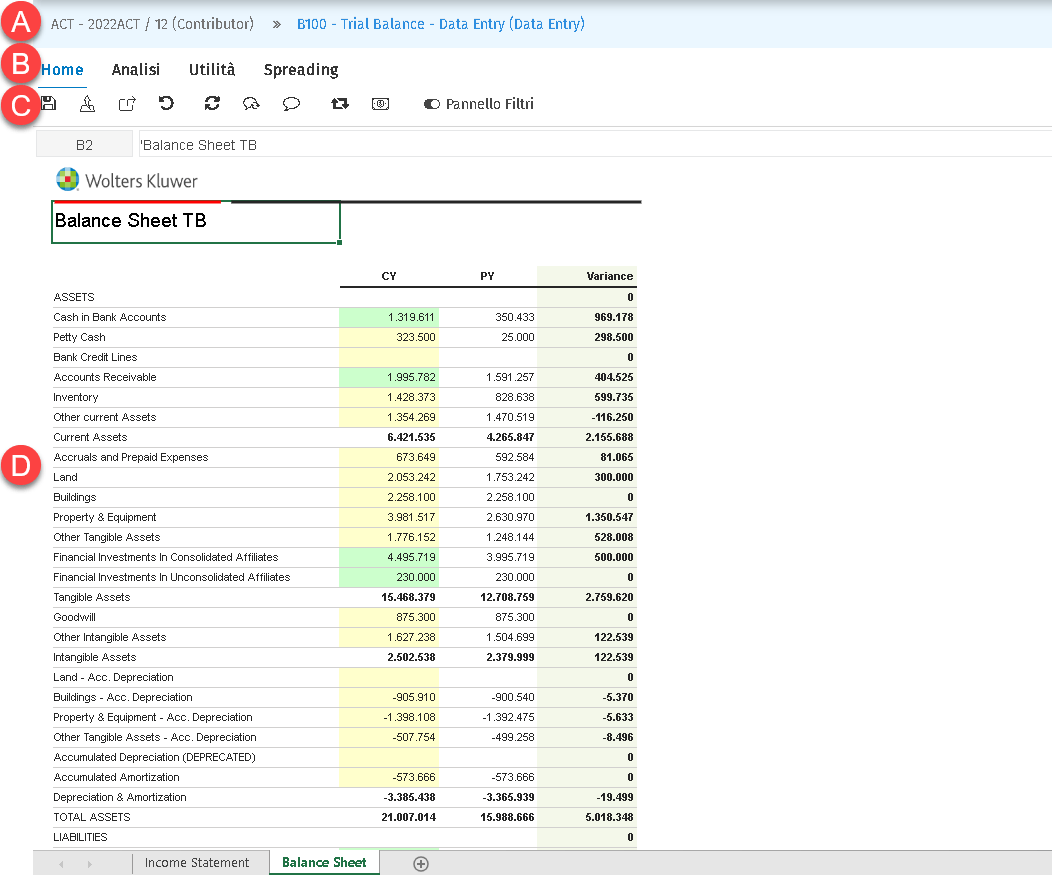
| Element | Description |
|---|---|
| A | Form title bar |
| B | Functions tab |
| C | Action buttons, which vary according to the selected function |
| D | Form content |
Page tabs
| Element | Description |
|---|---|
| Home | Allows you to manage the filters panel settings and data within the form (e.g. save, update, delete data, etc.), run the Quick Data Loader, open a page to manage intercompany data entry for the selected cell, and open the Cash Flow Planning page. |
| Analysis | Allows you to run drill down, open various types of detailed analysis pages, and enable/disable the running of all drill-through queries. |
| Utility | Allows you to run additional functionalities not included in the main tabs (e.g. show a cell’s properties). |
| Spreading | Allows you to activate and manage the spreading calculation functionality. |
Action buttons
The buttons shown in the various tabs are detailed below.
| Element | Description |
|---|---|
| Home tab | |
| Saves edited data. | |
| Launches the Quick Data Loader. | |
| Runs ETLs present in the form. | |
| Undoes the changes made after the last save. | |
| Refreshes the data shown in the form. | |
| Refreshes the comments associated with the form cells. | |
| If cells which accept intercompany entries are present in the form, this opens a page to manage the intercompany entries for the selected cell. See Cell edit - intercompany window. | |
| Allows you to edit the comments associated with the selected cell or add new ones. See Cell edit - comments window. | |
| Opens the Cash Flow Planning page. Cash Flow Planning is fed from the dimensional filters of the current cell. Function available for Financial Planning processes only. | |
| Hides/shows the panel of filters applied to the form. It is possible to edit the filters and regenerate the report. | |
| Analysis tab | |
| (Navigation only). Runs the drill down below the selected row. - If the selected cell is a dimension header, it shows as many rows as there are child elements of the dimension in the row. - If the selected cell is a matrix value, it shows the values present on all dimensions nested in that row. See Run drill down. | |
| Opens the detailed analysis page for the cell’s dimensional perimeter, changing aggregations or splits. | |
| Opens the detailed analysis page for the dimensional perimeter of the entire matrix, changing aggregations or splits. | |
| Opens the detailed analysis page for any of the system’s dimensional perimeters, proposing the cell’s perimeter as the preset one. | |
| Active if at least one drill-through query is present on the form. Runs a drill-through query using the filters of the current cell. | |
| Active if at least one drill-through query is present on the form. Enables all drill-through queries to be run when the cursor is moved from one cell to another. | |
| Utility tab | |
| Shows the cell properties, see Cell properties panel. | |
| Exports the web form to Excel. | |
| Downloads a detailed report on the form’s run times. | |
| Creates a Magazine in which to insert the open form The magazine can only be created from a form opened in navigation mode; the create magazine icon is disabled for forms in data entry mode. | |
| Hides/shows rows and columns. | |
| Spreading tab | |
| Activates the proportional spreading method. | |
| Activates the uniform spreading method. | |
| Allows you to select the spreading mode by seasonality (4-4-5, 4-5-4, 5-4-4 or a customised value). | |
| Allows you to select the base scenario for the spreading calculation. | |
| Restores the values from prior to the activation of the spreading method. | |
| Locks a selected area to be excluded from spreading. | |
| Unlocks the selected area. |