Edit intercompany: use case
Introduction
An example showing how to enter an intercompany entry directly from the Tagetik Reporting Excel client is provided below.
The intercompany context
Suppose you have a transaction between European company A00, which sells services, and American company C00, which buys them. Both companies belong to the same Group. Then we need to enter the following values for the January 2012 Budget:
- Other Revenues of EUR 250 (taking account of the fact that the document amount is USD 300) for company A00
- Other Commercial costs of USD 300 for company C00
Enter Other revenues figures
The first step is to enter the Other revenues figures.
- Open the form on which to enter those amounts.
- Select the cell in which to enter the amount. In this case, select the cell that corresponds to "Other revenues" for scenario "2012BDG" and period 01.
- From the cell, click Cell edit > Intercompany: the add intercompany declaration window will open.
Enter an intercompany value
In this example, an intercompany value towards company A02 - Berlin Distribution has already been entered in the cell.
- To enter the new value towards C00, click New.
- Add the counterparty entity:
| To add the entity... | Then... |
|---|---|
| manually | enter the value in the field. |
| from a list | click and choose the desired entity from the available counterparties. |
Note: the intercompany data defined in the "Frequently used Ctps" table are shown. When the "Show all Ctp Entities" flag is selected, the system shows the full list of counterparty entities that could be selected by the user.
- Optional. To search for an entity among the counterparties, click
 Search, select the desired entity and click OK, the entity will be added to the intercompany declarations window.
 - Enter the transaction amount, then define the Currency amount as USD 300 and select USD as the currency: the system will automatically calculate the amount in the currency of the declaring entity (in this case, EUR).
Note: this amount can be overridden and overwritten.
- Insert a note to allow this declaration to be tracked at a later date.
- Click Save to save the new report in the database.
Enter the amount of the cost for the beneficiary entity
When the declaring entity (A00) has finished entering its revenues, the corresponding cost incurred by the beneficiary entity (C00) must be entered.
- Open the Excel form dedicated to cost data entry.
- To enter the value, select Edit cell > Intercompany on the cell corresponding to "Commercial expenses".
- Define the counterparty entity as "entity A00 - Rome Distribution".
- Enter USD 300 as the amount.
- If useful, insert a note to comment on or describe the entered value.
Run data coherence diagnostics
Once both values have been entered, it is useful to run diagnostics to check that the intercompany relationship is balanced. Diagnostics can be run directly from the Intercompany window. The first check that can be performed is the "Relationship check", which allows you to see all entries declared by the current entity towards the selected counterparty entity (and vice versa).
To check the intercompany relationships between entities A00 and C00, select entity C00 and then click Check relationship.
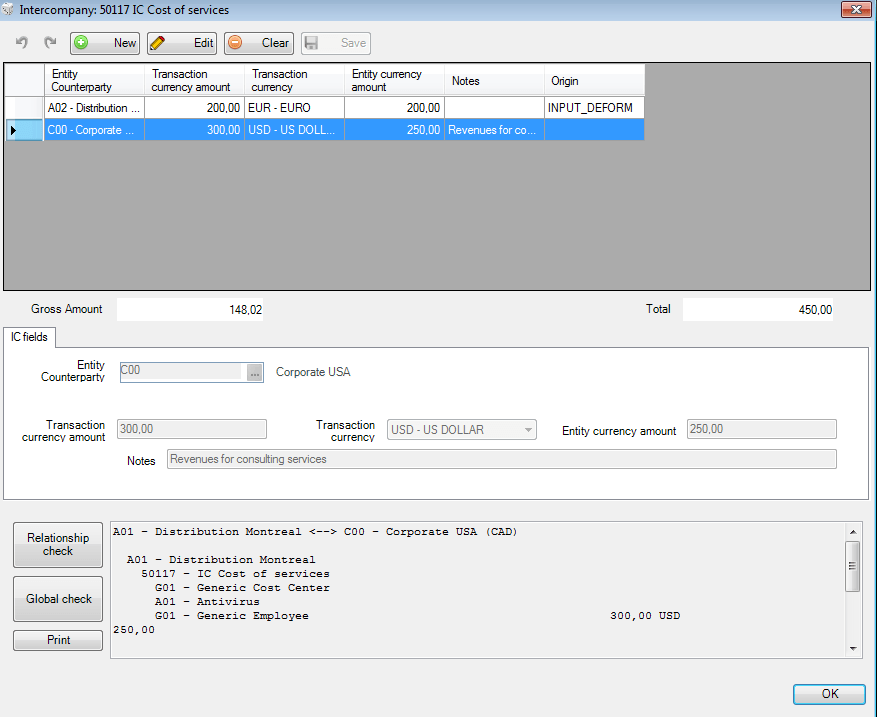
The system will show all the relationships entered between the two entities, A00 and C00. An example of the results generated by the diagnostics is provided below:
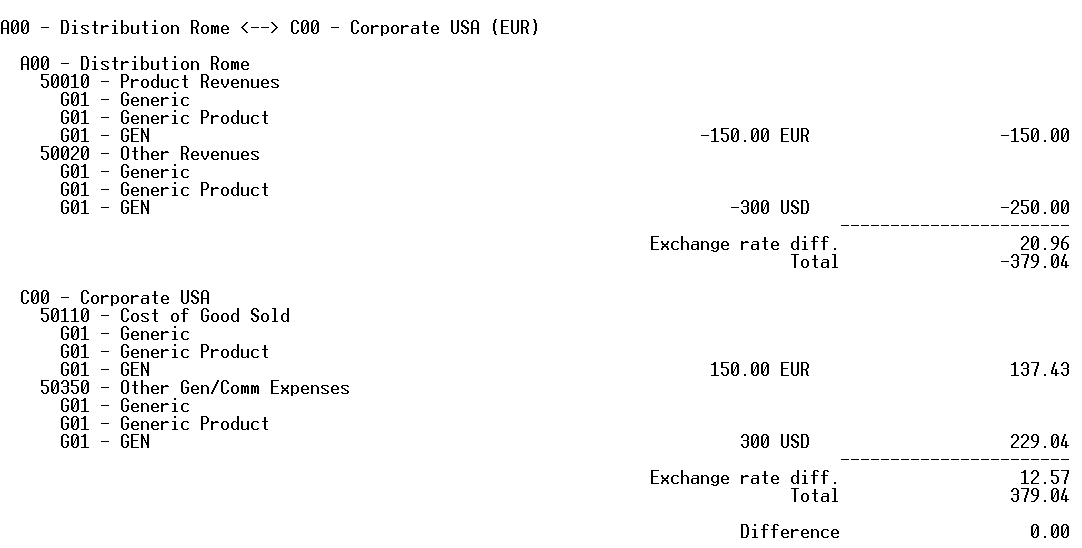
The diagnostics shows all the intercompany values entered in the system between the current entity and the selected entity. The system shows the sum total of the revenues in the first section, and the sum total of the costs in the second. The difference between the two values is calculated in the last row.
In the example, the difference between the two section is zero, so the entered values are correct and the result is balanced.
Also note that, in cases in which a value expressed in a currency other than the entity currency is entered, the system calculates the FX rate difference between the value calculated by the system at the current FX rate and the value entered manually.
It is also possible to "Check all" via diagnostics. This shows all entries in which the declaring entity is present, as either the declaring entity or the counterparty. In the example, it checks all IC declarations from A00 to C00, but also from A00 to A02.
To print the result generated by the diagnostics, click Print: the file will be printed on the pre-defined printer.