Data processing from Excel
The data processing described above can be set up and run also from Excel.
To be able to set up and run a data processing from excel, first of all it is necessary to configure the Advanced Analytics as described in the Advanced Analytics section, as well as to create a Train Label and the mapping and to upload a model into the models library area.
Entry point
Before creating a ML taskin the ribbon area of CCH Tagetik, the user has to upload a model, as shown in the models library section, then they have to create an Advanced Analytics of Train and/or Execute type, as shown in the "Advanced Analytics" section and finally they have to create the Train Label as shown in the "Train Label" section in Advanced Analytics.
Ml Training
After logging into the proper area of Excel, it is necessary to open a spreadsheet by clicking on the "Design" button, then selecting a db and clicking on the form to open. After that, select the "Data Processing" button in the "Design" area at the top of the page. A pop-up window will appear showing the list of available data processing, in two different folders:
- Ml Training
- MI Execute
containing respectively the Train and then Execute data processing.
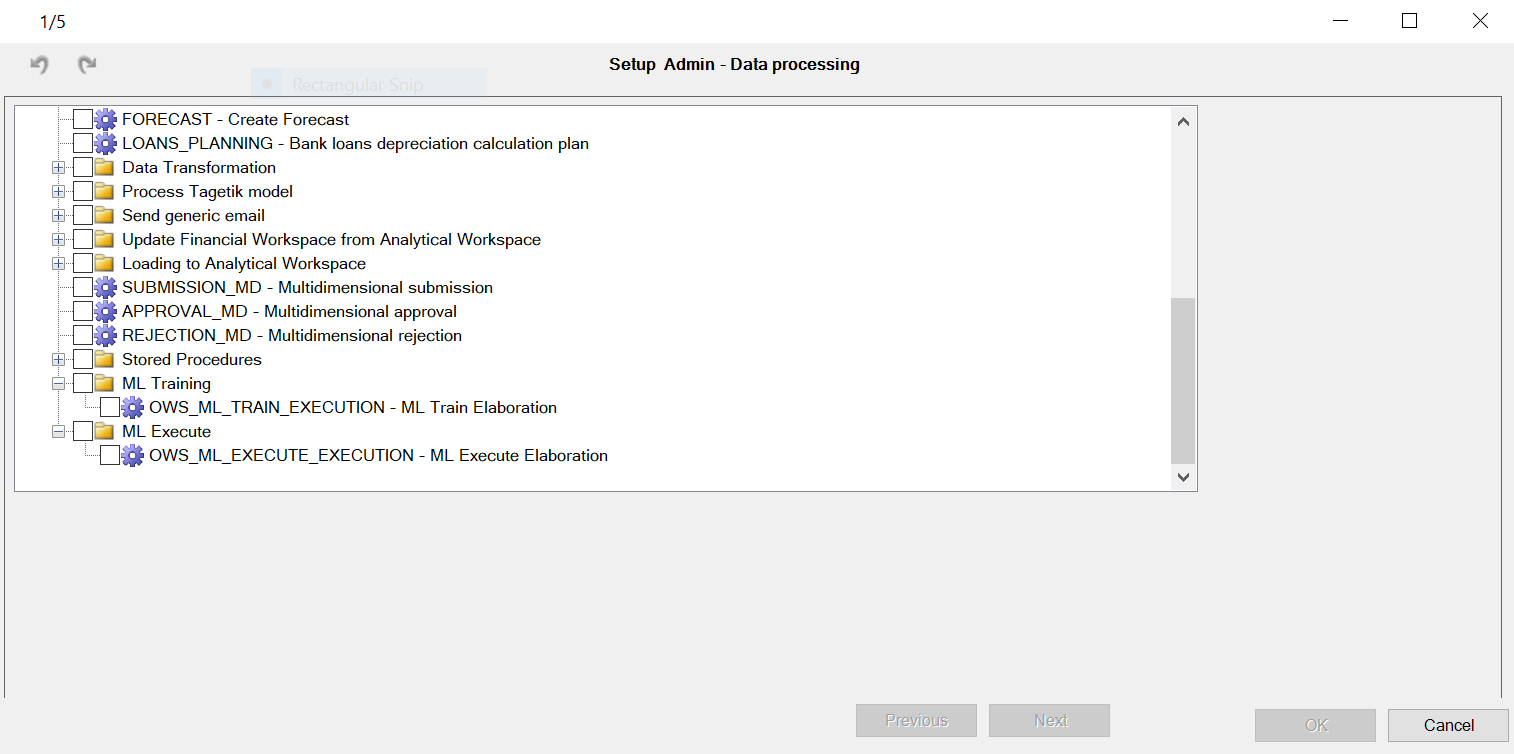
To create a Train data processing, it is necessary to select "OWS_ML_TRAIN_EXECUTION" and then click OK. The Data processing configuration window will appear.
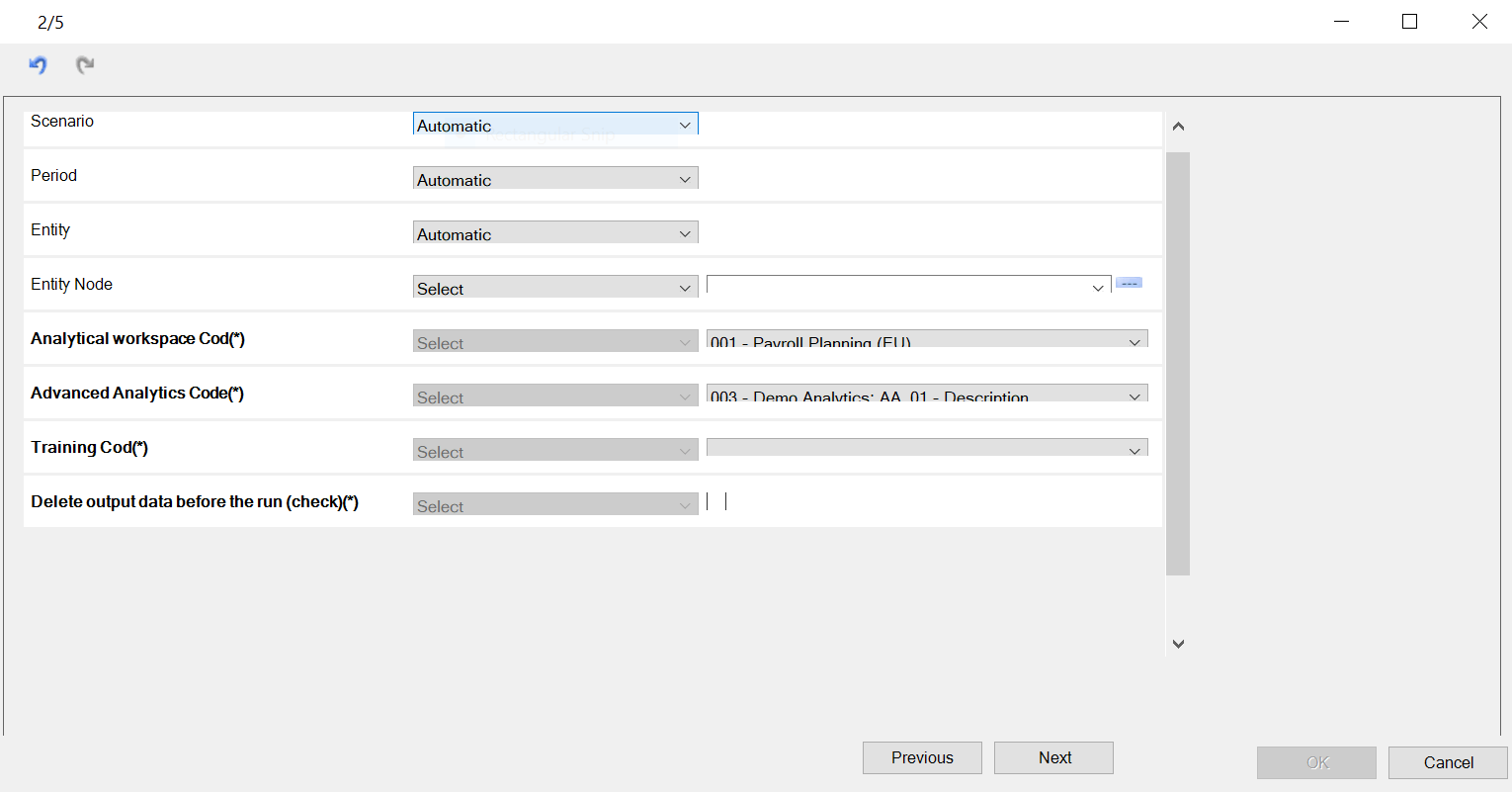
Here are all the fields to be set up, like in the Advanced Analytics area.
Here are the parameters for the train data processing:
- Analytical workspace Code: source AW for input and output data.
- Advanced Analytics Code: source Advanced Analytics for input and output parameters. It is identified as: AW - Name Advanced Analytics
- Training Cod: Train Label selected in the Train Labels section. It is identified as: Model Name - Train Label. In fact, it refers to the train label created in the relevant section.
- Delete data before the run (check): flag that allows you to delete the data of a previous data processing.
 Please, be aware that if you choose a wrong combination of parameters, the data processing will end with error.
Once all fields are set up, click Next.
If some parameters are required in the descriptor.json, a window in which to define them will pop up.
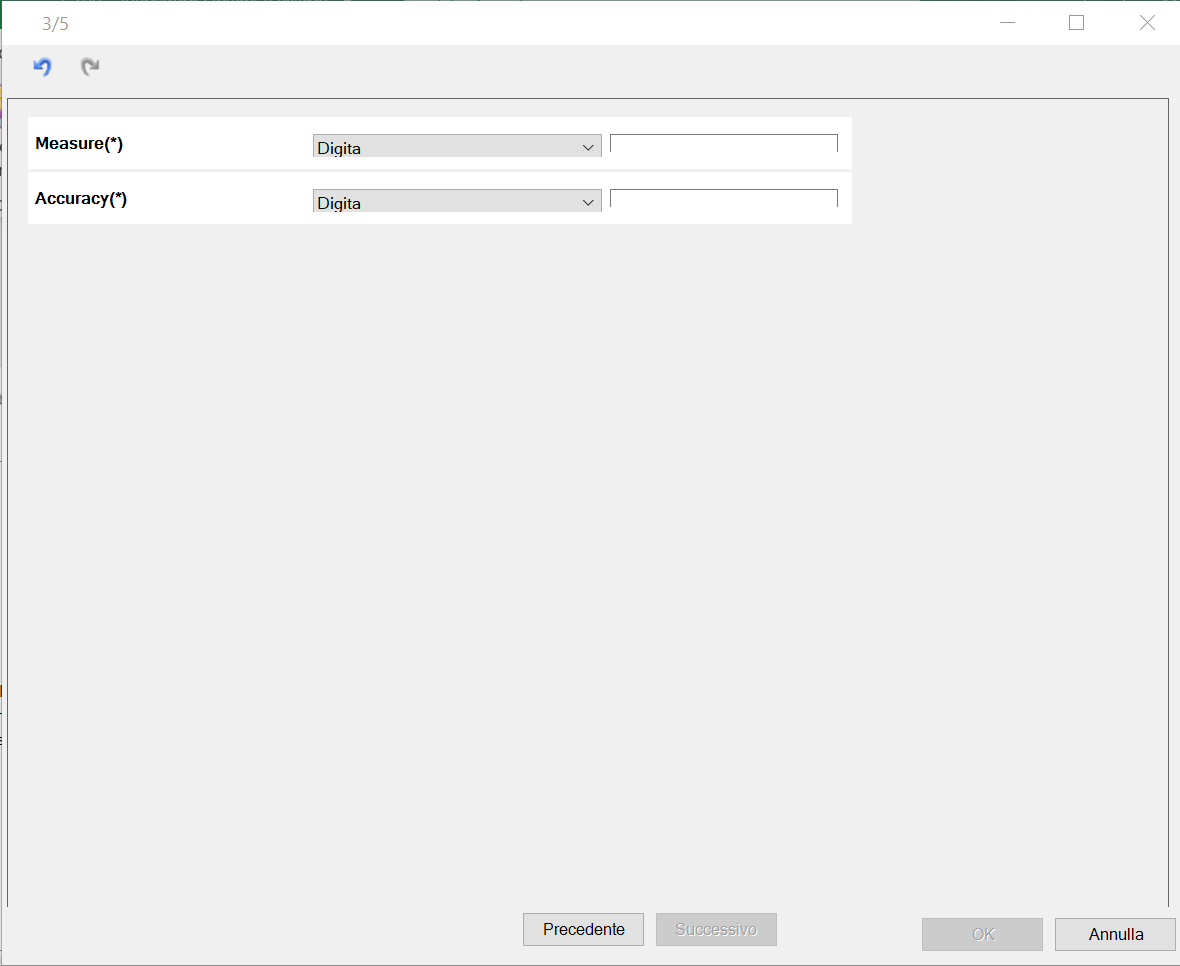
 Attention : the managed parameters are string type only.
Click on Next and select the desired options. If you select "At Runtime, show a link for the run", once the configuration is completed, the system will display a link for the execution of the data processing. After that, click on Next, pick a name and a description for the Data Processing, and then click "OK".
MI Execute
To create an Execute data processing, select "OWS_ML_EXECUTE_EXECUTION" and then click OK. The Data processing configuration window will appear.
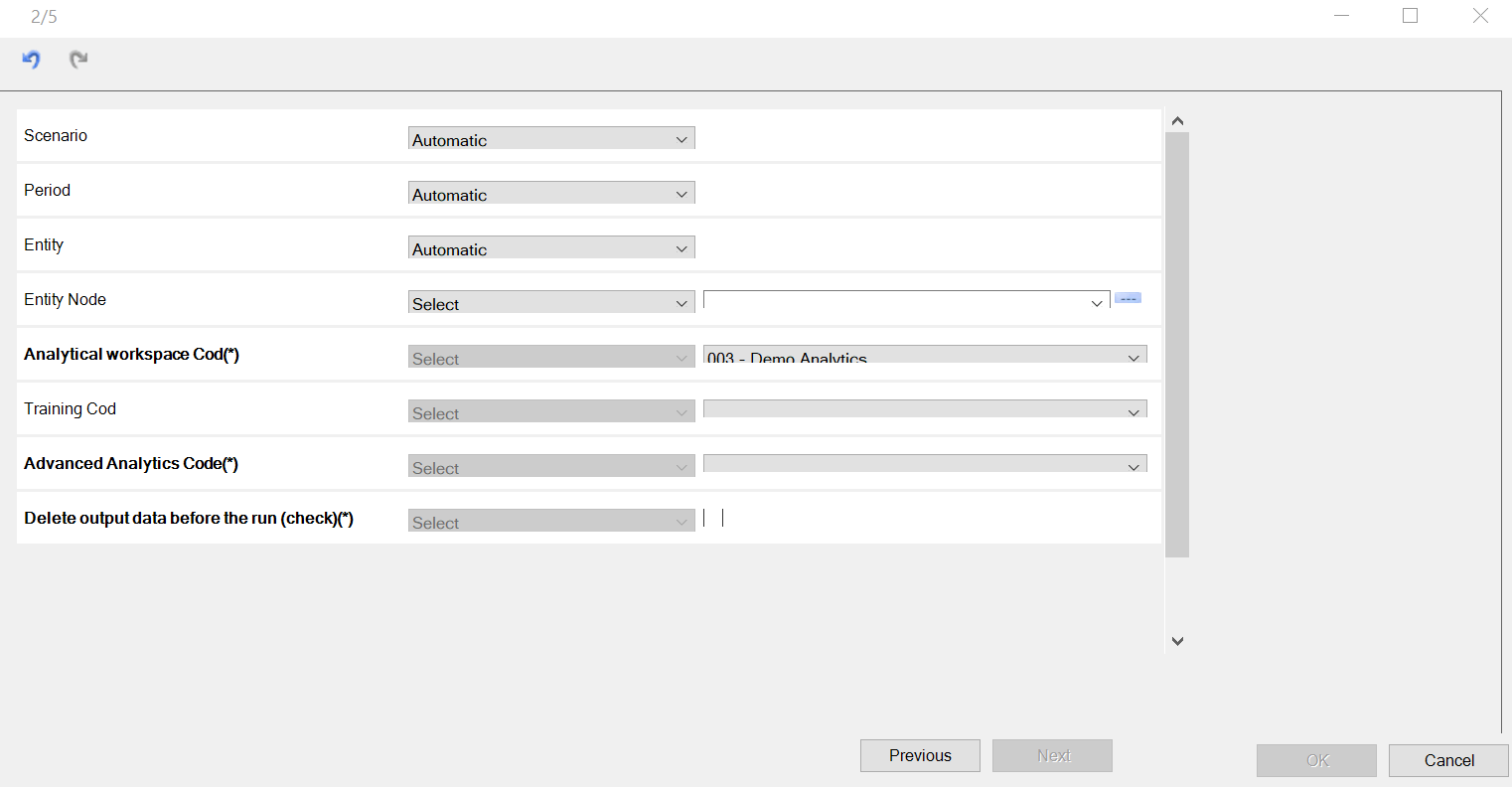
Here are all the fields to be set up, like in the Advanced Analytics area.
Here are the parameters for the train data processing:
- Analytical workspace Code: source AW for input and output data.
- Training Cod: Train Label selected in the Train Labels section. It is identified as: Model Name - Train Label. In fact, it refers to the train label created in the relevant section.
- Advanced Analytics Code: source Advanced Analytics for input and output parameters. It is identified as: AW - Name Advanced Analytics
- Delete data before the run (check): flag that allows you to delete the data of a previous data processing.
Please, be aware that if you choose a wrong combination of parameters, the data processing will end with error.
Once all fields are set up, click Next.
If some parameters are required in the descriptor.json, a window in which to define them will pop up.
Attention : the managed parameters are string type only.
Click on Next and select the desired options. If you select "At Runtime, show a link for the run", once the configuration is completed, the system will display a link for the execution of the data processing. After that, click on Next, pick a name and a description for the Data Processing, and then click "OK".