ML Workflow Tasks
In this section, we will explain how to:
- Properly set up the workflow tasks and
- run the task and ensure the ML inference occurs.
The ML inference tasks ensure that the Dataset input for the ML engine trains a model during the Train phase. The outcome of such phase will be the trained Model whose reference is stored into a Train Label and whose creation is specified in "Train Label", in the Advanced Analytics section. After the Train phase, you can run the Execute task in which the ML engine runs the inference; this phase can take as input a Dataset, the reference to the trained Model and generates a Dataset.
 Based on the Model uploaded into the models library, the ML inference will generate some rows to be inserted into a Dataset. If it produces OID rows, these will be inserted into a Dataset and will update the existing rows; whereas, if the produced rows are without OID, these will be rejected. In some cases, always based on the uploaded Model, the rows produced by the ML inference will be inserted as new rows into a Dataset.
Entry point
Before creating a ML task, the Admin user has to upload a model, as shown in the models library section, then they have to create an Advanced Analytics of Train and/or Execute type, as shown in the "Advanced Analytics" section and finally they have to create the Train Label as shown in the "Train Label" section in Advanced Analytics.
To create a task, the Admin user has to access the Business Workflow area, click on the desired Workflow, click on "Actions" and then select "Steps". The user will have to choose and click on one of the steps in the steps tree. A window will pop up showing on the left hand side the Workflow identified by a code and, in the middle, the detail of the workflow displayed in the form of a tree.
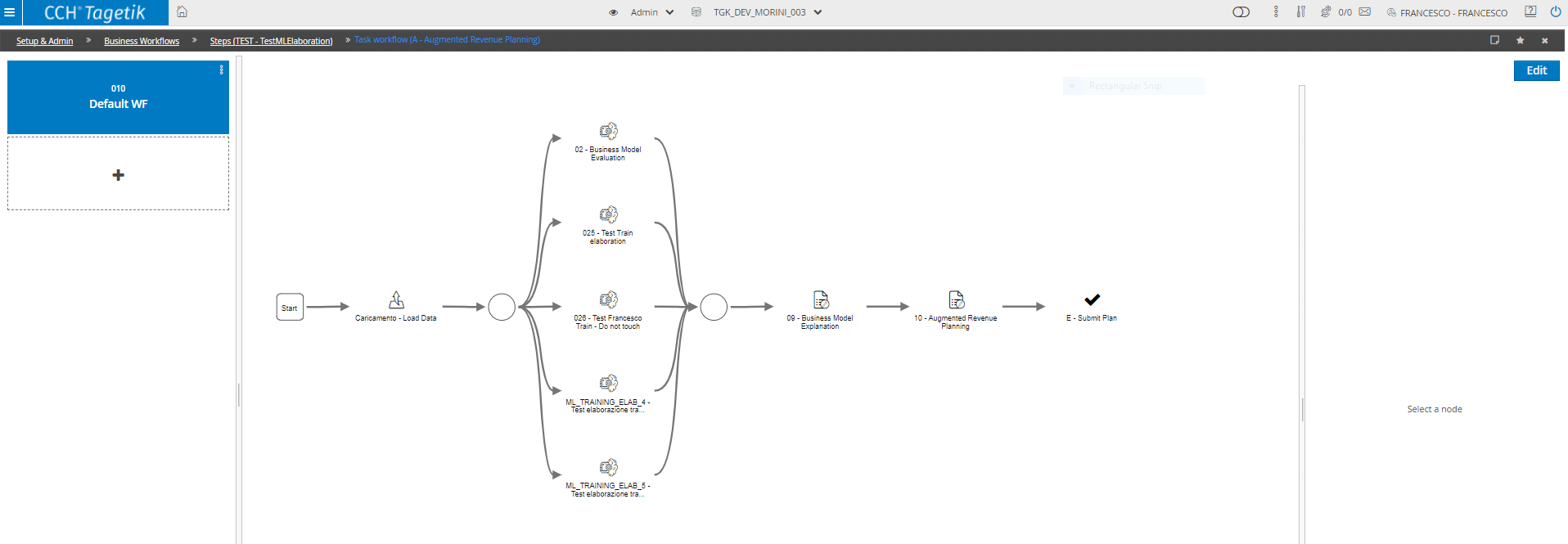
Now, the Admin user can select the workflow in which to insert the task for the ML data processing and then click on the "Edit"  button in the right hand corner. A bar will appear showing all the tasks that can be inserted into a workflow. To find the ML task, just click on "Other Activities"
  .
.
The available tasks for the ML data processing are the following:
- Ml Train Elaboration
- Ml Execute Elaboration
The first one allows you to run a ML inference task that runs the train of a model. Given a model, the system will ask for the Analytical Workspace, the Advanced Analytics Train previously set up in the relevant section, as shown in "Advanced Analytics" , and the Label Training which allows the user to choose the specific Training created in the "Train Label" area in Advanced Analytics.
ML Train processing
This type of task allows you to run a Train data processing in order to train a Model by using the ML engine. Once trained, the Model will be stored into a specific storage and its link will be saved in Tagetik through the previously created "Train Label", as described in Advanced Analytics; for this purpose, it is necessary first to configure the task. Once at the Entry Point , it is possible to identify the MI Train task and drag it to the selected workflow.

After that, a pop-up window in which to define the task will appear.
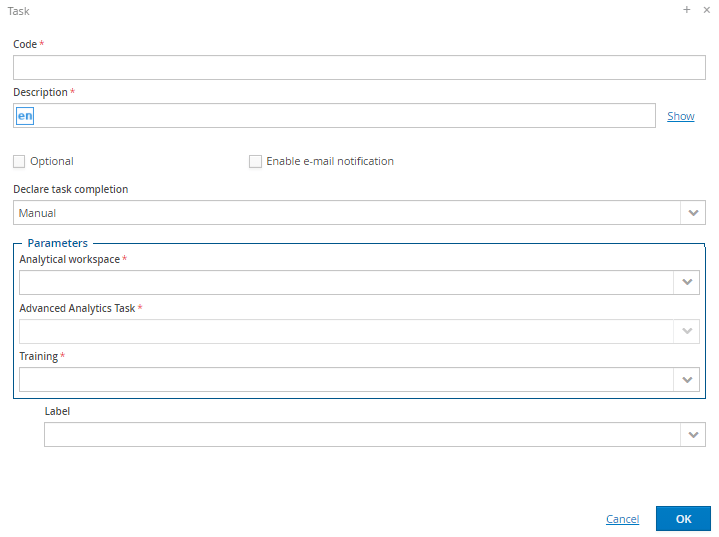
The pop-up window contains all the fields to fill in:
- Code: unique code of the task; this field is mandatory.
- Description: description of the MI Train task; this field is mandatory.
- Analytical Workspace: AW selection field.
- Advanced Analytics Task: Advanced Analytics of Train type configured in the Advanced Analytics Train area; this field is mandatory.
- Training: here the user can choose the Train Label in which the trained Model will be stored; this field is mandatory.
Moreover, selecting the Clear output data before the data processing checkbox deletes data from the partition of the dataset. This deletion will affect only the rows related to the Entity on which the data processing has been run, in accordance with the restrictions set out by the user rights.
After filling all fields, click "OK". The pop-up window will close and the task will be displayed in the workflow. Now, it is necessary to link the task to the workflow and then click on the "Save"  button in the top right corner.
ML Execute processing
This type of task allows you to run an Execute data processing so as to run the prediction of a trained Model; to execute the prediction, the Model will use a trained Model, stored into a dedicated storage and whose link is stored in Tagetik through the "Train Label" previously used in a ML Training Task, as shows in ML Train processing; for this purpose, it is necessary first to configure the task. Once at the Entry Point , it is possible to identify the ML Execute task and drag it to the selected workflow.
After that, a pop-up window in which to define the task will appear.
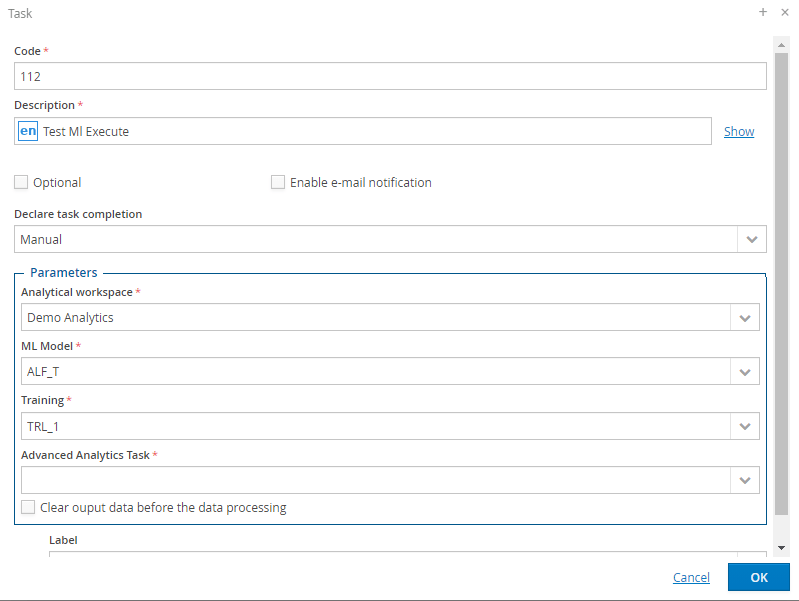
The pop-up window contains all the fields to fill in:
- Code: unique code of the task; this field is mandatory.
- Description: description of the MI Train task; this field is mandatory.
- Analytical Workspace: AW selection field.
- MI Model: trained Model that will be used to carry out the prediction; this field is mandatory.
- Training: this field allows you to choose the most suitable model through the Train Label. It is mandatory and is displayed if the chosen model has both the Train phase and the Execute phase.
- Advanced Analytics Task: Advanced Analytics of Execute type configured in the Advanced Analytics Execute area; this field is mandatory.
As with the ML-Training, selecting the Clear output data before the data processing checkbox deletes the execution Entity's data from the partition of the dataset.
After filling all fields, click "OK". The pop-up window will close and the task will be displayed in the workflow. Now, it is necessary to link the task to the workflow and then click on the "Save" button in the top right corner.
If a Model chosen for the Execute data processing has both the TRAIN phase and the EXECUTE phase, before running an Execute task it is necessary to run a Train task using the same model chosen in the Execute data processing, otherwise the system will generate an error.
Once the Task, whether it is Execute or Train, has been created and linked to a process, it is ready to be run. To do that, it is necessary to access the User interface, click on Process from the Home Page, select the Process to which a Business Workflow containing a ML task is linked.
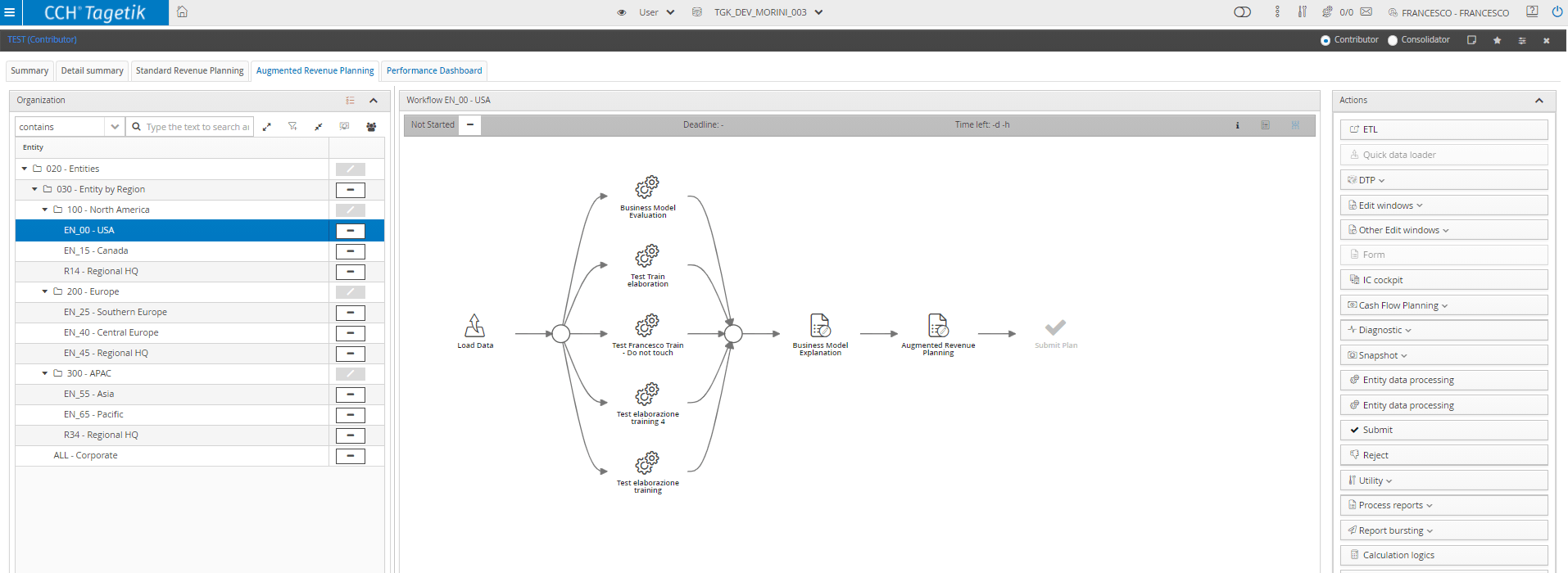
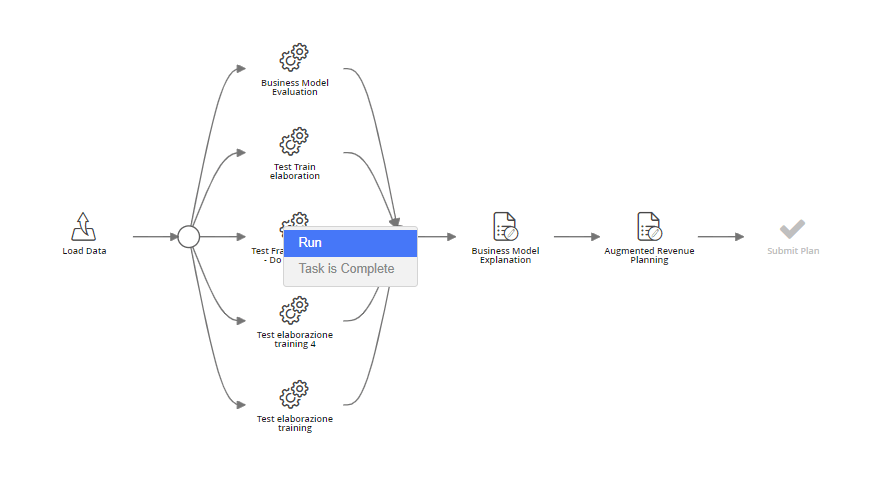
Then, after pinpointing the ML task, the user has to click and select "Run".
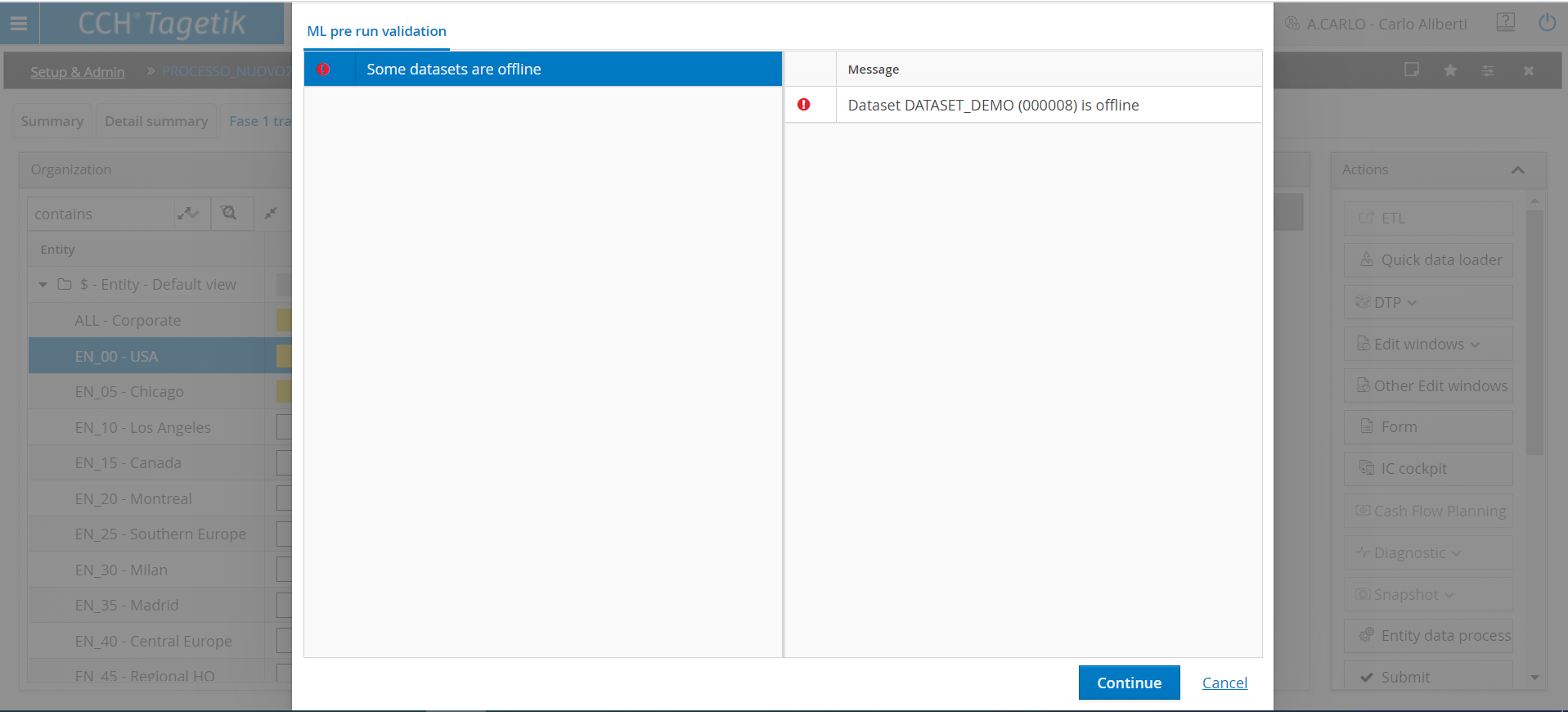
After clicking "Run", the system executes a pre-run validation to verify that the input and output datasets mapped in the AA are online: if even only one of them is offline, an error message appears and the data processing is prevented from being run.
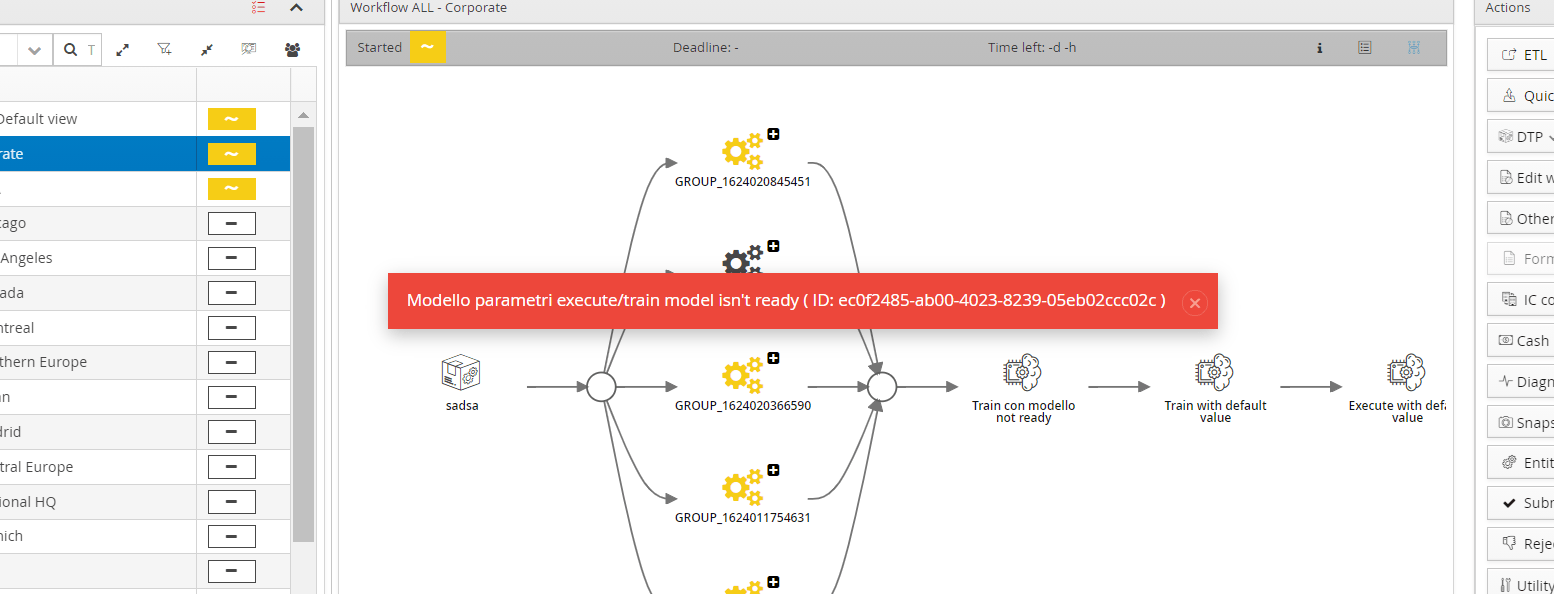
Then the system checks the model's status. In particular, if the model's status is not 3, meaning that it is not in Ready status, an error message appears.
If the status is 3, thus it is in Ready status, the system launches the Training data processing of a Model through the Machine Learning; this will be visible in the data processing list in the top right corner by clicking on the button  . The list contains also a row with "Code": OWS_ML_TRAIN_EXECUTION.
The data processing will write in output in the partition only the information related to the Entity on which the data processing has been run.
The time the data processing takes varies depending on the complexity of the uploaded Model. At the end, a pop-up window will tell the user the data processing is completed.
To make sure that the data processing has correctly written the content, an Admin User has to open the Audit and check that two rows are included in the list:
- One whose "Description" is: ML_TRAINING; this represents the recording of the reference of the trained Model in the selected Train Label.
- One whose "Description" is: ML Train Elaboration; this represents the recording of the Machine Learning's outcome into the Dataset.
When running an Execute task, the system runs a prediction data processing of a chosen Model; this will be visible in the data processing list in the top right corner by clicking on the button . The list contains also a row with code: OWS_ML_EXECUTE_EXECUTION. The time the data processing takes varies depending on the complexity of the uploaded Model.
At the end, a pop-up window will tell the user the data processing is completed.
To make sure that the data processing has correctly written the content, an Admin User has to open the Audit and check that two rows are included in the list:
- One whose "Description" is: ML Execute Elaboration; this represents the recording of the Machine Learning's outcome into the Dataset.
When data processing starts and before it ends, it is possible to display the modelId and the correlationId in the Audit's Free Parameters section.
The Audit window displays the CorrelationID, the ElaborationID, the number of rows and allows you to make changes for each partition.
If the data processing is successfully completed but does not produce any output, the Audit will display a warning message.
ML data processes, both Train and Execute, can be configured via JOB and then scheduled.