Log Detail
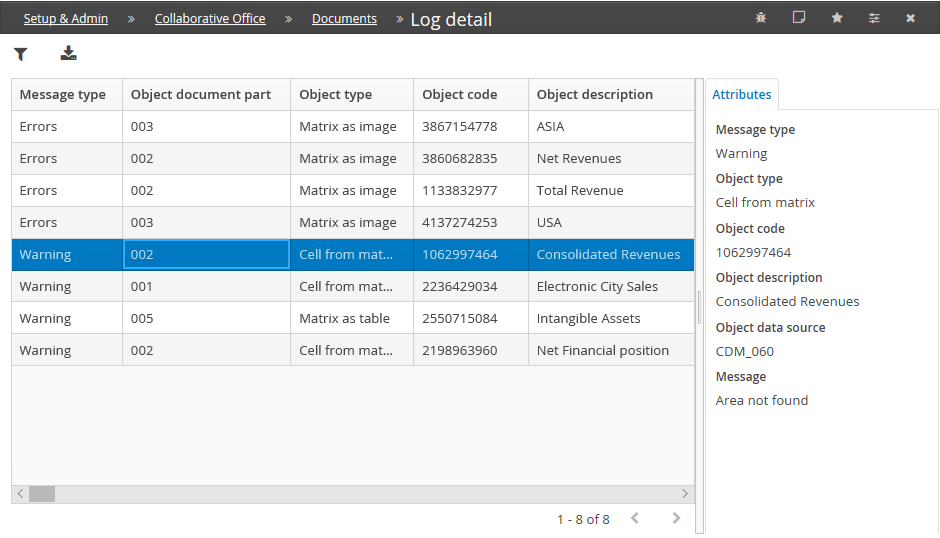
The Log Detail window shows, for data processing ended with errors or warnings, all objects for which updating was not possible and, in the case of manual override, whether the override was maintained or not.
Button bar
Below are the actions that can be performed in the button bar of the Log Detail window.
 Filter Activates the filter panel. If a filter is applied, the icon turns blue
 Export Excel Exports the grid content (applied filters) to an Excel file
Attributes tab
The Attributes panel displays all properties that define the selected record in the grid. For each row in the grid is shown:
- Message Type Message returned by the system when updating the object. The possible values are:
- Warning The update ended with a warning message and the object was not updated
- Error The update ended with an error and the object was not updated
- Elements referring to Source data not found Means that the data source was not found and therefore the object cannot be updated
- Objects not requiring refresh There are several conditions under which the object cannot be updated. For more details see Warning messages/errors
- Manual overrides Specifies, for manually edited objects, that the override has been maintained
- Object document part Code of the document part in which the object that returned the error is located
- Object Type Type of object that generated the error (Cells, References, Images, etc.)
- Object code Object identification code
- Object Description Description of the object
- Object data source (file, excel area, document part, etc.)
- Message Message generated by object update data processing. For more details see Warning messages/errors
Warning messages/errors
We list in the table the possible messages returned at the end of the update processing and the causes that generated them.
| Message | Causes |
|---|---|
| Area not found | The source of the object data was not found (file, excel area, document part, etc.) |
| Document not found | No data source found (file, excel area, document part, etc.) |
| Object can't be updated | It means that one of the following conditions has occurred: - the cell object has never been updated by the client and the update is not possible due to the lack of information needed to format the value to be displayed - the table object has never been updated by word client and the update cannot be done because the table structure is not present on the document It is not possible to update 'From other file' objects whose data source is Excel or PDF. |
| The table {0} had a different number of rows/columns compared to the attached file generating it | The table on the document has a different number of rows and/or columns than the one on the source |
| Document cannot be updated because it is empty | It means that the document has never been opened/edited |
| Reference cannot be updated because the source document is empty | Means that the document to which the object refers has never been opened/edited |
| The date of the object is greater than the date of its source | - Means that the object is already up-to-date (except for objects 'from Tagetik') |
| The following fonts, used in the source, are missing in the Application Server {Server id} : {Font family} - {Font Name}, . | This means that fonts (identified by name and the font family to which they belong) have been used in the image object that are not present in the application server on which the update data processing is carried out, and the system has replaced these fonts with an alternative font. For more details see List of fonts available in the Application Server (Cloud users only). After updating the document from the server, if the font that is not present on the application server is nevertheless installed on the user's computer, the document opened from Word will display the original font and not the alternative font in the image object. |