Objects
The Objects tab appears in the left panel when opening a document activity. The objects in it are filtered on the open document activity in order to enable the management of the objects defined in the part.
We remind you that a "Object" is a field which allows you to add information (values, text, etc.) to the document, from an attached file, a Tagetik database or other document parts.
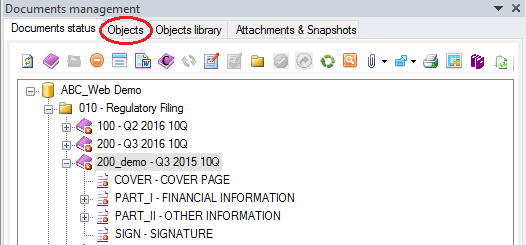
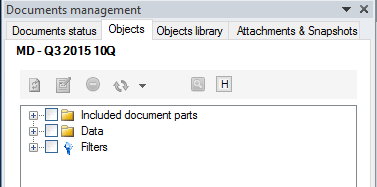
The objects displayed in the tab are grouped in folders according to their origin (Document parts included, Data, etc). Moreover, after selecting an object, it is possible to display some properties by clicking on the arrow Property at the bottom right corner of the tab.
The objects in the "Data" folder are sorted by category (family) of data sources in order to define the source of an object. Each icon represents a category, in detail:
 represents all objects having as source an attached file
 represents all objects having as source a Tagetik database
 represents all objects having as source other document parts
 represents all objects having as source some information inserted by the user by the standard function of Microsoft Office
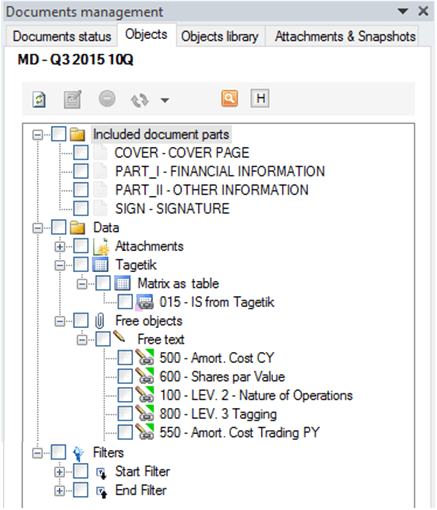
Finally, for each category, the objects are further divided by type. The table below shows the object type admitted for each source and the associated icon:
| Object's source | Object type | Icon |
|---|---|---|
| Child documents | Document parts included These objects are unmodifiable and are created automatically by the system when a document with child documents is updated. Nevertheless, only the administrator user can modify some of their properties (Bookmark, Propagate headerand Propagate footer) | |
| Attached file | Area as Word table | |
| Area as image | ||
| Chart as image | ||
| Chart (only for PowerPoint client) | ||
| Cell | ||
| Tagetik database | Matrix as Word table | |
| Matrix as image | ||
| Chart read from matrix as image | ||
| Cell from matrix | ||
| Amount | ||
| Cell field | ||
| Document part | Reference | |
| Document part reference | ||
| Document properties | ||
| Free objects | Free table | |
| Free text | ||
| From another file |
 The object type icons can display:
- a "pink small triangle" at the bottom left, indicating that a label has been associated with the object for Diagnostic purposes
- a "small green square" at the top right, indicating that a label has been associated with the object for XBRL purposes
Toolbar
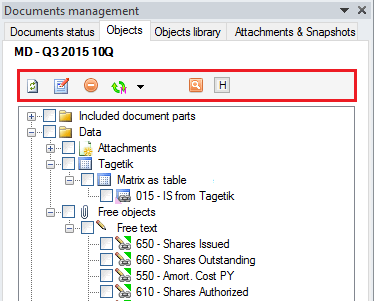
On the upper part of the tab there is a toolbar that allows performing the following actions:
| Button | Description |
|---|---|
| Refresh Refreshes the structure of the objects tree | |
| Edit Opens the window in which you can edit some of the properties of the selected object | |
| Delete Deletes the selected document This function is available only if the selected element is a Collaborative Office document and can be run only by a parametrizer user | |
| Normal update Updates the selected object Update with options - Opens the window in which you can select the update options of the selected object | |
| Search Filters the objects tree according to the defined filters | |
| Highlights the selected objects in the open document part |
Some of these options can be selected also by using the pop-up menu which appears when clicking on the object with the right button of the mouse.