Running Cash Flow Planning data processing from workflows
Tagetik allows the user to run the Cash Flow Planning data processing also from a workflow model task.
Let us assume that we are inside a task flowchart and we want to define a new task in order to run the aforementioned data processing. The steps to follow are:
- from the Admin user homepage, select the Business Workflow tile > Navbar > Processes & Workflows > Process, then select the desired workflow
- Actions (
 ) > steps > select a step of the process
 - On the left-hand side of the window opened by the system you can see a list of workflows associated with that step. Select one of them or create a new one via the specific button on the left (
 ) and assign a code and a description to the workflow;
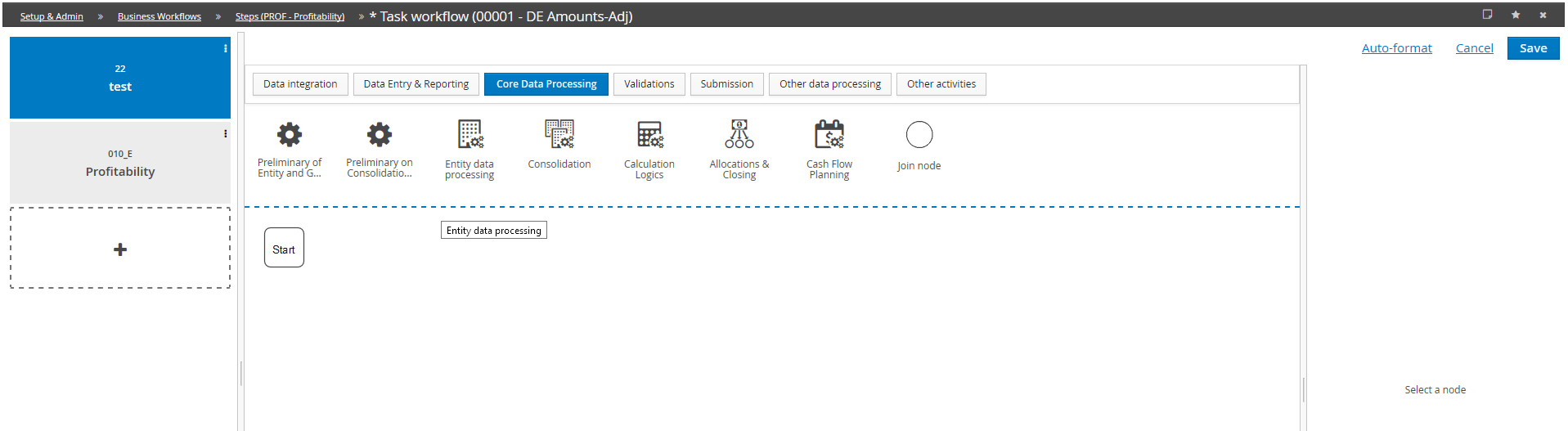
- In the middle area of the window, add tasks to the workflow: drag the desired elements from the list to the graph starting with Start. In our example, we'll select the Cash Flow Planning data processing.
- The system opens a window in which you can enter:
- Code unique ID of the task
- Description of the task
- Optional this makes the task an optional activity, making it possible to submit even without having run it.
- Enable e-mail notification this enables a notification via e-mail of the completion of the activity contained in the task
- Declare task completion this allows you to choose how the task is declared completed (Manual or Automatic)
- Data processing this allows you to select the data processing to be run
- Label useful for user rights purposes