Running Cash Flow Planning data processing from forms
Cash Flow Planning data processing can also be carried out from a data entry form. To do this, it is necessary:
- to open the form in Design work mode;
- click on the
 Data processing button on the Design bar ribbon or select the row corresponding to the form in which the data processing must be entered in the Open items panel on the left, and right-click with the mouse and select Run Data processing > New Data processing.
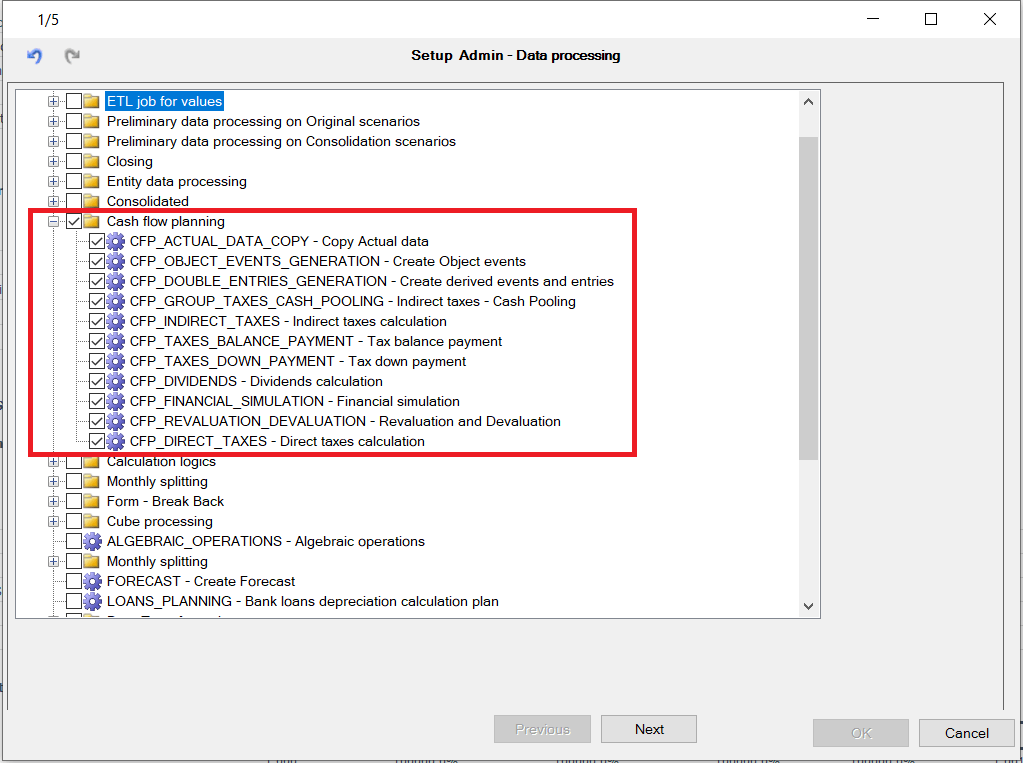
The system displays a window in which the user must check the options related to the various data processes to be carried out or check the Cash Flow Planning option directly to perform the entire data process and click on the Next button
At this point, it is necessary to enter the parameters necessary for the data processing. Parameters shown in bold are mandatory.
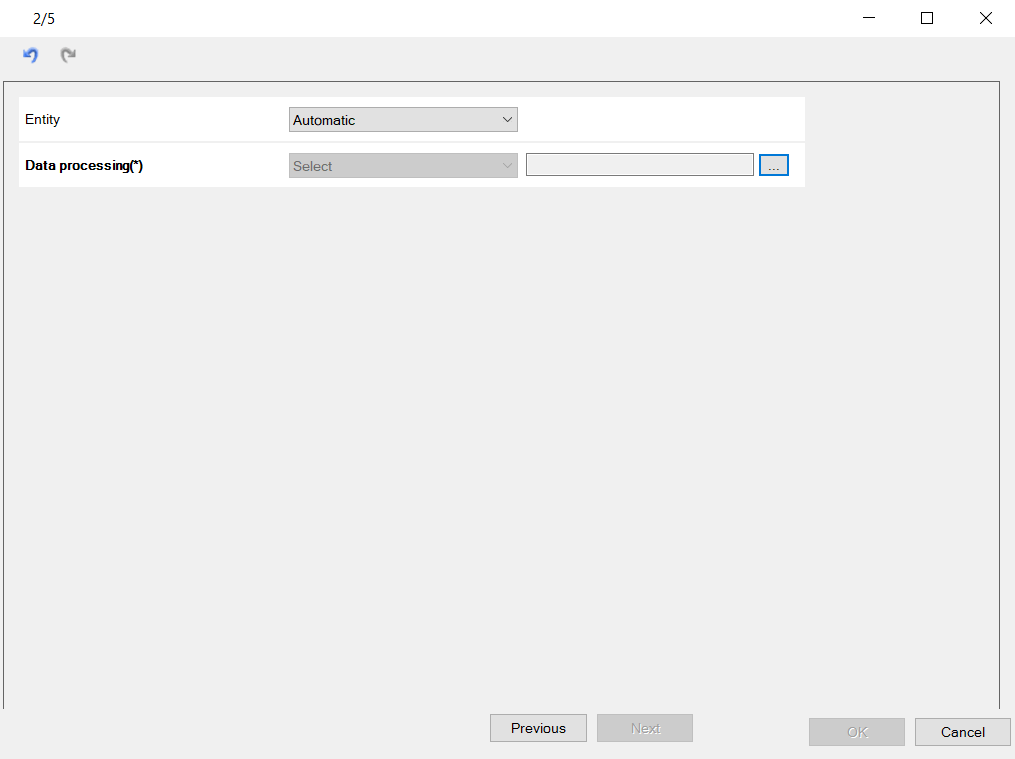
The definition of the parameters requires the user to specify the way in which the value of the parameter must be retrieved. The possible methods are:
- Automatic. The system retrieves the value of the parameter directly from a form filter, a page filter, a matrix filter or a row/column filter. If the filter is defined using a parameter (and its value is therefore chosen by the user when the process is run) the value after processing will depend on the user’s choice. If a parameter is not obligatory or relevant for the current data process, its value can easily be retrieved automatically
- Excel cell. The system retrieves the value of the parameter from an Excel cell. The user must specify the cell containing the value using the syntax: ${h50} (cell h50).
- Insert. The user must insert the value of the parameter in the corresponding header box
- Select. The user must select the value of the parameter from a list of possible values
- Cell field. The system retrieves the value of the parameter from a cell field.
The user must specify:
- a filter if desired on the entities on which to perform the data processing;
- the various the cash flow planning module data processes to be performed
Once the various parameters have been specified, by clicking on the “Next” button it is possible to specify a number of options that allow the system to understand how the data processing must be carried out within the form (for more details, see Setup & Admin - Data Processing window). As the last step, it is necessary to assign a code and description to the data processing to be inserted in the form.
To perform the aforementioned data processing, once the form has been opened in data entry mode, the user just needs to click on the  Data processing button on the Data entry bar ribbon and click on the name of the data process that they want to run.