Managing the Suggested Tasks Widget
Creating the Suggested Tasks Widget
application database > Home Page > + New Widget > Suggested Tasks
This procedure allows you to create the Suggested Tasks Widget.
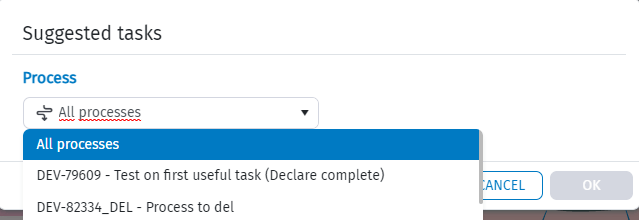
Depending on the user restrictions defined in the user rights for the user, a window opens in which the user can choose from a drop-down menu between:
- "All processes" for which all active processes with dimension by step will be considered
- Select a process (indicated by code and description); the user can select a single submission or scenario / period type process with dimension by step.
If you click on the 'Create' button, the suggested task widget is added to the first available space on the Home Page. Alternatively, the 'Undo' button can be used to undo the changes made.
Modifying the Suggested Tasks Widget
application database > Home Page > Suggested Task Widget
This procedure allows an existing suggested tasks widget to be modified.
- When you hover over the top right corner of the suggested task widget, an arrow appears and you can select the 'Edit' option
- From the menu you can choose another process
Deleting the Suggested Tasks Widget
application database > Home Page > Suggested Task Widget
This procedure allows an existing suggested tasks widget to be deleted.
- When you hover over the top right corner of the suggested task widget, an arrow appears and you can select the 'Delete' option
Moving the Suggested Tasks Widget
application database > Home Page > Suggested Task Widget
This procedure allows an existing suggested tasks widget to be moved.
Resizing the Suggested Tasks Widget
application database > Home Page > Suggested Task Widget
This procedure allows the size of an existing suggested tasks widget to be changed in accordance with the relevant predefined maximum and minimum sizes.
Suggested Tasks Widget
application database > Home Page > Suggested Tasks
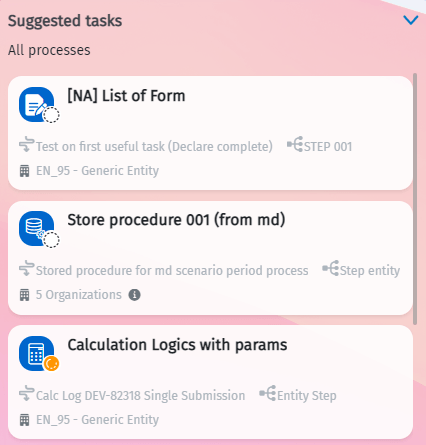
All active processes can be selected and displayed:
- the label 'All Processes' which is shown at the top of the list
- each element contains an icon representing the task with its status (white for the task to be done and yellow for the task in progress), the description of the task, the description of the process, the name of the step, the name of the lowest level element or the number of organisations (an 'i' button showing all the elements that have that task to be completed) and, if defined, the due date of the task.
A process can be chosen and displayed:
- the label with the process code information
- each element contains an icon representing the task with its status (white for the task to be done and yellow for the task in progress), the description of the task, the name of the step, the name of the lowest level element or the number of organisations (an 'i' button showing all the elements that have that task to be completed) and, if defined, the due date of the task.
Selecting the icon representing the suggested taskCCH Tagetik opens the process dashboard on the task step, pre-selecting both the items that have that task to complete and the task itself.