Widget Quick Access
Creating aWidget Quick Access
application database > Home Page > + New Widget > Quick Access
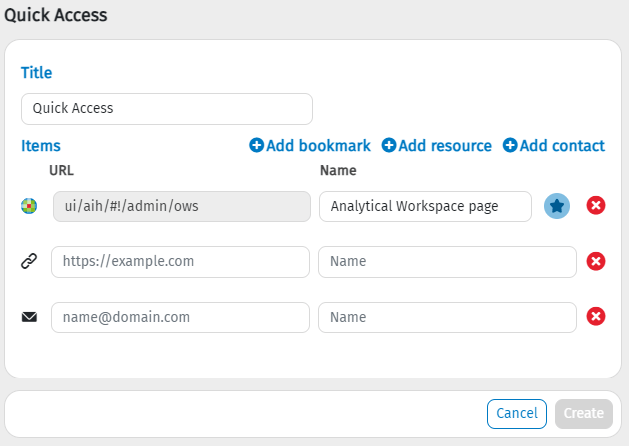
This procedure allows you to create a Quick Access Widget that must contain at least one resource.
In the pop-up window:
- Enter the title of the widget in the Title field
- Enter the name of the resource in the Name field.
- Enter the URL of the resource in the URL field (the system will check the validity of the Url)
 IMPORTANT: You can enter a website URL, email address, or bookmark of Tagetik Software S.r.l.. In the case of a bookmark, the URL cannot be changed, but it is possible to add a new bookmark with another URL.
4. A new resource can be added by clicking the Add Resource button.
IMPORTANT: You can enter a website URL, email address, or bookmark of Tagetik Software S.r.l.. In the case of a bookmark, the URL cannot be changed, but it is possible to add a new bookmark with another URL.
4. A new resource can be added by clicking the Add Resource button.
IMPORTANT: If there are at least two resources, the system displays an X button on the right-hand side of each resource for deletion.
IMPORTANT: The icon for bookmarks can be modified.
The Create button is enabled by filling in at least one of the items listed above, allowing you to add Quick Access widgets on the Home page.
Alternatively, you can click on the Cancel button and confirm on the pop-up window to undo the changes made.
If the only widget element is a single bookmark, the system only shows the icon with its name, filling the entire widget:
Modifying a Widget Quick Access
application database > Home Page > Quick Access Widget
This procedure allows modification of an existing Quick Access widget.
- Hover over the Quick Access widget and click on the arrow that pops up.
- select the Edit option.
In the pop-up window, you can:
- Enter the title of the widget in the Title field
- Enter the name of the resource in the Name field
- Enter the URL of the resource in the URL field (the system will check the validity of the Url)
IMPORTANT: You can enter a website URL, email address, or bookmark of Tagetik Software S.r.l.. In the case of bookmarking, the URL is immutable
4. Via the respective buttons 'add bookmark', 'add resource' and 'add contact', a new resource of that type can be added.
- If there are at least two resources, an 'X' button appears on the right-hand side of each resource, allowing the resource to be deleted.
- The icon for bookmarks can be modified.
When at least one field is modified, the 'OK' button is enabled allowing changes to the Quick Access widget. Otherwise, it is possible to undo the changes made by clicking on the 'Cancel' button and confirming on the window that pops up.
If the only widget element is a single bookmark, only its icon with its name is shown, filling the entire widget.
Deleting a Widget Quick Access
application database >Home Page > Quick Access Widget
This procedure allows for deletion of an existing Quick Access widget.
By hovering the mouse over the Quick Access widget, an arrow appears at the top right of the widget. Click on it and select the "Delete" option.
A pop-up window opens asking for confirmation if you want to permanently delete the widget. Clicking on 'Delete' permanently deletes the widget from the Home Page; alternatively, clicking on 'Close' cancels the deletion operation.
Moving a Widget Quick Access
application database >Home Page > Quick Access Widget
This procedure allows an existing Quick Access widget to be moved.
Place the mouse over the Quick Access widget you wish to move, then drag and drop it to the desired position. In the event that the chosen position overlaps with another widget, the latter is moved and readjusted to the page.
Resizing a Widget Quick Access
application database >Home Page > Quick Access Widget
This procedure allows you to change the size of an existing Quick Access widget according to the predefined maximum and minimum size for the widget.
- Place the mouse over the corners of the Quick Access widget you want to resize until the cursor turns into double arrows.
- drag the mouse to the desired size, then release it to resize the Widget.