The home page of CCH Tagetik
Introduction
The home page will vary, depending on the type of user who is logged on. Below are the main home pages:
- home page for administrators
- home page for users
- home page for the repository
The elements common to all the home pages are listed below.
What it looks like
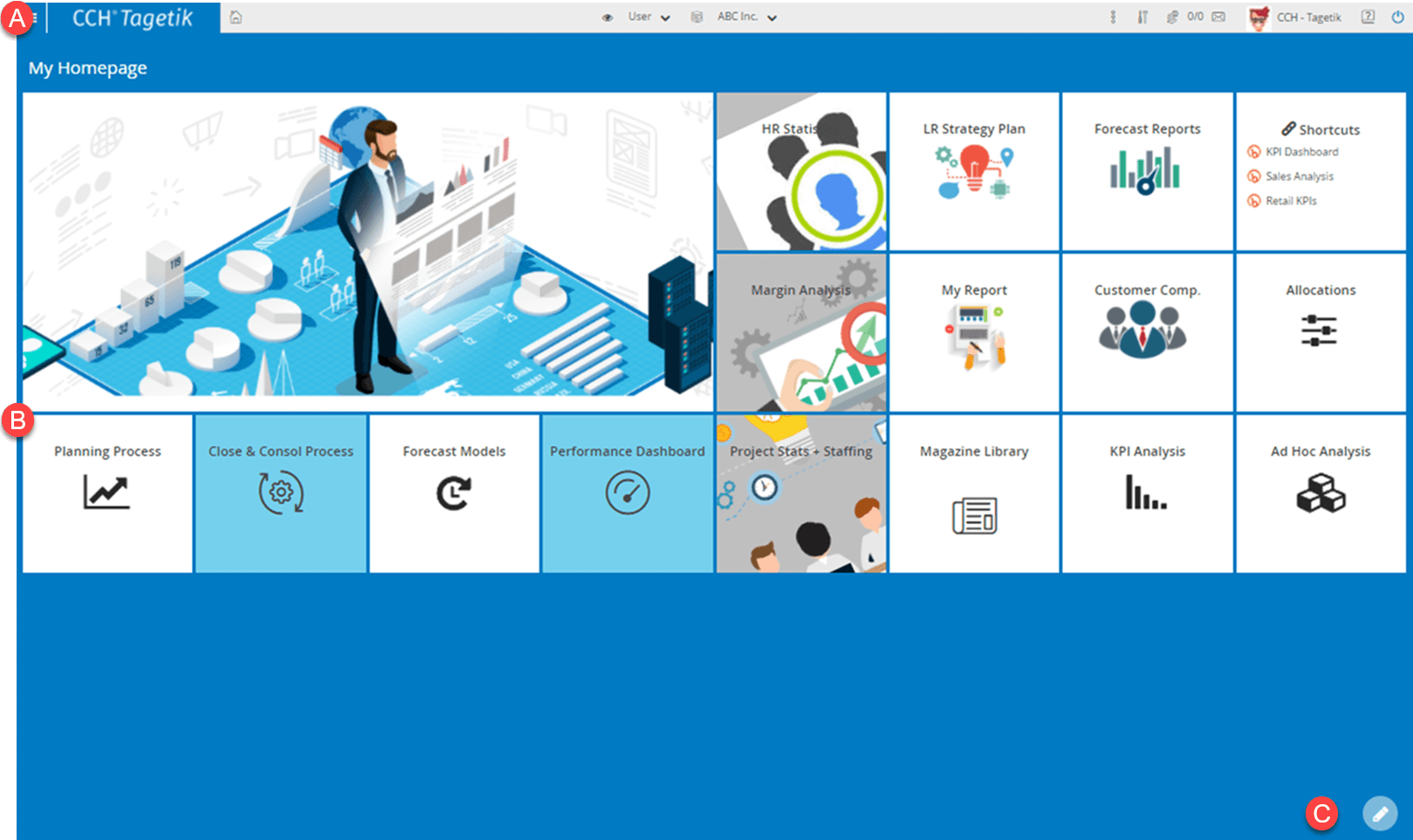
| Element | Description |
|---|---|
| A | Main tool bar |
| B | Area showing tiles of available functions |
| C | Buttons to modify the functions area |
Main tool bar
| Element | Description |
|---|---|
| Opens the quick access panel. | |
| Returns to home page. | |
| Type of user logged on | |
| Application database currently in use | |
| Displays other pages for management of Tagetik. | |
| System tools | |
| Opens the window to manage data processing operations. Blue, if processing in progress. | |
| Number of processing operations in progress/number of completed operations | |
| Opens a window to read and send messages. Blue, if unread messages are present. | |
| Name of logged-on user. - Settings: this allows you to change the user’s characteristics, password and point of view. - Download: this allows you to download the add-ins and documents for the application. | |
| Learning Resources. User Manual: Opens the online help Learning Hub: Opens the online training platform | |
| Exits Tagetik. |
Quick access panel
This panel gives you quick access to the pages, to execute the main functions reserved for users and administrators.
For easier navigation, the Recents section contains a list of the last pages visited by the user.
Buttons on quick access panel
| Element | Description |
|---|---|
| Opens the Settings window where you can set some of the properties on the work environment. |
System tools
| Tool | Description |
|---|---|
| DB Connection Status | - Displays the list of connected databases, including the related information (connection status, database version, database patch number etc). |
| Settings of the active session | Allows the following actions for the active session: - Set the log level to “DEBUG” for all log categories. - Download the log files locally. - Modify the query timeouts. |
| Test connection | Check correct communication with the server on which Tagetik is installed. |
| Information | Displays a window with the following information: - static and dynamic system information - list of application upgrades - server status |
Other pages
| Page | Description |
|---|---|
| License information | Shows information about the licence currently installed. |
| Structure report synchronization | Collects and stores all the forms in the repository, in the relevant database tables. |
| Trusted url management | Opens the page for the management of access to external links. |
| Query Analyzer | Allows queries to be run on the repository database or application database. |
| Query Analyzer (Restricted) | Allows queries to be run on the repository database or application database in read-only mode. |
Functions area
This area displays the tiles that give access to the system functions and to the user’s custom functions. The available system functions will depend on certain elements:
- type of user logged on
- user’s role
- functions enabled for the role
- type of licence activated
Buttons to modify the functions area
In this area you can view the following buttons:
| Element | Description |
|---|---|
| Enables the modification of tiles displayed on the page. | |
| Adds one of the available functions to the page. | |
| Saves the page settings. | |
| Cancels changes made. |
Buttons in the function tiles
The buttons are only available on the tiles when the change has been enabled.
| Element | Description |
|---|---|
| Also displays the tile on the home page of the other users. | |
| Sets the tile colour. | |
| Pins the tile in the current position. | |
| Removes the tile. |