Run asset depreciation from a form
The depreciation of assets can also be performed from a data entry form. For example, it is possible to collect forecast investments through Data entry forms on variation accounts (Change in Increase of the asset balance sheet) and trigger the calculation of depreciation when saving according to the category of assets to which they belong. To do this, you need to:
- open the form in Design work mode;
- click on the Data processing
 button on the Design ribbon bar or select in the left panel of Open objects the row related to the form in which the data processing must be inserted, then right-click and select Run Data processing > New Data processing.
The system shows a window in which the user must check Entity data processing > CONTR_BDG_DEPRECIATION – Depreciation budget and click on the Next button
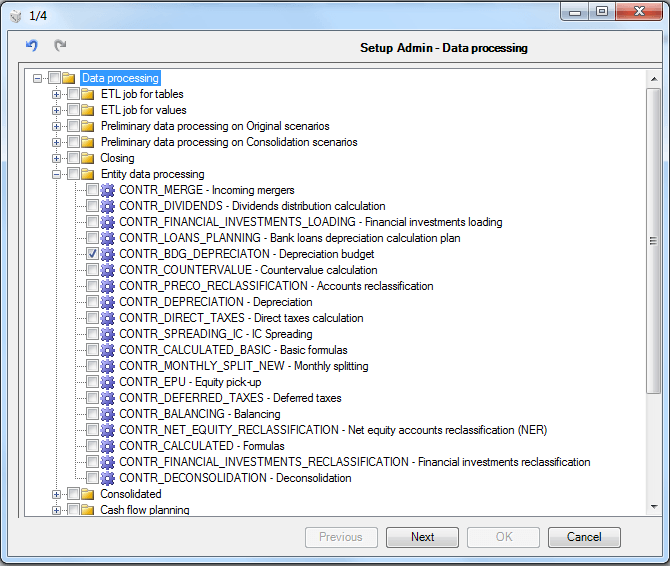
At this point, you must define the parameters required for the data processing. The parameters highlighted in bold are mandatory.
The definition of parameters requires that you specify how the value of the parameter must be retrieved. The possible methods are:
- Automatic. The system retrieves the parameter value directly from a form filter, tab filter, matrix filter, row/column filter. If the filter is defined using a parameter (and therefore its value is chosen by the user at launch) the value passed to data processing will depend on the user's choice. If a parameter is not mandatory or relevant for the current data processing, its value can easily be retrieved automatically
- Excel cell. The system retrieves the parameter value from an Excel cell. The user must specify the cell in which the value is located using the syntax ${H30} (cell H30).
- Type. The user must insert the value of the parameter in the corresponding text box
- Select. The user must select the value of the parameter from a list of possible values
- Cell field. The system retrieves the value of the parameter from a cell field.
The possible parameters to set are:
- Scenario
- Period
- Entity
- Disable impacted. By enabling this option, the system processes everything without any filter on modified data, otherwise it is able to determine which data have changed and process only what is necessary; i.e. it avoids processing entities whose input data have not been modified since the last launch.
Once the various parameters have been specified by clicking on the "Next" button, it is possible to specify a series of options that allow the system to know how the data processing must be run inside the form (for more details see Data processing PDF Reporting). As a last step, it is necessary to assign a code and a description to the data processing to be inserted in the form.
To perform the above data processing, once the form has been opened in data entry mode, simply click on the Data processing  button on the Data entry ribbon bar and click on the name of the data processing you want to run.