Depreciation plan
In Tagetik, you can manage the goodwill amortization (and, in general, of assets or balance sheet items subject to the accrual accounting).
Entity journals
Follow the path below to define a depreciation via Entity Journal:
 User Home page > Process Tiles > select the desired process and period.
Navbar > Process & Workflows> Process > select the desired process and period.
Select the desired step
Select the target entity from the tree on the right
In the Actions menu, select Edit Window ( ) > Edit Entity journals
First, it is necessary to create the header of the Entity journal.
Select the button  (add) and insert the Scenario, the period, the Entity, the prefix and the suffix, the currency, the category and then save data.
 The Depreciation column is filled in for the headers having an active depreciation
Create the rows of the Balance Sheet accounts (historical cost) by selecting Actions ( ) > Rows and documents.
In the Original tab, select the account and insert the currency amount
Select the row and Wizard (  ) > Depreciation proposal
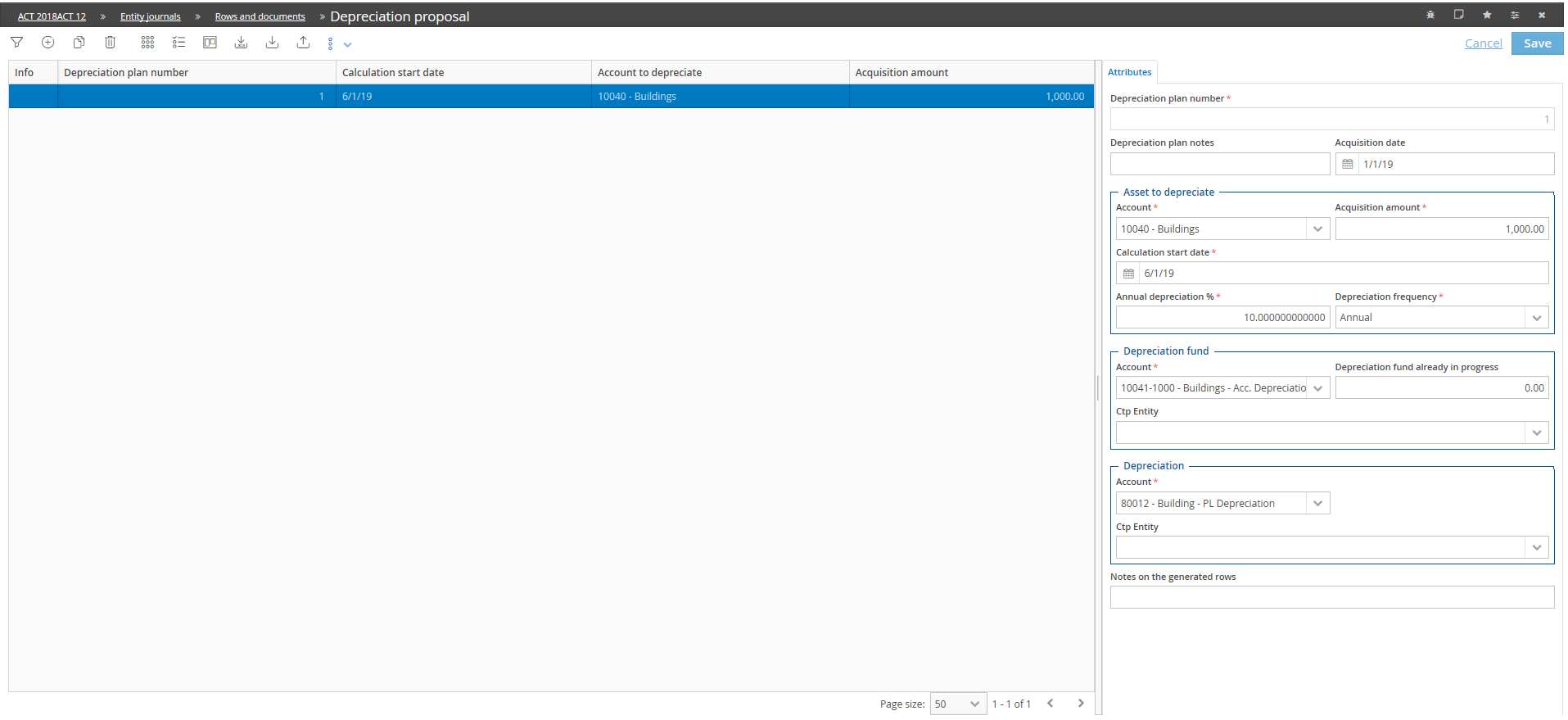
The "Entity", "Currency" and "Category" fields are not editable for the Entity journals.
Below is a list of fields to fill in: validation
| Depreciation plan number | sequential identification number |
| Depreciation plan notes | of the asset |
| Acquisition date | |
| Asset to depreciate | |
| Account | on which the asset value is allocated |
| Purchase amount | of the asset |
| Calculation start date | date from which the depreciation starts. It normally coincides with the beginning of the year or of month. |
| Annual depreciation % | the percentage by which the capital is depreciated each year |
| Depreciation frequency | it can be annual, monthly, and so on. |
| Depreciation fund (total depreciated market shares of the asset) | |
| Account | where the fund is allocated |
| Depreciation fund already in progress | part of the value already depreciated |
| Custom dimensions | on which the fund is allocated |
| Ctp Entity | |
| Depreciation | |
| Account | where the depreciation of the period is calculated |
| Custom dimensions | on which the depreciation is allocated |
| Ctp Entity |
To fill in the depreciation plan Actions () > Generate depreciation plan
If incorrect data has been inserted, it is possible to regenerate the plan.
The system displays a message asking if you want to overwrite existing data.
To display the newly created plan, Actions () > Depreciation plan
The system displays the full depreciation plan
You can still edit the plan after you have generated it. For example, whether you need to edit the value of one or more depreciation rows.
Data processing
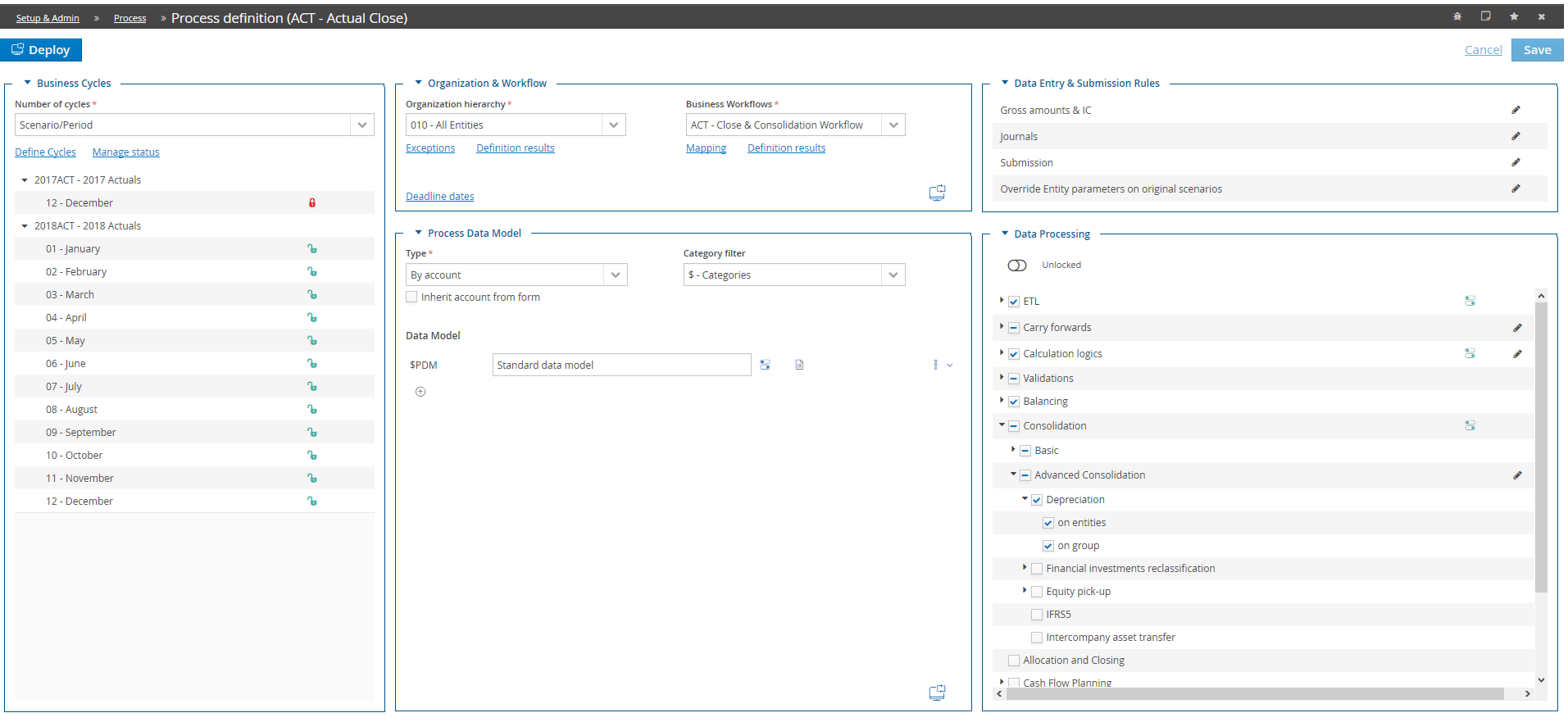
To run the data processing, verify that you have enabled the depreciation flag in the process configuration:
Setup & Admin > Processes tile
select the desired Process > Actions () > Process Definition
In the Data processing area accessible from Consolidation > Advanced consolidation > Depreciation > On Entities
To display the generated journals: System Reports > Original journals rows
Filter by header containing the depreciation plan
Consolidation journals
The procedure for creating a depreciation plan via consolidation journals is similar to that used with the Entity journals; the only difference is that, in the case of the Entity journals, the Entity cannot be selected, whereas in the case of the consolidation journals, it is possible to choose between Entity 1 and Entity 2
To customize the depreciation plan:
enable the Consolidator mode at the top right in the process cockpit
Select the target node from the tree on the right
In the Actions menu, select Edit Window () > Edit Consolidation journals
and repeat the same steps described for the Entity journals.
Data processing
To run the data processing, verify that you have enabled the depreciation flags in the process configuration
Setup & Admin > Processes tile
select the desired Process > Actions () > Process Definition
In the Data processing area accessible from Consolidation > Advanced consolidation > Depreciation > On Group
To display the generated journals: System Reports > Consolidation journals rows
Filter by header containing the depreciation plan
Entity journals and Consolidation journals – Bulk management
From the User home page > Events tile > Depreciation proposal menu, after having selected the Process, the user can access the window for the management of bulk depreciation plans.
After selecting the Journal number, this window allows you to define new depreciation plans both for the Entity journals and Consolidation journals.
The window contains the utility for the Generation of the depreciation plan (also in multi-selection mode) and allows you to access all Depreciation plans related to the journals.