Run asset depreciation from workflow
Tagetik allows the user to run the asset depreciation also from a task of a workflow model.
Let us assume that we are inside a flowchart task and want to define a new task to perform asset depreciation. The steps to follow are:
- from the Administrator homepage, select the Business workflow tile > Select the workflow you want to work on
- Actions () > steps > select a step of the process
- On the left of the window opened by the system we find a list of workflows related to that step. Select one or create a new one using the appropriate key on the left () and assign a code and description to the workflow;
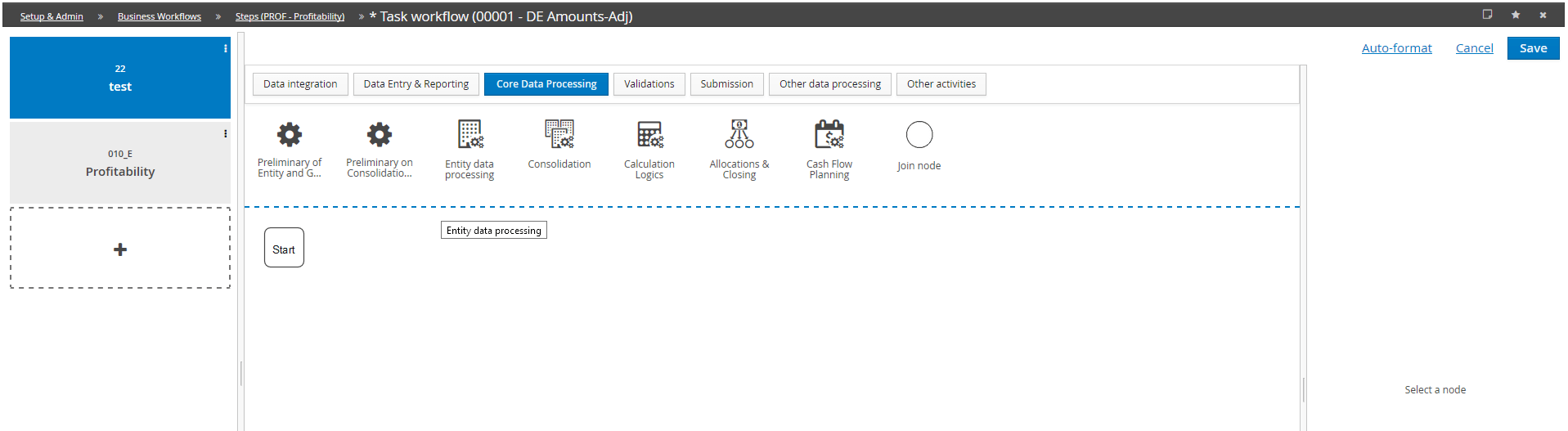
- Add tasks to the workflow in the central part of the window: drag the desired elements from the list to the graph that starts with the Start. In our case, we will take Data processing by {NOME_AZIENDA} from Main Data processing tab.
- The system opens a window that allows you to insert:
- Code unique identifier of the task
- Description of the task
- Optional makes the task of an optional activity , so it is possible to submit even without having run it.
- Enable e-mail notification allows you to notify by e-mail the completion of the activity contained in the task
- Declare task completion allows you to select the mode in which the activity is declared completed (Manual or Automatic)
- Parameters here you can define the details of the activity:
- Disable impacted By enabling this option, the system processes everything without any filter on modified data, otherwise it is able to determine which data have changed and process only what is necessary; i.e. it avoids processing the entities whose input data have not been modified since the last launch
- Data Processing select CONTR_BDG_DEPRECIATON- Depreciation budget
- Label useful for user rights purposes