Snapshot
When preparing the budget, it is useful to keep several versions of data related to the same original scenario before choosing the final version. For this purpose, Tagetik allows the user to define some particular scenarios named "snapshot" where data are "frozen" before making further modifications.
In order to use this utility, the parametrizer user will have to open:
-
an "official" original scenario linked to a specific application process on which the official budget version has to be loaded;
-
N snapshot scenarios (where N must be <= 999), not necessarily linked to a process, on which the various test versions have to be saved (in order to "freeze" a result obtained before the modifications) specifying that such scenarios are "linked" to the "official" scenario.
In this way:
-
all data entries will be performed on the "official" scenario;
-
by means of copy programs, data can be saved on the snapshot scenarios or reloaded from a snapshot scenario on the "official" scenario;
-
at the end of the operations, final data must be on the official scenario.
Snapshot scenario definition
In order to define a snapshot scenario, it is necessary to:
- access the original scenarios' elements table (accessible from the administrator user web interface by following the path Setup & Admin > Dimensions tile > Scenarios > Elements) Navgation panel> Dimensions > Scenarios > Elements)and then select the original scenario for which the snapshot scenarios have to be defined;
- select the "Snapshot" option from the Actions (
 ) window menu
Each snapshot scenario is identified by:
- a version number (Version number. This is a unique ID of one of the n versions managed for the same original scenario. It is possible to manage up to 999 versions for the same original scenario
- the snapshot scenario's code(Snapshot Scenario). This is an active original scenario created beforehand in the elements table.
 The snapshot scenarios, unlike the "official" original scenario, do not necessarily have to be related to an application process.
Process setup for the "snapshot" management
In order to enable the creation (copy of data from the official scenario to the snapshot scenario) and the restoration (copy of data from the snapshot scenario to the official scenario) of a snapshot for a given process, the user just has to:
- open the processes table accessible from the administrator user web interface by following the path Setup Admin > Processes > select the process to set up and using the Actions () > Process Definition path Navigation panel > Processes & Workflows > Process > select the process to set up and using the Actions () > Process Definition window menu;
- Select the Snapshot data processing from Data processing
- The Requirements (
 ) button allows the user to specify the dimensions for which the snapshots will be managed, that is:
Run by time dimension with which the snapshot has to be run:
- by process
- by scenario includes all the periods of the specified scenario
- by scenario/period includes one period of one scenario
Dimensions on which to filter the snapshot is run on a partialized set of data
- Snapshot by Entity. The creation or the restoration of the snapshot is partialized by entity, or rather it is possible to run the snapshot of only the data of the entities selected upon creation or restoration;
- Category. The creation or the restoration of the snapshot is partialized by category, or rather it is possible to run the snapshot of only the data of the categories selected upon creation or restoration;
- Snapshot by custom dimension 1,...,5. The creation or the restoration of the snapshot is partialized by custom dimension, or rather it is possible to run the snapshot of only the elements of the custom dimensions selected upon creation or restoration.
If the scenario is managed By process, then the snapshot scenario CANNOT be linked to the process containing the scenarios the user wants to copy with the snapshot data processing.
 If you are working on a financial planning process it is necessary to create a snapshot Scenario also for the Event Scenario (for the snapshot linked to the Event Scenario it is not necessary to open the periods as it is a system scenario and it does not need to be loaded by the user).
Creation
The creation of a snapshot scenario, namely the copy of data from the official scenario to a snapshot scenario, can be accessed from the contributor web interface through the process cockpit.
If the snapshot is defined by Entity, it is possible to run the data processing selecting either one or more entities or a node (in this case, the data processing is run for all the entities of the node).
If the snapshot is not defined by entity, the data processing can be run only from the root.
If order to run the data processing, it is necessary to click on the Snapshot button and then select the Create option. Obviously, the management of the snapshots needs to be enabled for the process whose cockpit is being displayed.
If you run the snapshot from the detail overview tab, the system runs the snapshot on all the datasets linked to the process.
If you run the snapshot from one of the process steps, the system runs the snapshot only on the datasets linked to the selected step.
The user has to specify:
-
the version number (Version number) of the target snapshot scenario
-
a description of the copy operation they want to run
- a comment
Moreover, according to the process settings, the user has to specify
- one or more original source scenarios if the time dimension of the snapshot is "By scenario" or "By Scenario/period"
- one or more original source periods if the time dimension of the snapshot is "By Scenario/period"
- one or more source entities if the snapshot management is "By entity"
- one or more source categories if the snapshot management is "By category"
- one or more elements of the source Custom dimension X if the snapshot management is "By custom dimension X"
After setting the filters, it is necessary to click on "Run" to run the creation of the snapshot.
The target snapshot scenario must have the same Version number as the original scenarios, including the Event Scenario
The data processing runs the copy of the FX rates, of the Tax rates and of the Interest rates only if no "Dimensions on which to filter" have been defined and the snapshot is run from the root. In case of peripheral use, such data have to be copied beforehand by the admin.
The example below shows how the snapshot creation window works.
Let's assume that we have to copy the data on the snapshot scenarios related to the BUDGET process.
The snapshot scenarios related to the original scenarios of the BUDGET process are defined as shown below:

For example, if we select the 2014BDG original scenario, when creating the snapshot, the system will display the versions 001 and 002 in the "Version number" field.
Whereas, if no original scenario is selected, or the "time dimension" defined to manage the snapshot of the BUDGET process is “By process”, when creating the snapshot, the system will display the Version 001 in the "Version number" field as it is the only one which is defined on all three original scenarios.
-
The copy does not perform any totalization and keeps the origins of data.
-
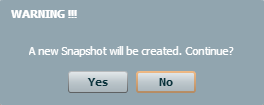
The creation is irreversible therefore when the "Run" button is clicked the system sends a confirmation message to the user before running the copy.
Preliminary check
Before creating the snapshot scenario, the system checks:
- that each selected original scenario has not been used by another user for the creation of a snapshot , otherwise the system reports a warning
- that all the periods of the source scenario are not stored offline
- that the opened periods of each snapshot scenario are the same as those of the corresponding source scenario and that such periods are not blocked
- that the snapshot scenario of the event scenario related to the process exists, if the source scenario is related to a financial planning process
Restore
The restoration of a snapshot scenario, that is the copy of data from a snapshot scenario to the "official" scenario, can be accessed from the end-user web interface through the process cockpit.
If the snapshot is defined by entity, it is possible to run the data processing selecting either one or more entities or a node (in this case, the data processing will be run for all the entities of the node).
If the snapshot is not defined by entity, it is possible to run the data processing only from the root.
To run the data processing it is necessary to click on the Snapshot button and then select the Restore option. Obviously, the management of the snapshots must be enabled for the process whose cockpit is being displayed.
The user needs to specify the version number (Version number) of the source snapshot scenario
Moreover, according to the process settings, the user has to specify
- one or more original scenarios whose data have to be reloaded if the time dimension of the snapshot is "By scenario" or "By Scenario/period"
- one or more periods whose data have to be reloaded if the time dimension of the snapshot is "By Scenario / period"
- one or more entities whose data have to be reloaded if the snapshot management is "By entity"
- one or more categories whose data have to be reloaded if the snapshot management is "By category"
- one or more elements of the Custom dimension X whose data have to be reloaded if the snapshot management is "By custom dimension X"
After setting the filters, click on "Run" to restore the snapshot.
The data processing restores the FX rates, the Tax rates and the Interest rates only if no "Dimensions on which to filter" have been defined and the snapshot is run from the root. In case of peripheral use, such data have to be restored beforehand by the admin.
The example below shows how the snapshot restore window works.
Let's assume that we have to reload data on the official scenarios related to the BUDGET process.
The official original scenarios related to the BUDGET process are defined as follows:
For example, if we select the 2014BDG original scenario, upon restoration the system will display the versions 001 and 002 in the "Version number" field .
Whereas, if either no original scenario is selected or the defined "time dimension" for the management of the snapshot of the BUDGET process is “By process”, upon restoration the system will display the Version 001 in the "Version number" field as it is the only one which is defined on all three original scenarios.
If no entity filter is applied, the system checks all the entities defined for the selected process and whether even just one of them is not defined on the source snapshot scenario, the system reports it and prevents the user from carrying out the "restore" operation. In this case, in order to complete the restoration, it is necessary to define the "Entity" filter by selecting all the entities provided by the system except the undefined ones.
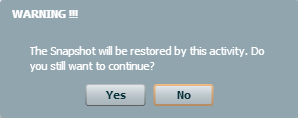
The restoration is irreversible therefore when the "Run" button is clicked the system sends a confirmation message to the user before running the copy.
Preliminary check
Before restoring the "official" scenario, the system verifies that:
- the source scenarios have been copied on a snapshot scenario
- all the periods of the scenarios to "reload" are not stored offline
- the opened periods of each snapshot scenario are the same as those of the corresponding scenario to "reload" and that such periods are not blocked
- the snapshot scenario of the event scenario related to the process exists, if the scenario to "reload" is related to a financial planning process