Refresh the Database
You can use Refresh options to perform several maintenance tasks on a forecast database.
To refresh the database
On the Dashboard, on the menu, click Design > Supply Chain Planning > Setup > System Setup.
- On the Dashboard, on the menu, click Design > Supply Chain Planning > Setup > System Setup.
- In the Database Setup screen, click Refresh.
System Setup Screen
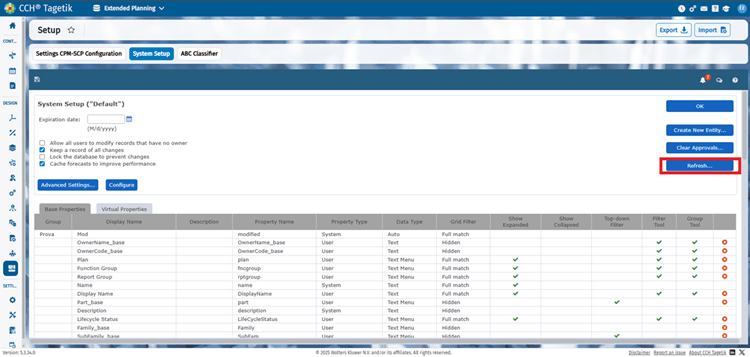 3. In the Refresh Database screen, under Choose the record properties to clear, check any of the following:
Refresh Database Screen
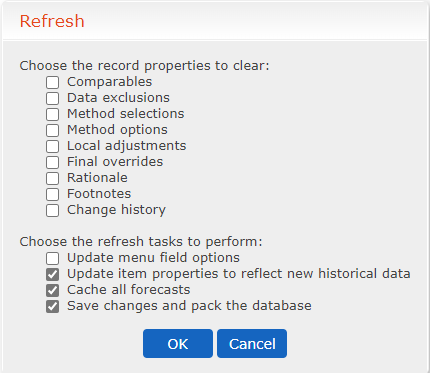
- Comparables
- Data exclusions
- Method selections
- Method options
- Local adjustments
- Final overrides
- Rationale
- Footnotes
- Change history
- Under Choose the refresh tasks to perform, check any of the following:
Refresh Database Options
| Option | Description |
|---|---|
| Update menu field options | Update available options for fields you configured in the main Admin screen. |
| Update item properties to reflect new historical data | Based on historical data, create a new forecast. |
| Cache all forecasts | Caching is automatically performed if the Cache forecasts to improve performance is checked on the main Admin screen. |
| Purge history from all items | Remove the Change History section from all records. This option displays when there is data in the section. |
| Save changes and pack the database | Save and commit changes to the database. |
| 5. Click OK. |