Run calculation logic from form
A calculation logic can be run also from a data entry form. For example, if you insert the sold quantities of a given product and the related prices in a form and you want to calculate the revenues from those two values, you can define a calculation logic (revenue = quantity * price). Such logic defined on the web interface can be included in a form and then run automatically when saving the data entry form or upon user's request.
To add the execution of a calculation logic inside a form you have to:
- open the form in Design mode;
- click on the Data processing
 button in the Design ribbon bar or, in the Open Items left panel, select the row of the form in which the data processing has to be inserted and then right click and select Run data processing > New data processing.
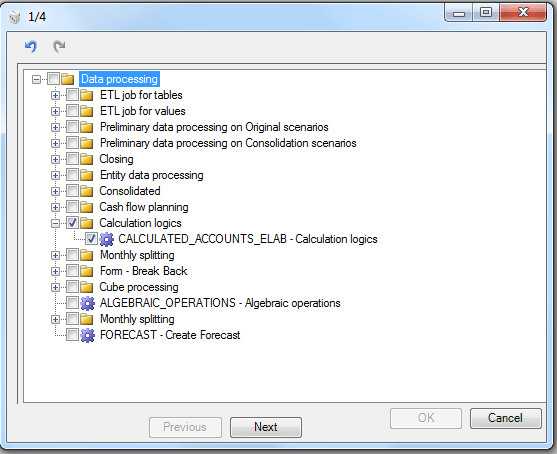
The system displays a window in which the user has to select the Calculation logics > CALCULATED_ACCOUNTS_ELAB - Calculation logics check box and then click on Next.
Then the user has to define the required parameters for the data processing. The parameters in bold are mandatory.
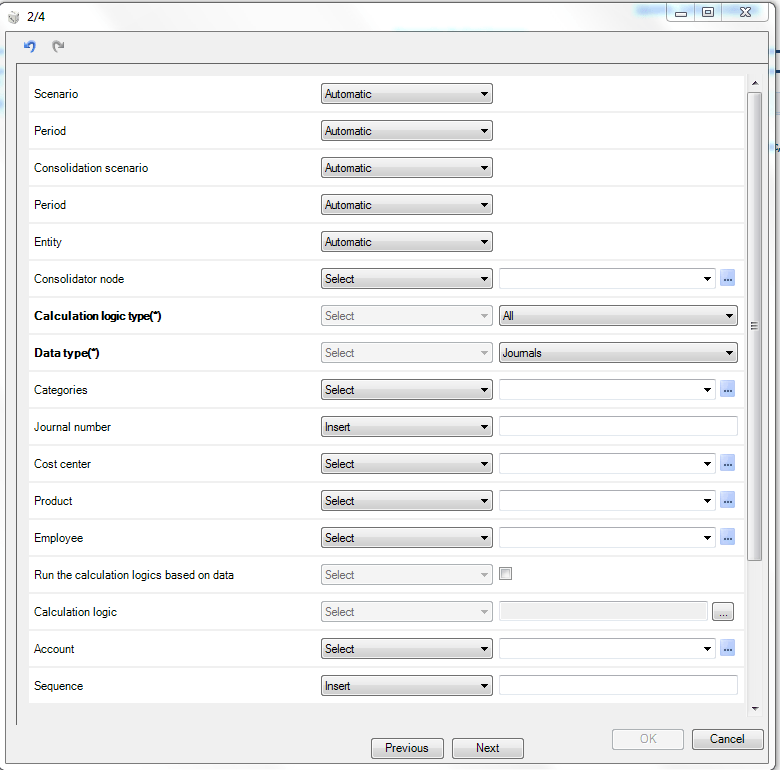
When defining the parameters, it is necessary to specify how the value of the parameter has to be retrieved. Available methods:
- Automatic. This option can be selected only if the value to be used is chosen by the user when launching a form through the use of a parameter. The parameter can be configured as form filter, tab filter, matrix filter, row/column filter. In this way, the value used in the data processing will depend on the user’s selection at runtime. Whereas, if the value is entered in the matrix, it must be specified in the run parameters for the data processing (Therefore, if the Automatic option is used, the value will not be taken into account). If a parameter is not mandatory or significant for the current data processing, its value can be retrieved automatically.
- Excel Cell. The system retrieves the parameter's value from an Excel cell. The user must specify the cell containing the value by using the ${H30} (cella H30) syntax.
- Insert. The user must insert the parameter's value inside the corresponding text box.
- Select. The user must select the parameter's value from a list of values
- Cell field. The system retrieves the parameter's value from a cell field.
The following parameters can be set up:
- Scenario > Period
- Consolidation Scenario / Period
- Consolidator Entity / Node
-
Calculation logic type. Typology of the calculation logic to be run. Possible values:
-
Basic
- Others
-
All
-
Data type. Typology of data on which the calculation logics has to be run. Possible values:
-
Amounts. The calculation logic is run on gross amounts and IC entries;
- Journals. The calculation logic is run on the entity journals and on the consolidation journals;
-
All (default value).
-
Category / Category node. Filters data on which the calculations logic will be run by category;
- Journal number. Filters the journals on which the calculations logic will be run by journal number;
- Custom dimension 1...5 / Custom dimension 1...5 hierarchy node Filters data on which the calculations logic will be run by the elements of the custom dimension 1...5;
- Run calculation logics based on data. The system automatically determines the logics to be run based on the filter set up on the dimensions on which the calculation logics will be run; The required formula is identified based on the accounts that turn out to be changed upon saving. All formulas having the changed accounts will be marked for execution in the form; all dependent formulas will marked as well.
- Calculation logic / Calculation logic node. The system runs only the specified calculation logics;
- Account / Account hierarchy node. The system determines automatically the calculation logics that involve the specified accounts;
- Sequence. The system runs only the calculation logics with the specified sequence;
 Let's see in detail the possibly set filters for partializing the calculation logics to be run.
- Filter 1. If we specify to filter the calculation logics depending on data, the system processes all the calculation logics having as input accounts the accounts present on the data tables after applying the dimension filters and all the "indirect" ones, namely those having as input accounts the calculated accounts from the previous logics. In presence of this filter, the system ignores possible other filters of 2,3,4 type;
- Filter 2. In presence of a filter on accounts and /or on an accounts hierarchy's, the system processes all the calculation logics having as input accounts those obtained be the union of the single accounts and the accounts related to the specified nodes. Also in this case, the system process all the "indirect" logics having as input accounts the calculated accounts from the from the previous logics. In presence of this filter the system ignores the possible other filters of 3,4 type;
- Filter 3. In presence of a filter on the calculation logics and/or on the grouping's nodes, the system processes only the calculation logics which belong to the union of the single logics and the logics related to the nodes. This filter is applied in intersection with the filter on the sequence;
- Filter 4. In presence of a filter on the sequence the system processes all the calculation logics with that sequence.
Once you have specified the parameters, click on "Next" to specify a set of options telling the system how to run the data processing inside the form. The last step consists in assigning a code and a description to the data processing to be inserted into the form.
To run the data processing, just open the form in data entry mode, click on the Data processing  button in the Data entry ribbon bar and then click on the name of the data processing you want to run.