Structure and definition of a TGKML script
A TGKML script:
- always starts with the keyword"TGKML 1.0" ;
- may contain one or more assignment instructions. Each assignment ends with the character ';';
- may contain one or more comments identified by the // symbol placed at the beginning of the line. Any character following the // symbol to the end of the line is ignored. Comments can be inserted at any point in the script.
TGKML 1.0
/ / Comment 1
/ / Comment 2
Assignment 1;
/ / Note 3
Assignment 2;
Assignment 3;
...
Assignment No;
An assignment can represent:
- a syntactic substitution;
- a physical account;
- a temporary account
- an item in a Financial Statement Template.
In general, the syntax of a TGKML script is always of the type:
The left Output part of the assignment contains the indication of where to save the result of the TGKML script and its syntax is of the type [output_cube].[output_account] (Dimension.Filter([...]) , Dest#.[...] , ... , ....). For example, we can have [LO].[X00000](Entity.Filter([A00]), Dest1.[GEN]) to indicate that the result of the scritp is saved on the original gross amounts table (DATA_SALDI_LORDI), on the account X00000 , on the Entity A00 and on the element GEN1 of custom dimension 1. All other necessary dimensions are taken from the right-hand side Input of the assignment.
The right-hand side Input of the assignment basically contains the calculation algorithm and its syntax is of the type [input_cube].[input_account] (Dimension.Filter([...]) , Dest#.[...] , ... , ....). For example, we can have [LO].[C00000](Entity.Filter([A00]), Dest1.[GEN]).
Obviously, the above syntax is typical of the simplest situations, as it is possible to use several accounts (both physical and temporary) combined with algebraic or Boolean operators.
In the input specification, it is possible to refer not only to accounts or nodes of accounts, but also to 'Parent' items belonging to Financial Statement Templates that depend only on the 'Account' dimension.
 In the right Input part, the indication of the cube can be omitted if it is the same as the one specified in the left Output part.
Within the syntax of a TGKML script, it is possible to use:
- comparison operators <, >, <=, >=, <>, ==
- boolean expressions such as
- Scenario like '%BDG'. Note that strings must appear between double quotes
- Period == "12"
- Cust Dim2 <> "GEN"
- arithmetic operators +, -, *, /, ^
- numbers. These must be written using the dot as a separator between the integer and decimal parts. It is possible to use exponential notation i.e. write 1e4 instead of 10000
Here are the conventions to be used to specify a single element of a dimension or a node of a hierarchical structure within the syntax:
- [element code] to indicate a single element of one dimension (e.g. [A00]);
- [hierarchy code|node code] to indicate a node of an aggregation structure (e.g. [01|$]);
- All to indicate all elements of a given dimension (e.g. Cust Dim1. All to indicate all elements of custom dimension 1).
- {
, , {- }
, ' - '}, {
; {,' - '}
,[ : to indicate an item in a financial statement template- ]}
-
There are two ways to define the input/output specification of an FST item:
-
Multi({
, - },
) e.g. Multi({ , - }, Dimension.Filter([...])
- },
- {
, - ,
} e.g. { , - , Dimension.Filter([...])}
- ,
 Where the code of an FST item contains the '-' character (e.g. ITEM-001), it is mandatory to use the syntax {
Within the Input part, it is possible to combine nodes and single elements of a dimension (e.g. write [01|$], [A00])
Definition of a TGKML script
To define a TGKML script, it is necessary to:
- create a 'Multi Dim. Script' type calculation logic (for further details see Calculation logics);
- double-click on the newly created logic.
The system opens the Multidimensional Script window.
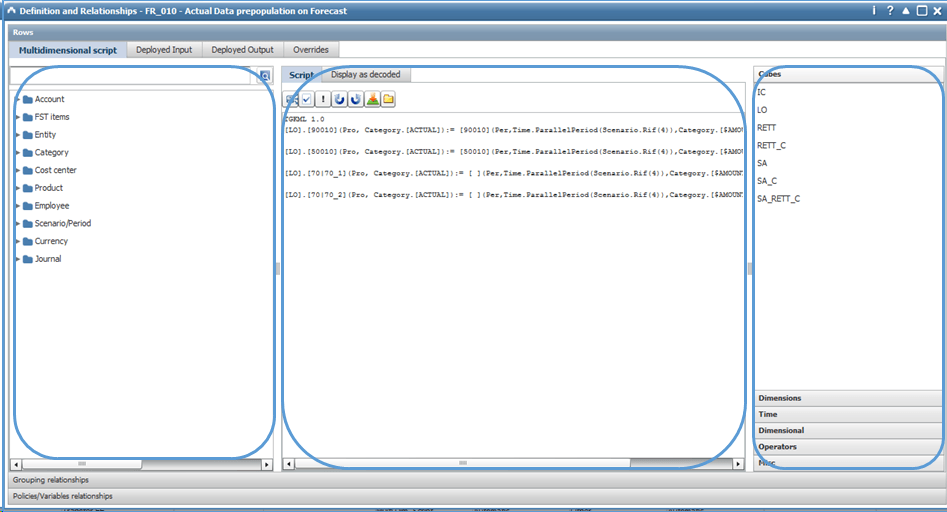
The window is divided into three parts:
- (1) - Selection area. It is located on the left-hand side of the window and is intended for the selection (by double-clicking) of elements and/or nodes to be inserted within the script. In this area, the system displays all existing elements for a given dimension. In particular, the system displays a sort of tree whose nodes are:
- a first dummy node 'Elements' containing all the elements of the dimension present in the elements list sorted by code;
- as many nodes as there are hierarchies defined for the dimension, if the dimension includes hierarchy type aggregation structures, otherwise a single Grouping node. Under each of these nodes, the system replicates the structure of the hierarchy and/or grouping.
The various nodes are identified by the icon  , and the single elements by
  .
.
- When the number of elements to be displayed is very high (generally more than 50), the system, in order to improve the display and selection of elements, creates dummy nodes identified by the icon
 . Such nodes cannot be used in the definition step;
 - Selection can be made by navigating the tree in the selection area or by using the text search functionality on codes and/or descriptions of elements/nodes. The search can be performed on a given tree node using the
 icon (except for dummy nodes used by the system for paging tree elements). The search result is displayed in a grid from which one or more items can be selected.
 - (1) - Script. It contains the area in which the syntax of the TGKML script is to be entered and a series of buttons that allow you to:
 insert a TGKML script by importing it from a text file;
 save the script to a text file on the user's computer;
 restore the previous situation in case of an error;
 repeat the previous action;
 perform a check to verify the correctness of the script syntax. The system displays the result of this check at the bottom;
 save the script and at the same time generate the deployed tables (for more details on the content of these tables, see Calculation Logic Deployment).
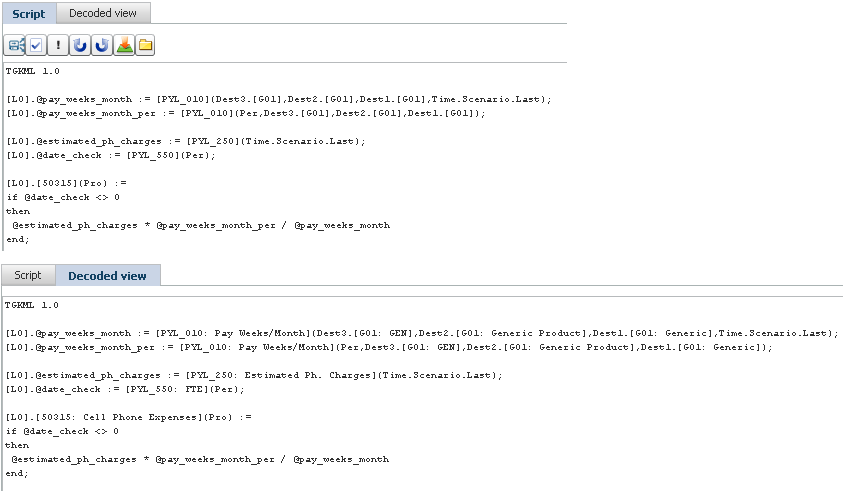
This area includes an additional 'Display as decoded' tab that displays the script alongside each dimensional element with its description
- (3) Contains all dimensions / functions / cubes / objects that can be used within a TGKML script.