How to manage documents in multiple languages
The goal of this document is to define some best practices to follow when you want to manage multiple languages in CCH Tagetik Collaborative Office Word documents.
Following the best practices enables:
- easier document preparation and maintenance
- improved performances during document update
- easier preparation of the source documents (i.e. CCH Tagetik forms or external attachments)
Assuming we want to produce multiple versions of the same document, each version in a different language, the best practices to follow are split in the following steps:
- Step 1 Definition of data sources. The same origin is used for all documents in different languages.
- Step 2. Definition of a “master document”, which retrieves data from the data sources and then becomes the “reference document” for all other versions of the document in different languages
- Step 3. The insertion of a "Language cell address" in order to retrieve the information of the objects according to the language of the document
Example.
Given the following assumptions:
- The reference document is written in English
- We are now defining the Italian version of the English document
- In this example, we consider an “Area as Table” object, retrieved by an attachment (similar considerations are valid for other object types)
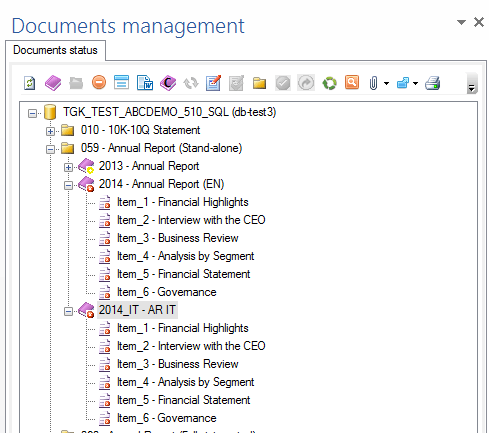
Step 1 – One attachment for all document versions
The Excel attachment should follow the best practices below:
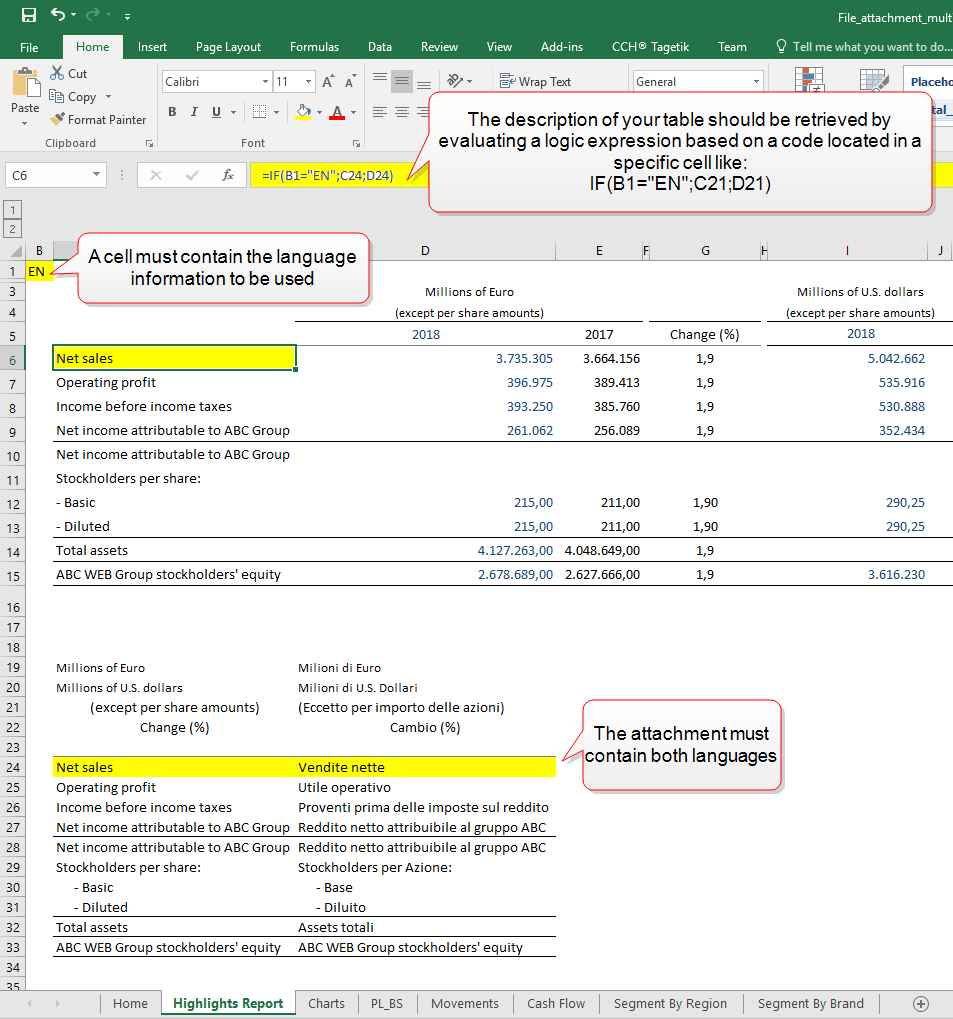
- Content for all languages should be present in the same source, in this case the same table is used for every language
- The information of the language used during the Collaborative Office document update must be present in the source document (e.g. in a specific cell)
- The content of the table is defined using Excel formulas, so that values change according to the language
To achieve the previous points:
- All descriptions for table rows and columns headers must be present in the Excel attachment (in this example we need all English and all Italian texts)
- The language code (e.g. “IT”) should be set in a specific cell of the attachment
- Column and row headers are set using a formula that retrieves the correct text based on the language set in the cell of the point above
 The language codes used in the formula (e.g. EN, IT, etc.) are the same language codes used in Collaborative Office to set the document language in the document properties.
In this example, text shown in cell C6 of the table object is set using the expression IF(B1='EN'; AE19; AF19), see image below.
Step 2 - Reference Document for attachments
The “master” document must be set as a reference document for the attachments, in all documents in other languages:
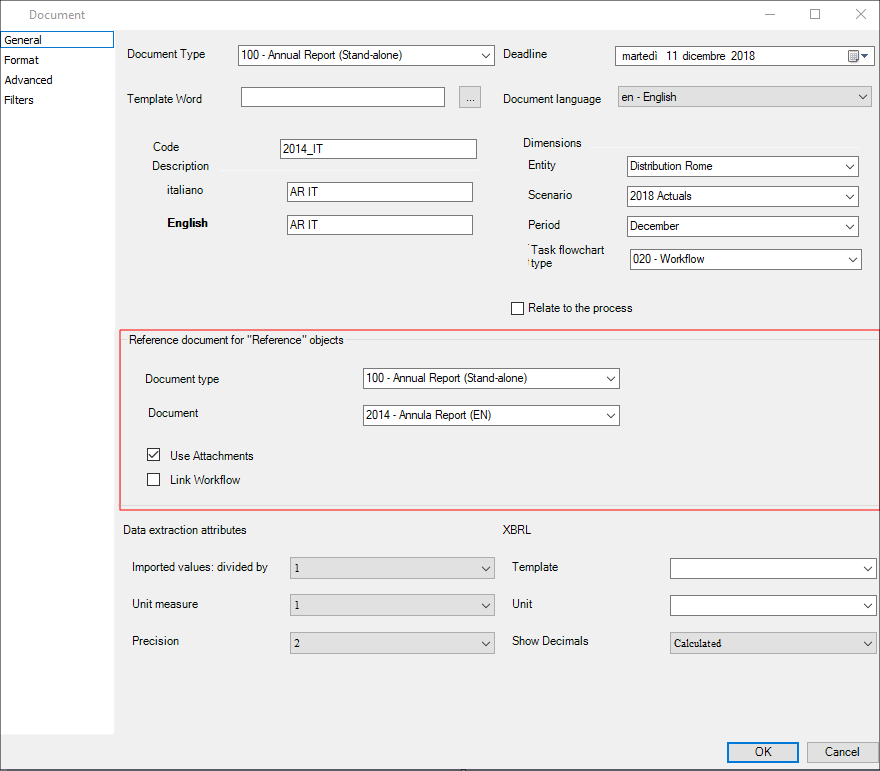
- In the “General” section of the Italian document: set the English document (in our example it is named “2014 - Annual Report (EN)”) as Reference document for “Reference” objects and check the “Use Attachments” option
- The English document must have the Excel source set as a shared attachment
Step 3 - Language Cell
Each object in the document must retrieve the data from the source document in the correct language, which is the document language set in the document properties.
To achieve this goal, the language code is passed to the source document, specifying the address of the cell that must contains the language code. This address is set in the object properties, in the “Filters” section (see image below).
The cell address must be set with the format
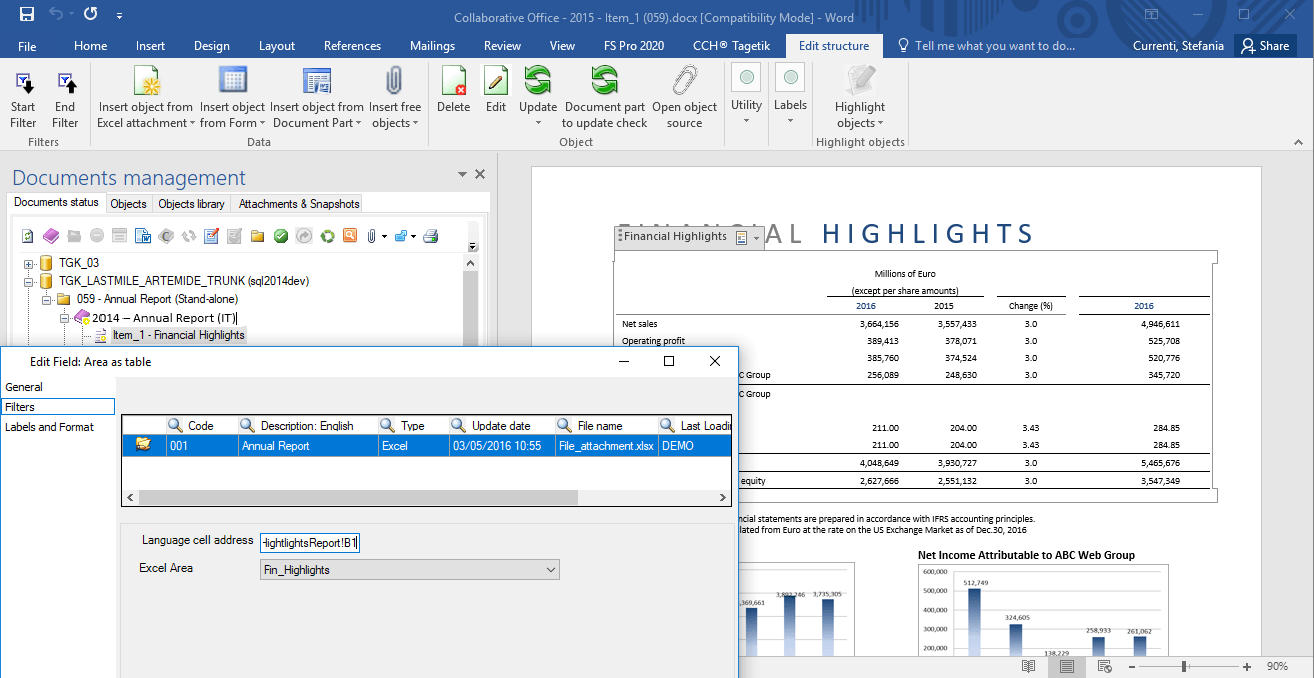
With this setting, when the document update processing is run, the text is read from the source based on the language set in the document properties (Italian in this example).