Working with the Comments tool
To open the comments panel, click on  at the top right of any page where this feature is available.
Notes: The Comments button is generally visible in the system if the 'Tread Based Collaboration' function has been enabled.
Synchronize users:
When using the comments panel for the first time, you need to start the user synchronization process by following these steps:
- Select the 'Repository' database
- Select the user section
- Click on 'Sync all users and functions in external services'
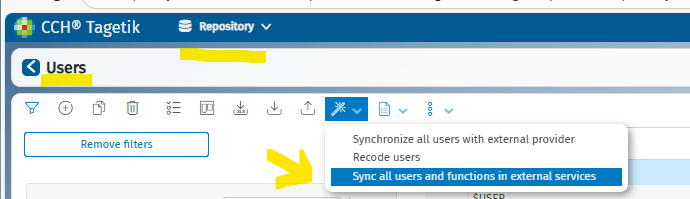
Any subsequent user creation or modifications will be automatically synchronised by the system. These changes will be visible on the screen after a few minutes.
Creating a new Thread
This procedure is useful to start a new discussion on a particular page.
- To write a new comment, click on
 : the input window will open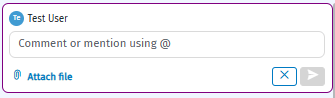
- Each user can only create one comment at a time. The creation button will be momentarily disabled during this procedure.
- Click on the text area and type in the comment.
- To upload any files to be attached to the message, click on "Attach file" (see section "Attaching a file to a comment" )
- To mention other users, type the '@' symbol (see section 'Mentioning a user').
- To cancel the creation of the comment, click on

- Click the
 button to publish the comment.
 - Once the thread has been saved, the number of threads present will appear on the comments button
 Note: Should other users create new comment threads in the meantime, these will be displayed in real time in the comments panel.
Writing a reply to a comment
- Select the comment to which you wish to reply.
- Click on

- As with creating a comment, in addition to typing in the text area, you can also add attachments to the reply using the “Attach file” button (see section 'Attaching a file to a comment').
- To mention other users, type the '@' symbol (see section 'Mentioning a user').
- To cancel, click
- Click the button to publish the reply.
- Once the reply has been published, if the author of the original comment is not logged into the application, they will receive an email notification about the new reply. The same applies to any new users mentioned in the reply.
Note: Ifother users post new replies in the meantime, these will be displayed in real time under the relevant comment
8. When multiple replies are posted, they are collapsed and a counter is displayed. The counter increases or decreases depending on the number of replies 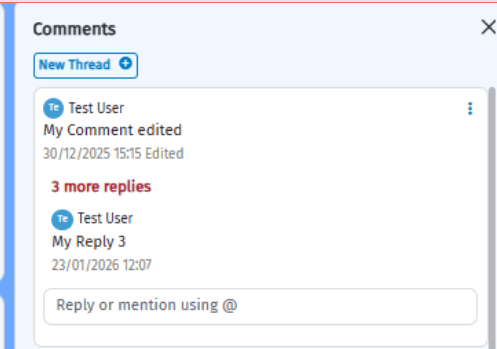
Attaching a file to a comment
- The user clicks on "Attach file" when writing a comment (or a reply to a comment). The user can select one or more documents to be attached to the comment
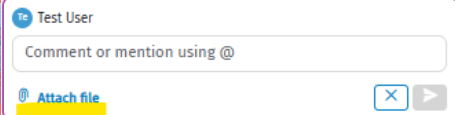
The attachment must comply with the maximum size limits and the allowed file types.
These two parameters can be found in the 'Settings' section and are called 'Maxi size' and 'Allowed file types'.
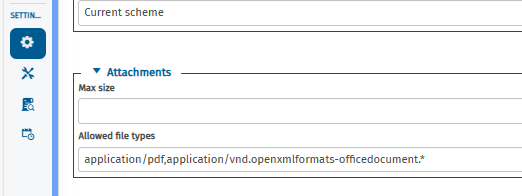
-
Maxi size: This value is expressed in bytes where 0 means 'no limit'.
-
Allowed file types : if this value is empty, no attachment to the comments is allowed
When one of these parameters is not met, the system warns the user with an error message.
Once the comment containing an attachment has been saved, if the user clicks on an attachment whose file type supports preview, the system opens a new tab displaying the document preview, along with the native buttons for downloading the attachment. Otherwise, the attached document will be directly downloaded.
Mentioning a user
This allows you to notify specific users during a conversation.
- When writing a comment or reply, press '@'. A menu will open showing the list of users within the database you are connected to. Up to 20 users are displayed at a time (the first three are usually the users most frequently mentioned by the current user and/or those who have interacted within the thread). However, it is possible to filter the list by typing the user’s name after the “@” symbol. Users cannot mention themselves. Note: If, the first time this feature is used, the user list does not appear, it may be necessary to run a user synchronization (see the dedicated section).
- To select the user you want to mention, use the up/down arrows and press enter.Otherwise, you can also click with the mouse.
- Once the comment has been published, any newly mentioned users will receive an email notification indicating where and by whom they were mentioned.
- In the case of a reply, the author of the original comment will also be notified by e-mail.
Editing a comment or a reply
Through this procedure, the author of the comment can edit its content and/or the documents attached to it .
- Click on the
 button of the comment you wish to edit: this will open the menu
- Click on Edit.
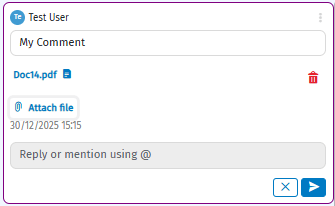 3. To cancel the changes in progress, click on
4. Once the changes are complete, press
3. To cancel the changes in progress, click on
4. Once the changes are complete, press
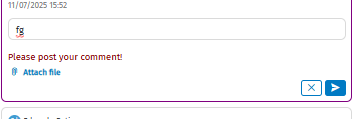
Note: The button to save the comment will remain disabled until changes are made.
5. Next to the comment’s creation date, the label “Edited” will appear. 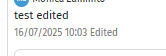 6. by hovering over the word 'Edited', a label showing the modification date and time will appear.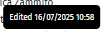
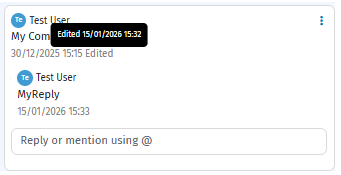 7. New users who may be mentioned during editing and who are not logged into the application will receive an e-mail notification indicating where and by whom they were mentioned.
Note: No other operations can be performed during the editing or creation of a comment.
Specifically:
Within the same comment, any other operation will be disabled.
If the user attempts to select another comment thread, the system will display a message informing them that another operation is currently in progress and needs to be completed.
Deleting a comment or a reply
This procedure allows the author of the comment to delete its content and the documents attached to it.
- Click on the button of the comment you wish to delete: this will open the menu
- Click Delete
- If a comment is being deleted, the following message will appear on the screen
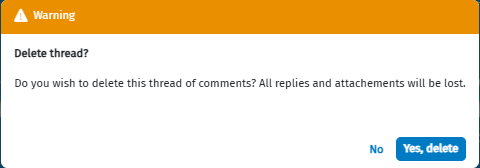
whereas, if a reply is being deleted, the message will be:
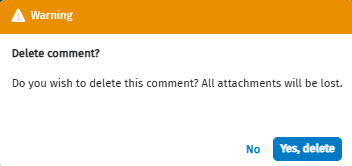 4. At this point, the user can choose to confirm or cancel the deletion.
5. Once the comment has been deleted, the counter on the comment button will be updated with the number of comments present .
6. The deletion of a comment also entails the deletion of any replies generated by other users.
4. At this point, the user can choose to confirm or cancel the deletion.
5. Once the comment has been deleted, the counter on the comment button will be updated with the number of comments present .
6. The deletion of a comment also entails the deletion of any replies generated by other users.