Export from CCH Tagetik Supply Chain Planning
You can export data manually or automatically using the Vanguard Client.
You can place the exported file in a folder. Wolters Kluwer support manages all aspects of the configuration using configuration files.
To export data from CCH Tagetik Supply Chain Planning
Task Parameters Screen
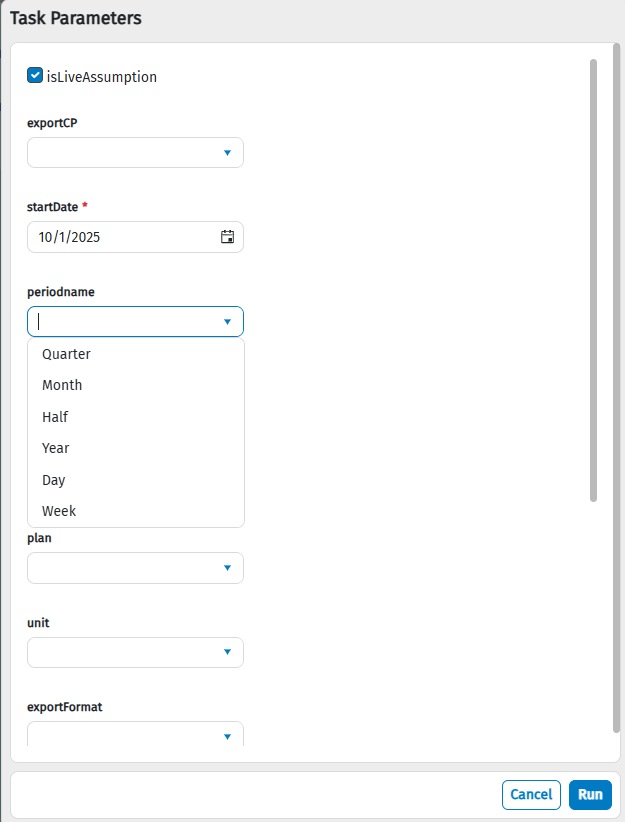
Export Parameters are likely standard and do not change between customers. They are similar to the report bar of the Pivot Table that just affects what is exported.
Export Properties Screen Elements
| Option | Description |
|---|---|
| Export Parameters | - Checkpoint: Select None or a checkpoint from which you would like to base your forecast. - Start date: Type the start date of the data you want to export. - Period: Select one of the following: - Day - Week - Month - Quarter - Half - Year - 4-4-5 - Periods to export: Type the number of periods to include in the export. - Currency: Select a currency type for the values. - Plan: Select the module from which you want to export data. Examples include Demand, Supply, Budget, or Sales. - Units: Select from overall Revenue or COGS. - Format: Select either Composite (organized by column) or Transactional (organized by row) - Header row: Select from the pre-defined list. Examples include Properties and Names. - Total column. Select this checkbox if you want a total column to display in your export. This checkbox is available when Composite has been selected as the Format. - Drop zeros. Select this checkbox if you want to drop zeros cells with no information in them. |
| Filters | Select any filter you want to apply. You can select any filters in use in your instance to filter the set of records that match these property values. To select multiple filters within a value, select each entry and click OK. |
| Aggregation | Select how you want to group your data. |
| Fields to Export | Select the fields you want to export. |