The web forms page (Navigation)
 Forms tile > click grouping of forms > (next to form)
Forms tile > Reporting > Forms grouping (next to form)
Introduction
A web form in Navigation mode allows the user to consult the form via the navigation interface described below.
What it looks like
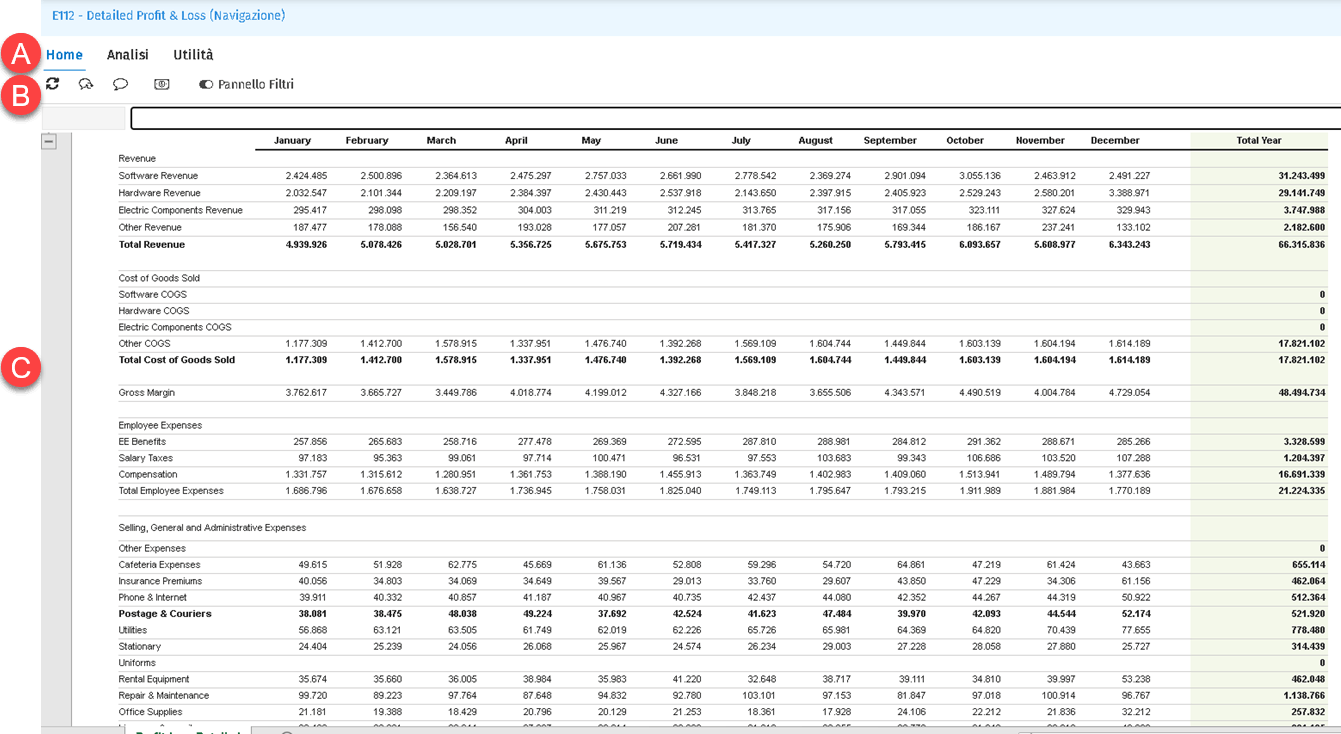
| Element | Description |
|---|---|
| A | Title bar |
| B | Window management buttons |
| C | Action buttons |
| D | Work desktop |
Title bar information
- Code and description of the web form
- Web form run mode (Navigation, Data entry)
Page management buttons
| Element | Description |
|---|---|
| Hides the toolbar. | |
| Shows the hidden toolbar | |
| Creates a bookmark for the current view (see Bookmarks in web forms). If the icon is blue, the current form has already been bookmarked. | |
| Saves the display preferences set in navigation mode (visible columns, column width, minimised areas, etc.). These preferences are automatically applied whenever the form is subsequently opened in navigation mode. | |
| Closes the form. |
Action buttons
| Button | Description |
|---|---|
| Restore original. Runs the web form again. Use when one or more filters have been changed. | |
| Allows you to export the web form in Excel format. It is not possible to navigate within the exported file. | |
| Shows the filters in place on the form under the toolbar. The value of those filters can be edited and the form can be run again via the Reload button. | |
| Shows/hides the rows/columns on which the Hide property was activated when the form was designed. | |
| Opens the Cell properties panel to the right (see Cell properties panel). | |
| Refreshes the form and updates comments on cells. |