Run report from process cockpit
Like any other process of Tagetik, the distribution process can be structured in multiple steps which allow the user to:
- run all the activities under his responsibility
- monitor the progress status of the activities of the entities assigned to him
- generate / distribute all documents for each entity
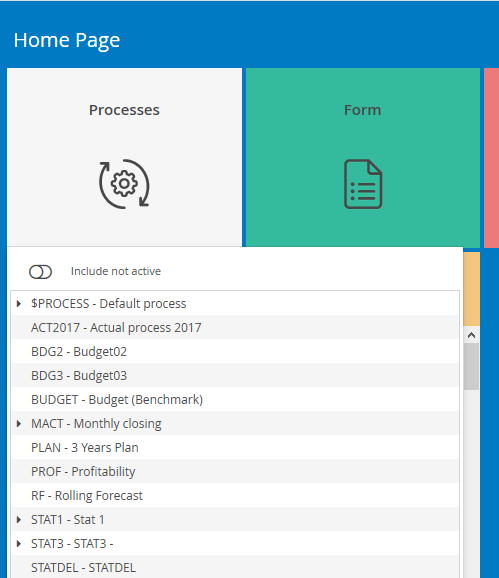
In order to generate / distribute a document from the process cockpit, first the user must access the end-user web interface, click on the Processesactivity button on the home page and then select the desired process by double clicking on it. After selecting the process, the system displays the process cockpit (for further details on the cockpit, read the manual "Process cockpit").
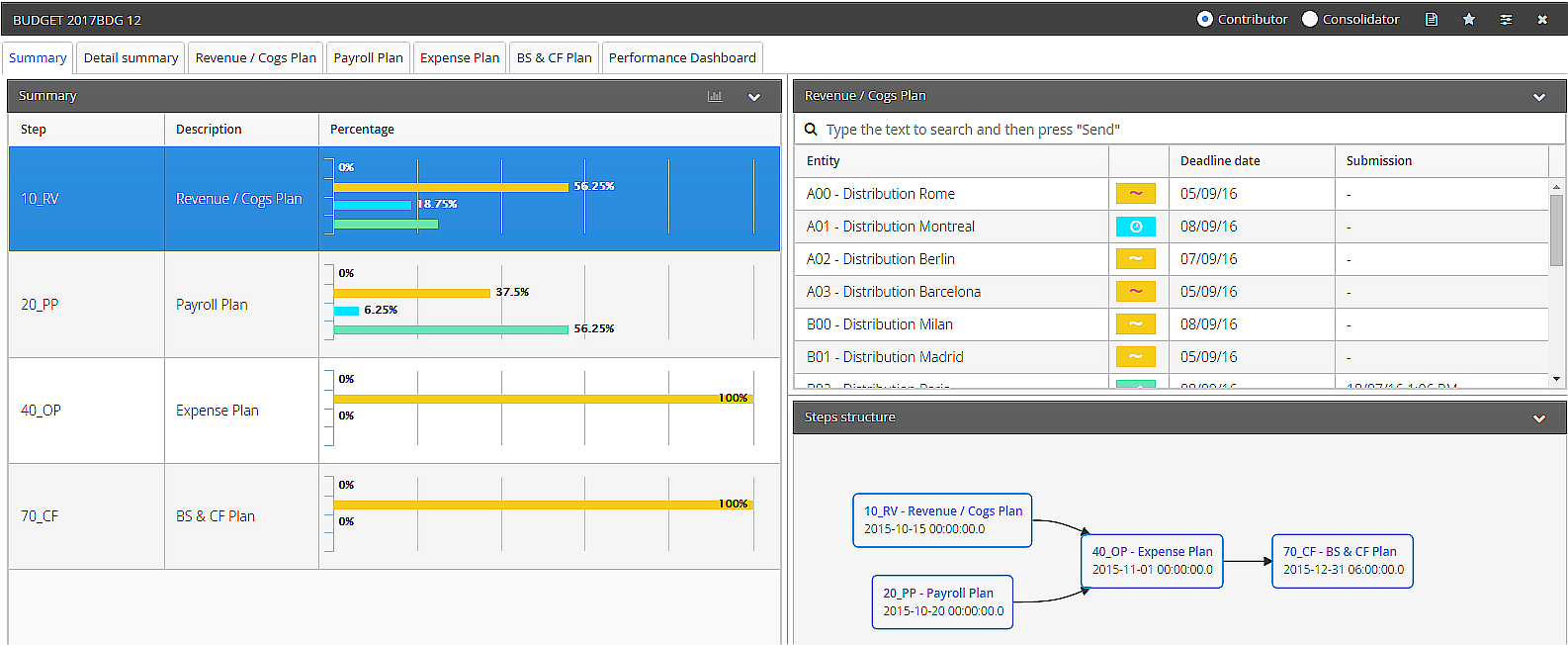
The process cockpit is divided into several tabs. The "Overview" tab shows the summary information about the status of the data collection / submission and a "tab for each step". A user that accesses the process cockpit can see ONLY the set of entities (entities and nodes) for which he/she is authorized according to the user rights defined by the administrator. This means that the cockpit has a different structure according to the user who runs it.
- The type and the number of entities (entities and nodes) displayed inside the cockpit depend on the user rights and on the process settings
- the type and the number of activities / data processes available depend on the process rules settings
Once the process cockpit has been displayed, in order to generate a report it is necessary to:
- select a tab of the process step in order to open the related area
-
select the desired entity (hierarchy node or single lowest level element) among those available in the Organization area
-
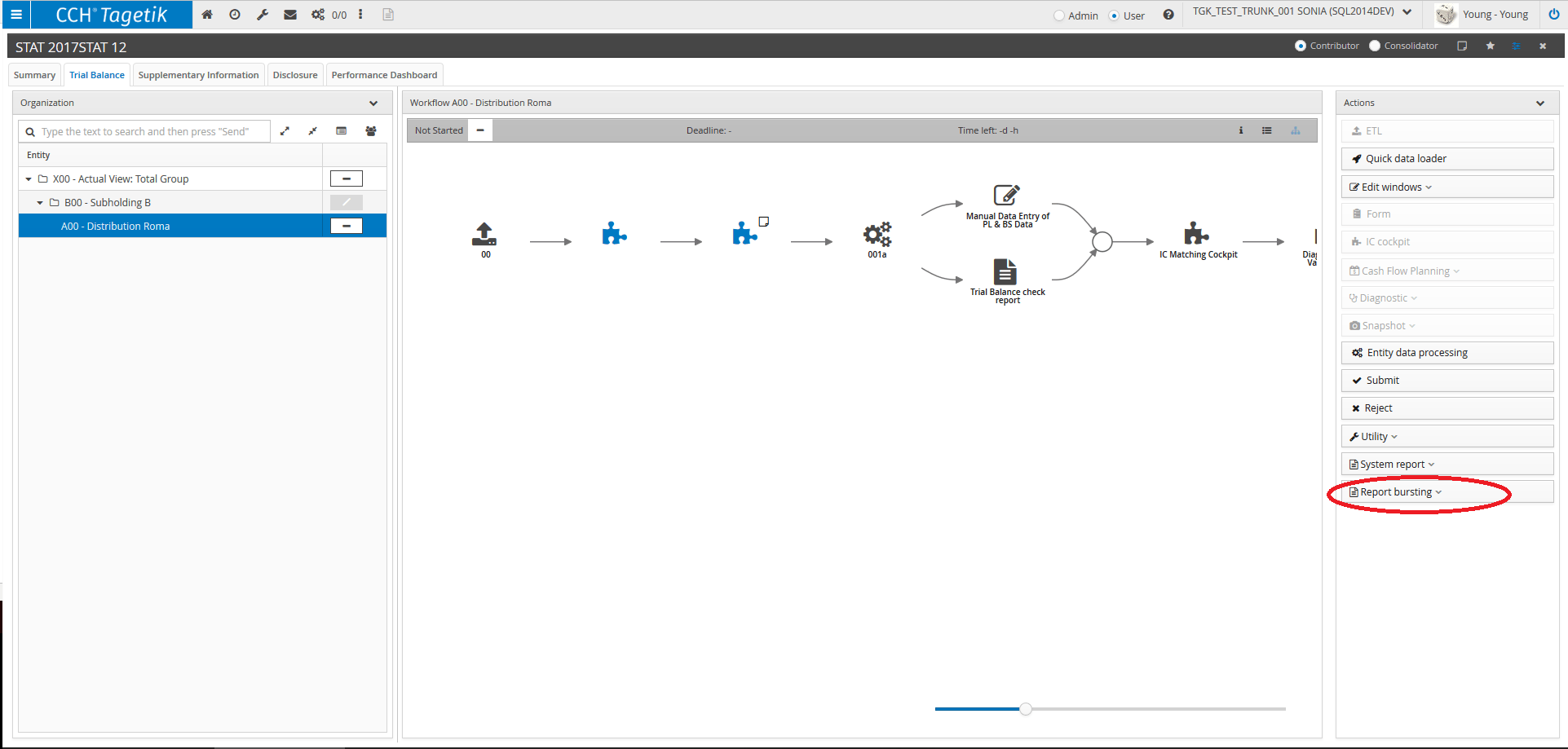
click an option among Generate/Send/ Generate and Send available from the Report bursting
 drop down menu
The system will open a window in which the user can select the step or list of items for which the selected data processing shall be run. It is possible to select only steps/items belonging to the same rule. If the process is not single submission, then the reports will be filtered for the scenario/period selected when opening the cockpit.
At this point the system opens a wizard in which as a first step the system asks the user to select for which step or list of items belonging to the same rule to execute the selected data processing.
In the next step, the user must select the values with which to filter the dimensions required at launch when defining the element or, if no definition is required at launch, execute the data processing directly, specifying whether there is need to generate only files that failed in a previous run.
If the process is not a single submission and the dimensions of Scenario, Period and Entity are required at launch, the system displays the default values for the dimension filters, those selected in the navigation of the cockpit and the user can then decide to modify them and launch with new values. In cases where the default values are not part of the restrictions defined for the parameter, then no report is generated with these filters applied and this case is highlighted in the Audit.