Reports check
After running the generation data processing for rule, step or item, it is possible to:
- display the generated files (this display can be accessed by Rule, Step and Item)
- check the result of the data processing. In fact, each operation is tracked, therefore it is possible to reconstruct the result of the data processing by scenario / period, as well as what has been done, when and by whom. This allows you to:
- analyse any warning messages / errors
- analyse the modifications made and the makers of such operations
- make a summary of what happened during a given period of time
Show generated files
The Show generated files window can be accessed from the User actions > Show generated files menu. This menu is available the Rule, Step and Item definition windows.
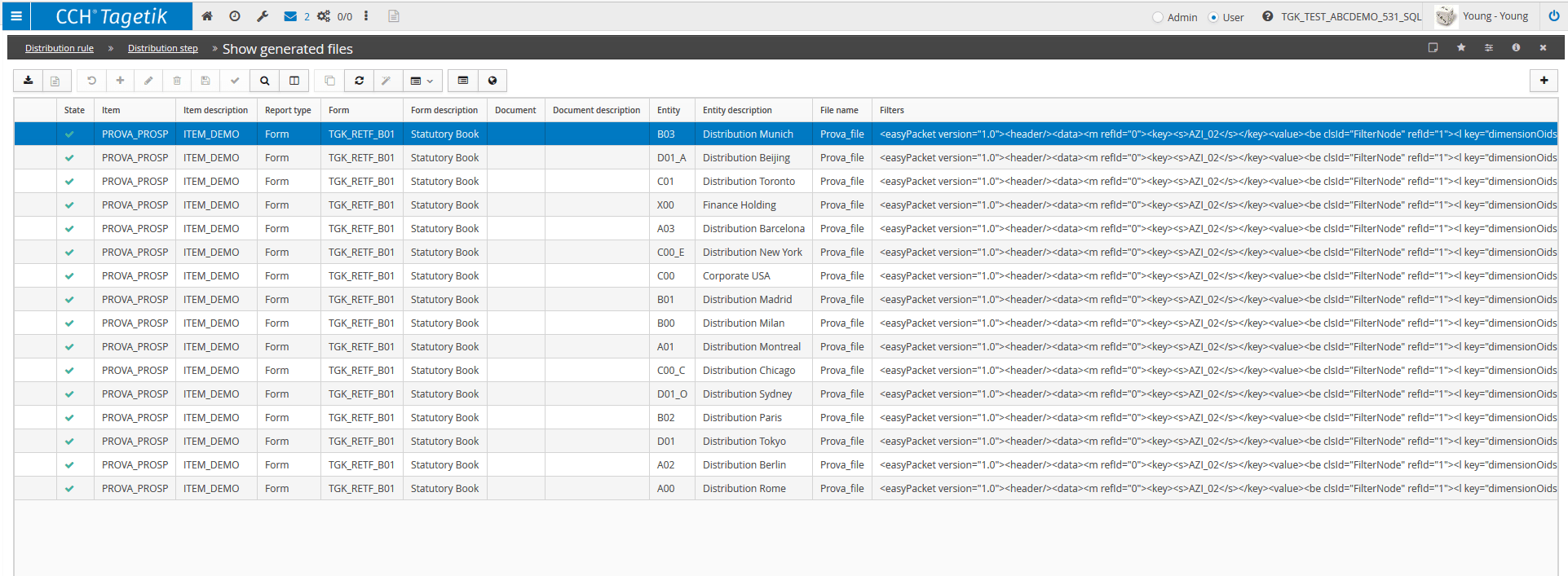
The information available on the window varies according to the access mode.
For example, if it is displayed by rule (Distribution rule > User actions > Show generated files) then, in addition to the above mentioned information, the system will display the code and description of the generated steps and items.
In detail, such information includes
| Information | Description |
|---|---|
| Status | Displays through a traffic light the status of the data processing: - Green, Data processing completed without errors - Yellow, Data processing successfully completed but with Warning messages, therefore some checks may have not been passed |
| Validation date | Date in which the validation of the XML file was run |
| Validation state | Result of the validation check on the XML file. Possible statuses: - Valid. Document successfully validated - Warnings are present. Document validated but one or more warning have been reported - Invalid. The document did not pass the validation |
| Validation message | Message containing the result of the validation check in case the document did not pass the validation or one or more warnings have been reported |
| Code and Description Distribution step | Code and description of the distribution step |
| Item Item description | Code and description of the item |
| Report type | Type of generated report. Possible values: - Form - Document |
| Form Form description | ID code and description of the form |
| Document Document description | ID code and description of the Collaborative Office document( document type code |
| Scenario | Code of the generation scenario |
| Period | Code of the generation period |
| Entity Entity description | Code and description of the entity used as a filter in the generated file |
| File name | Name of the generated files |
| Filters | Entity, Category, Custom dimensions and Currencyused as filters in the generated file |
| Creation date | Date in which the file was generated |
| Sent e-mail | Specifies that the created file has been sent |
| Inconsistent filter | Specifies that the filters of the created file differ from the filters of the generating item |
| Warning | Detail of the warning message |
Whenever an item or a list of items is regenerated and the Send option is enabled for the regenerated item, the system:
- stores offline the files present in the archive of generated files whose date is prior to or equal to the date of the last generation
- removes the offline files from the generated files storage
- saves the regenerated files
Running the regeneration multiple times may lead to having many old files. To reduce the usage of the disc and simplify and speed up the files management, it is possible to delete the operations in the generated files storage by using the Delete button on the button bar of the storage window.
 The deletion of the files from the storage causes the deletion of the log of old generated files whose date is prior to or equal to the date of the last generation.
Actions
Show files storage
The storage of the old generated files is accessible from the Show files storage window (Show generated files > User actions > Show files storage). This window displays, sorted from the most recent to the oldest regeneration date, the list of old regenerated files according to the selected file.
Download
The generated files can be downloaded by the Download option in the User actions menu accessible from the Show generated fileswindow. After selecting the files to download and then clicking on download, it is necessary to select one of the following distribution formats:
- Original (default value). The system downloads the file in ".xlsx" format if Report type is Form or in ".docx" format if Report type is Collaborative Office Document
-
Pdf
-
Txt. Valid only if Report type is Form
After selecting the format, by clicking the Download button, it can be saved locally. The system displays a dialog window in which you can choose whether to open it immediately (Open) or save it into the Downloads folder (Show downloads).
 The file's name is specified in the File name field and is defined when creating the item. In case of multiselection, the system downloads one single file in .zip format named
"GeneratedReport_scenario code_period code_YYmmDDhhMM.zip". This file must be extracted by using Winzip or a similar tool. Once the extraction is completed, the folder set for the copy will contain one file for each report, each one identified by File name.
The file's name is specified in the File name field and is defined when creating the item. In case of multiselection, the system downloads one single file in .zip format named
"GeneratedReport_scenario code_period code_YYmmDDhhMM.zip". This file must be extracted by using Winzip or a similar tool. Once the extraction is completed, the folder set for the copy will contain one file for each report, each one identified by File name.
The Txt format exports only the first sheet of the Form. The columns are separated by tab character, the cell formats are kept for numbers and dates and any hidden rows or columns are exported as well.
Show log
The check of the distribution data processing can be run by distribution rule
by accessing the User actions ( ) > Show distribution log menu.
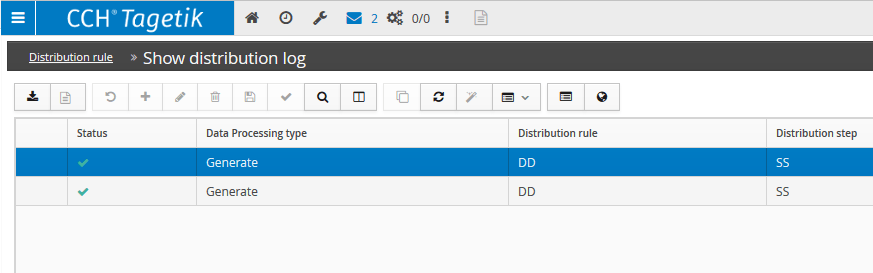
For each step of the selected rule, the window displays the following information:
- State. Displays through a traffic light the status of the data processing:
 Green. Data processing completed without errors
 Yellow. Generation successfully completed but with warning messages, therefore some checks may have not been passed
 Red. Error occurred during the data processing
In case of warning/error, by accessing the Detail window (User actions > Detail) it is possible to display for each warning/error some information about the data processing run and the warning/error Message. - Data processing type. Data processing type run (Generate, Send: Email and Send: Ftp) - Distribution rule. ID code of the rule - Step. ID code of the step - Item. ID code of the item - Scenario. Code of the scenario defined when generating the report - Period. Code of the period defined when generating the report - Data Processing date. Data processing run date
In the Show distribution log for Generate data processing, the system inserts a row for each item run (in case of run by step, one for each item of the step). On the other hand, in case of Send data processing,the system inserts only one row per execution and the Item information will be empty in case of run by Step.