Configuration
In order to define which reports have to be generated and the logics with which they should be filled and saved, it is necessary to create:
-
a Distribution Rule. The distribution rule represents the process that is to be implemented and is the first step in the distribution process.
-
one or more Distribution steps. Each step represent a phase of the distribution process and allows dividing the rule, for example, according to the frequency of the generation and distribution of the reports. For each distribution step, it is possible to define a distribution list (list of items)
-
one or more Distribution lists. The distribution list consists of one or more items in which the user can specify the report to generate/ distribute, the set of filters to apply to the report and the recipients.
Distribution rule
The distribution rules table can be accessed from the user home page by clicking on the "Report bursting" tile.
Each rule is identified by a Code and a Description and by:
| Property | Description |
|---|---|
| Endpoint | External source in which the files to distribute are saved. You can choose one of the external sources configured in the Repository of CCH® Tagetik |
| Directory | - Path to the folder shared with the external source. - For example, in order to save the files distributed for that rule into a folder named TAGETIK "Quarterly Reports" , the description of the directory should be TAGETIK/Quarterly Reports/, with a slash "/" that separates the names of the various folders. If no directory is specified, the system will save the distributed files into the root. - The path can be defined also parametrically by suing a specific syntax in order to report some specific information about the generated report and / or the value of the filters configured when defining the item. For further details on the syntax, see paragraph Parametric elements. During the definition phase, the system does not check the validity of the characters inserted into the "Directory". If the Directory contains one of the characters listed below, then the system will replace such characters with the Underscore (_) symbol during the definition and/or distribution phase. - Asterisk (*). - Vertical bar ( |
Distribution step
The distribution step table can be accessed from the Distribution step menu that appears after clicking on the User actions  menu in the distribution rules definition window. Each step is identified by a Code and a Description.
Distribution list
The distribution items table can be accessed from the Distribution list menu accessible after clicking on the User actions menu in the distribution steps definition window.
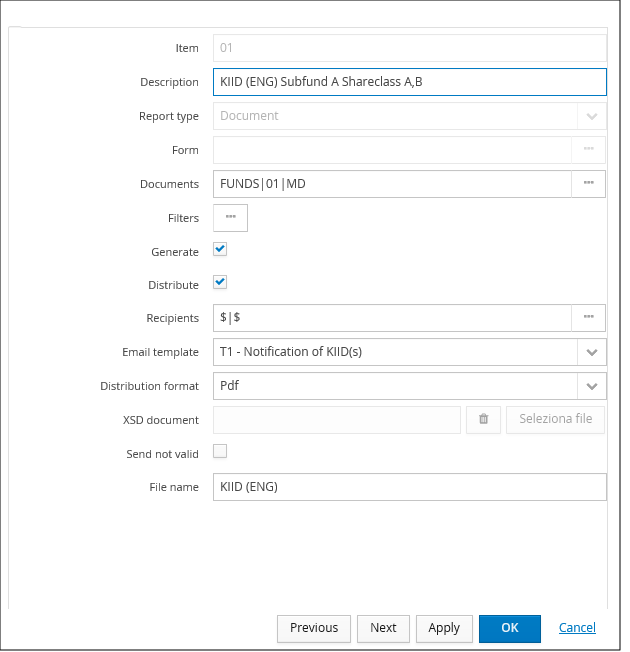
Each distribution item is identified by a Code and a Description and by :
| Property | Description |
|---|---|
| Report Type | - Type of report , possible values: - Form (.xlsx) - Document (.docx) After saving the item, this field is no longer modifiable. |
| Form | Form ID code. This option is enabled only if Report type is Form (.xlsx). Some form features may not be supported. For further details, refer to the section "Unsupported features". |
| Documents | ID string containing the code of the document type, the code of the document and that of the document activity selected in the accessible documents tree. This option is enabled only if the Report type is Document (.docx) |
| Filters | Allows setting specific filters. Upon generation, the reports will inherit such filters that could be different from those selected when defining the document or the form. so that the report inherits them upon generation, such filters If the Report type is: - Document, it is possible to select all necessary filters in terms of Scenario, Period, Entity, Category, Custom dim1, ...,5 and Currency. For each dimension, except the Currency, it is possible to select a single element or a node. It is not mandatory to define them and, if a user decides not to select any value, the reports will be generated using the filters set in the Document properties. - Form, it is possible to select the value to be assigned to the dimensions inserted as parameters in the filters definition. In the presence of nodes, it is possible to deploy the node, generating as many reports as there are elements belonging to the node, by enabling the "All lowest elements" option. The "All lowest elements" option cannot be enabled more than once in case of Forms and the multiple activation may result in the JVM's resources being overloaded, causing performance degradation until the critical state is reached. Report Bursting does not support forms with more than one parameter on the same dimensional hierarchy or group. For dimensions for which the Ask at launch option has been enabled, the system will prompt the user through a window to select the value to be assigned to the parameter when the item or step containing it is executed. |
| Generate | Specifies if the report has to be generated |
| Distribute | indicates whether the report is to be distributed. Furthermore, by activating the option Delete distributed files, the files will not be saved in the distribution archive but will be deleted after sending. In the event of errors during distribution, correctly generated but not sent files will be available in the generated files window for later distribution. |
| Recipients | Shows the list of the email's recipients separated by comma. To insert a recipient, you can either: - enter an email address (name@email.com), or - select the user or a group of users among those available in the list |
| Distribution format | Format of the reports to be distributed. Possible values : - Pdf (default value) - Original. the report format is .xlsx for "Form" report type and of .docx type for "Document"report type - Txt. Valid only for "Form" Report type. - XML. Valid only for "Form" Report type. The Txt format exports only the first sheet of the Form. The columns are separated by tab characters, the cell formats are kept for the numbers and the dates, and also any hidden rows or columns are exported. The XML format works in a similar way but the first sheet of the generated Form must contain a text corresponding to a valid XML. The generated XML can be validated by a XSD file. If the validation has negative result, it is possible to choose not to distribute the report. |
| XSD document | Name of the necessary XSD file for the validation of the XML file. In order to upload the XSD document, click on the Select file button and navigate the file system to select the file. After uploading the file, it is possible to remove it by using the Delete button. This option is enabled only if the Distribution format is XML. |
| Send not valid | The validation process does not affect the generation of the document. Therefore, a correctly generated document might not be a valid XML document. By default, it is not possible to distribute an invalid document. By enabling this option, it is possible to override the distribution of the document. This option is enabled only if the Distribution format is XML. |
| File name | Name of the generated files (it must be a value comprised between 1 and 255). The inserted value can be: - constant (File's name), or - calculatedautomatically by the system in order to show in the file's name some specific information about the report and / or the configured filters. For this purpose, the user must use a specific syntax for each information he wants to display. For further details about the syntax of the parametric elements that can be included in the file name, please see paragraph Parametric elements syntax When defining the file name, the system does not check: - the number of inserted characters: If this value exceeds 255 characters, during the distribution phase different reports may have the same name and, therefore, could be overwritten - the validity on the inserted characters: If the file name contains one of the characters listed below, then the system will replace each character with the Underscore symbol (_) during the generation and/ or distribution phase. - - Asterisk (*). - Vertical bar ( |