Export to Excel
When you click on the export to excel icon, the system downloads an excel file (job_example_20210111_1524.xlsx).
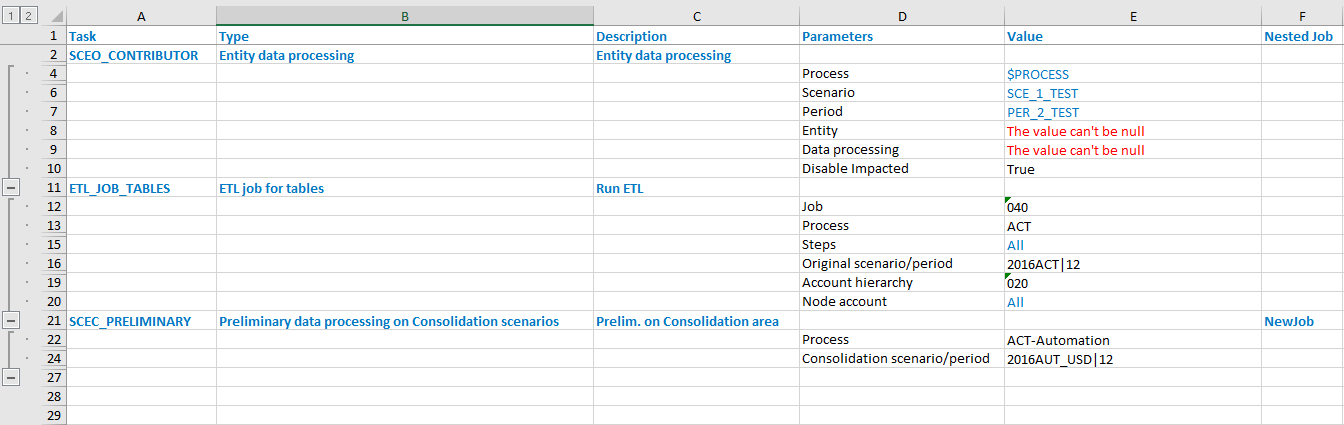
The downloaded file consists of the following columns:
- Task: task's code;
- Type: description of the data processing run in the task;
- Description: description of the task in the language of the current user;
- Parameters: parameter's name;
-
Value: parameter's value;
-
if the value of the parameter is set to All,then the value is represented by a blue label;
- if the parameter's value contains a validation error, then the value is represented by a red label;
-
if the parameter's value is a parametric value, then the value is represented by a blue label ($PROCESS, SCE_1_TEST, PER_2_TEST).
-
Nested Job: code of the job contained in the task.
When you click on the Export to Excel icon and the job does not contain any task, the system will display a warning message: Please, add a task to the job before launching the export to Excel.