Add and Edit Record Properties
You can add and remove base (static) and virtual (calculated) properties used in records. Base properties can be imported and exported. Virtual properties are pre-defined, customized, calculated fields that use the static properties for their calculations. Virtual properties cannot be imported or exported. They are fields often used in reports so that you do not have to recreate them with every report.
To add or edit record properties
- On the Dashboard, on the menu, click Design > Supply Chain Planning > Setup > System Setup.
- From either the Base Properties tab or the Virtual Properties tab, do one of the following:
Properties Table Options
| Procedure | Description |
|---|---|
| Add a property | Scroll to the bottom of the Properties table and click Add Property. Add Property Option Property descriptions can be found at Record Fields. |
| Edit a property | In the Properties table, select the Property you want to change. |
Edit Property Screen
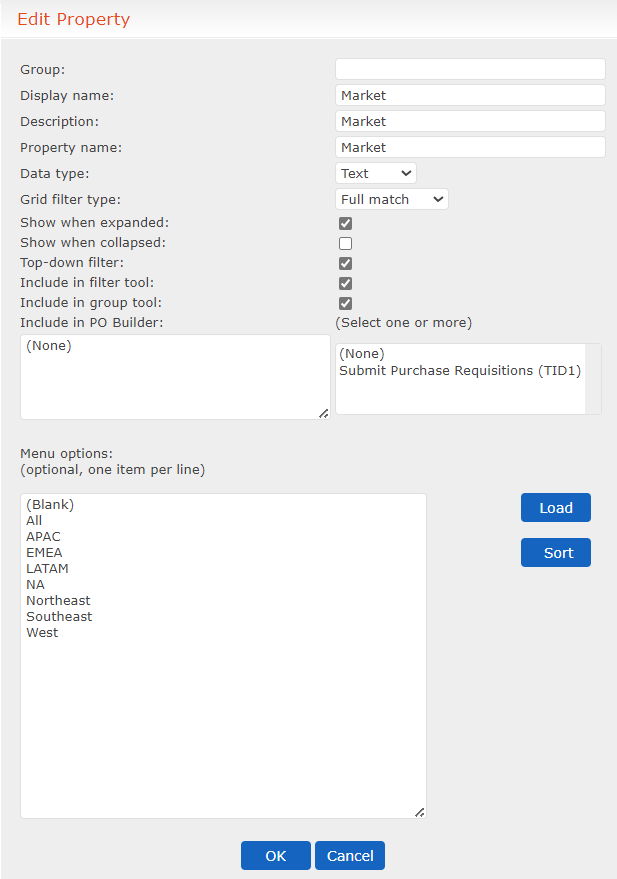 3. In the Edit Property screen, set the following parameters:
Edit Property Parameters
| Parameter | Description |
|---|---|
| Group | Optional. This groups your record properties into organizational sets of information. |
| Display name | The text that displays in views, records, and reports. |
| Description | Description displays when adding virtual properties. This is additional information to describe the property. |
| Property name | The back-end name the Forecast Server uses to reference this property. You can use formulas in this field. See Calculated Properties. |
| Data type | Controls how and when a property displays in different views. This does not affect when a property displays in a record. - Auto - Text - Numeric - Date |
| Grid filter type | Controls how and when a property displays in different views. - Hidden: The property is never displayed. - Normal: The property is displayed, but cannot be used as a filter in Folder and Grid views. - Full match: The property is displayed and can be used as a filter in Folder and Grid views. Filtering makes exact text matches only. - Partial match: The property displays and can be used as a filter in Folder and Grid views. This setting is only used for the Owner property when you allow multiple Owner Groups. In this case, the filter separates multiple Owner Groups and treats them as individual Owner Groups when it looks for matches. - Tree folder: The property displays in Composite and Folder views and can be organized in the navigation hierarchy. |
| Expandable timeline | Expandable timeline displays when adding virtual properties. This option means the property is "date aware," meaning if the virtual property is used in a report that has a timeline component to it (like pivot chart) then the virtual property calculates the results over a report timeline horizon. |
| Show when expanded | Check to show property when the tree view is expanded. |
| Show when collapsed | Check to show property when the tree view is collapsed. |
| Top-down filter | Check to use the property to create a high-level forecast, create comparables, and so on. |
| Include in filter tool | Check to make this attribute a filter. |
| Include in group tool | Check to make this a grouping attribute. |
| Menu options | This option does not apply to virtual properties. To restrict users to a constrained list of values 1. In the Menu options text field, type the values for the list (one per line). This creates a drop-down list of items from which users may select. 2. To populate the list of values for drop-down menu options based on existing records, click Load. 3. To sort the list of menu options values alphanumerically, click Sort. To let users type values - Leave the Menu options text field blank. Note: The characters greater than and less than (><) are not all allowed in this field. |
| Code | Code displays when adding virtual properties. This box allows you to define the function needed for the property. After you have finished typing your code, click Test to make sure it works correctly. |
For a list of fields and their use, see Record Fields. 4. Click OK. 5. WITHIN RECORD (OVERRIDE) Have to select group type for these to display: To add a property to the comparables list, ensure it meets the following criteria:
- Not a System field (Field Type=System)
- Not a Calculated field (Field Type=Calculated)
- Menu type (Data Type=_ Menu)
-
Check the following:
- Show when expanded
- Show when collapsed
The property then displays in the Define Group screen when users are setting up comparables.
Define Group Screen
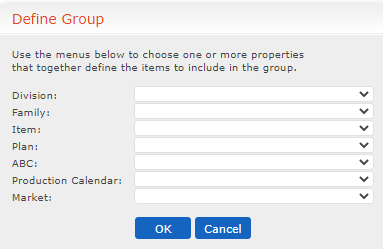
Note: Multiple fields can be selected in each line.
See Supplement Historical Data with Comparable Data. 6. Click OK.
To change the order of property columns
- On the Dashboard, on the menu, click Design > Supply Chain Planning > Setup > System Setup.
- In the Properties table, click and drag a Property up or down in the list.