Managing Report Lists from the Web
Configuration sets
Run Report List from the Web
 Tile Report List
Navigation > Reports & Analysis > Report List
- Select the desired Report List.
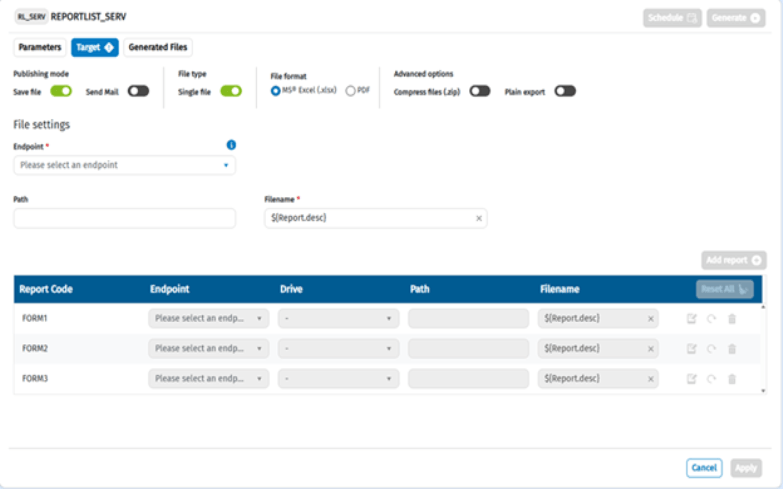
- A new window is displayed with 3 tabs: 'Parameters', 'Target', 'Generated files':
 3. | If... | Then... |
| --- | --- |
| The Report List requires parameters | the 'Parameters' section will show the selectable ones, then click on ... next to each dimension to select the desired items or nodes. |
| the Report List does not require parameters | the 'Parameters' section will remain empty. |
4. In the ‘Target’ section, the user must enter all the necessary information to generate the output file, such as:
3. | If... | Then... |
| --- | --- |
| The Report List requires parameters | the 'Parameters' section will show the selectable ones, then click on ... next to each dimension to select the desired items or nodes. |
| the Report List does not require parameters | the 'Parameters' section will remain empty. |
4. In the ‘Target’ section, the user must enter all the necessary information to generate the output file, such as:
- Publication mode(Save file - option selected by default - or Send mail)
- File type (Single file - selected by default)
- File format(MS Excel .xlsx - selected by default - or PDF)
- Advanced options(Compress file - zip - and Plain export)
- Endpoint
- Path
- File name
- In the 'File Settings' section, the user must enter the desired Endpoint, Path and File Name (set by default to ${Report.desc}).
Admin will thus create Endpoints in the Repository on which the report will be saved:
- Automatic creation of sub-folders in the endpoint when saving the RL
- Handling of the automatic creation of a subdirectory in the endpoint when saving the RL via a dynamic script
- Server-side support for generating a PDF or Excel
- Generating files without .ZIP
- Files generated at the end of LAUNCH_REPORT_LIST data processing
When the user activates the 'Send mail' option, the e-mail settings are displayed below the report list.
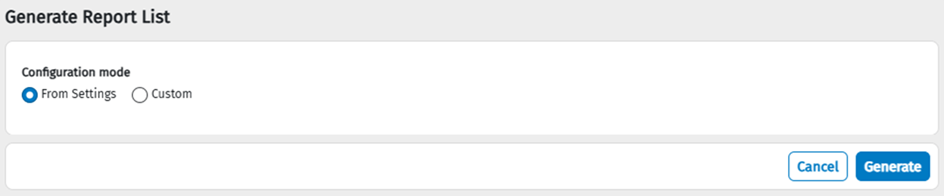
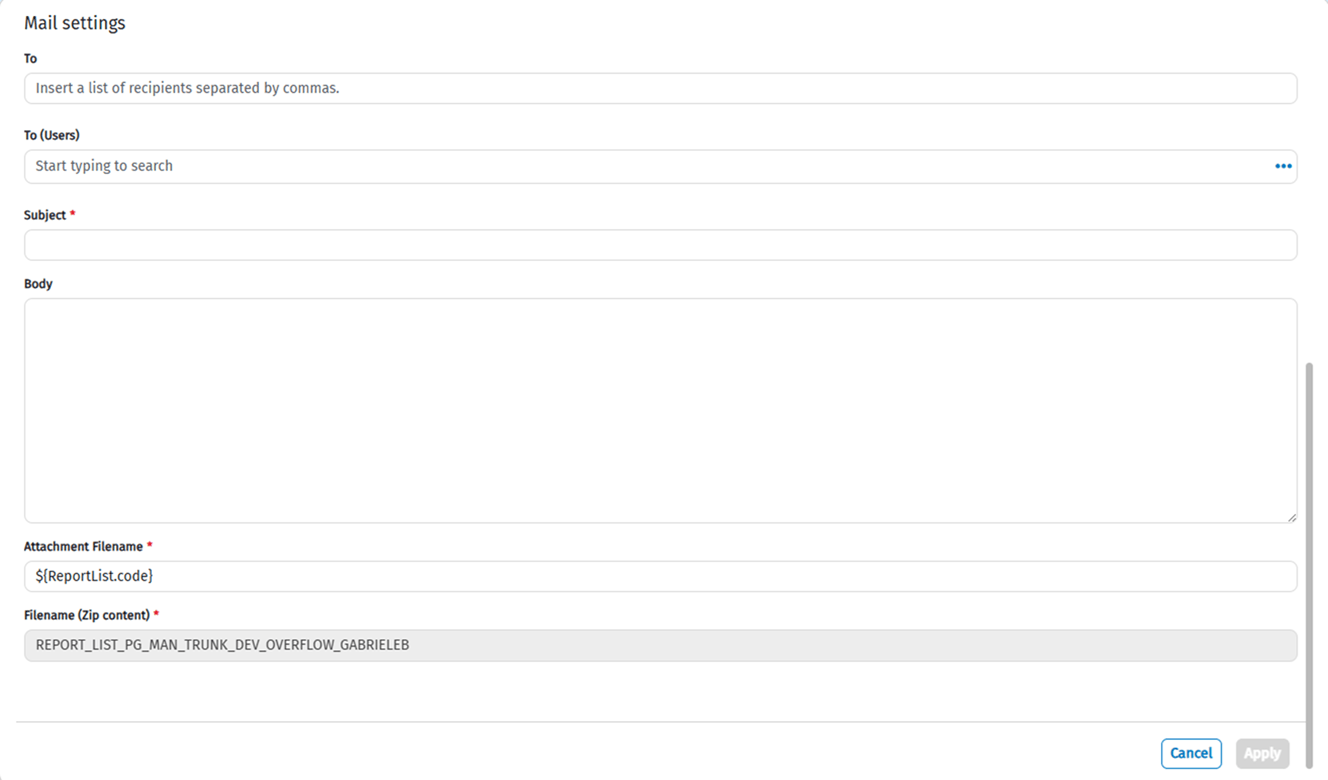 6. Clicking Generate will start the data processing that will produce the file for the selected Report List and the user will see a notification of data processing in progress.
The files can be generated using the saved settings:
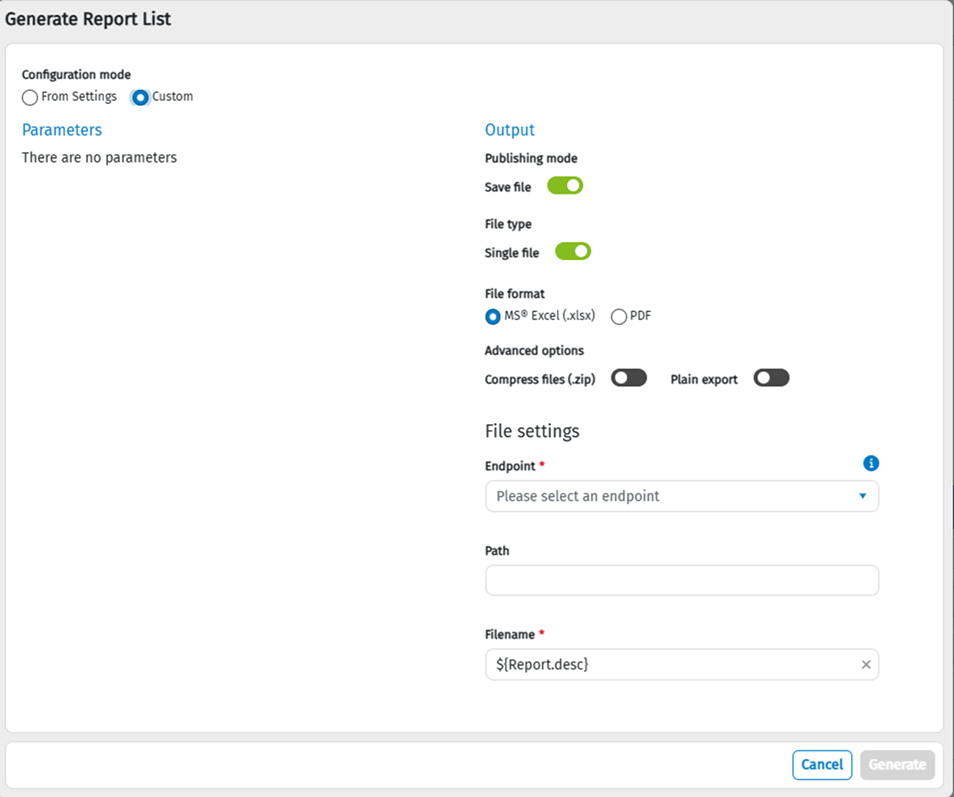
Alternatively, ad‑hoc settings, valid for the specific execution only, may be used:
 7. data processing:
| If... | Then... |
|---|---|
| the user is still on the Report List page | A 'Results' pop-up window will appear containing two tabs: 'Exported files management' and 'Audit'. The 'Audit' tab will show the audit details of the data processing just performed. |
| the user is no longer on the Report List page | a notification of completed data processing will be displayed in the bottom right-hand corner, and via the Show Result button, the 'Results' window can be displayed. |

IMPORTANT: If a Report List is generated several times with the same code and by the same user, it will be overwritten by the most recent file.
Server-side support for generating a PDF or Excel
The configuration to generate only PDF files or only Excel files is also supported for the new Report List based on the server engine, instead of always generating both file types.
Types of parameters and functionalities/services supported on the Web
- The types of parameters supported when launching a Report List from the Web are: standard dimensional parameters, AIH parameters, NON-dimensional parameters (Text, Flag, Date, Dictionary) and Multi-hierarchy parameters.
The features/services supported on the Web instead are:
- The mandatory flag
- Restrictions related to user rights
- Multi-selection within the parameter tree
- Quick search, on the dimension tree of the selected parameter, only active in the window containing the parameters in use of the Report List
- Lowest level elements enabling flag
- Nodes enabling flag
- Default Value, explicitly selected from the parameter definition, the default value defined via advanced dynamic script is not supported.
- Default Value, explicitly selected from the parameter definition, the default value defined via advanced dynamic script is not supported.
- Advanced selection (insert lowest elements, insert children elements)
- Advanced selection script
- Dependent parameters, where the dependency may be implicit (between two parameters belonging to the same dimension) or explicit (where the dependency is defined within the script)
Automatic creation of sub-folders in the endpoint when saving RL
The user is able to automatically generate sub-folders from a selected Endpoint, based on the definition of the Report List file name. Each section of the filename delimited by '\' will be a subfolder of the selected endpoint, the last section being the file name.
Managing the automatic creation of a subdirectory in the endpoint when saving the RL using a dynamic script
When launching a Report List from the web, the user can define a dynamic file name and path using the 'Cell field' language. In this way, the system generates a folder for each element divided by '\' recognising the script in the file name and translating it according to the Report configuration, within the Report List.
Generate files without .ZIP
When the user generates or schedules, the server side of the Report List will have the option of compressing the generated files. By default generated files are not compressed. This option can be accessed by a flag in the generation and scheduling window.
Tab for Managing Files Generated on Personal Report Type Endpoints
The Generated Files section, which has been renamed Personal Reports, is supported. This section, accessible from the Report List tile on the User Home Page, allows the user—after selecting a Report List—to view, download, or delete the latest file(s) generated for that Report List through the endpoint marked as Personal Report, by the currently logged‑in user. To activate this section, it is first necessary to create an Endpoint, and save it in the Settings of the application database, in the section Form> Report List > Endpoint for Personal Reports, and then generate the selected Report List using this Endpoint, which will be the first in the list. The file name will follow a standard non-modifiable logic: ReportList_database ID_user code_ReportListcode if it is a single file or ReportList_database ID_user code_ReportListcode_Form_code in the case of separate files.
Files generated at the end of LAUNCH_REPORT_LIST data processing
If you choose to generate Excel type files then the files produced by the data processing will be browsable, unless you have chosen the option "Generate non-refreshable Excel files disconnected from Tagetik" in report list design mode, in which case the files will be simple excel files.
Opening a file generated by the Report List data processing that does not have the option "Generate non-refreshable Excel files disconnected from Tagetik" will prompt the user to log in to the Excel add-in CCH Tagetik, if the user is not logged in. If the report list has the 'Single File' option, then the tools enabled in navigation mode will be 'Cell Properties' and 'Drill Down'.
IMPORTANT: For the navigation tools to work properly, the use of the prefix 'TMP_' in 'Name Management' in reports contained in a Report List is not recommended.
Override options and override run Parameters
We introduce advanced options, applicable from the Report List settings in the Excel add-in, which allow you to override the run parameters for each of the reports used in the Report List. This functionality allows the user to change one or more of the run parameters of a report compared to the parameter settings of the Report List. It also allows you to run, server-side, a Report List that includes the same report several times, but with different run parameters set.
Filename and Endpoint Override
This function makes it possible to manage the replacement of one or more file and/or path names in the new Report List, even within several Reports contained in the Report List:
-
The replacement options are already available in Excel and only apply to Report Lists generated with the Excel engine.
-
The replacement options have been extended to the Tagetik web application, in this case the Report Lists are generated with the Tagetik server engine, which unlike Excel involves the use of Endpoints and does not support GetEnv() functions and saving files to local folders.
When the user selects a specific report included in the Report List and enables file name and/or target replacement:
| If... | ...then |
|---|---|
| A Report List generates a single file | reports that have replaced one or more save settings (Endpoint, File Name and Path) will be separated as single files and generated separately. |
| A Report List generates several separate files | the replacement affects only the target or the name of the overwritten files. |
Scheduling a Report List from the Web
Tile Report List
Navigation > Reports & Analysis > Report List
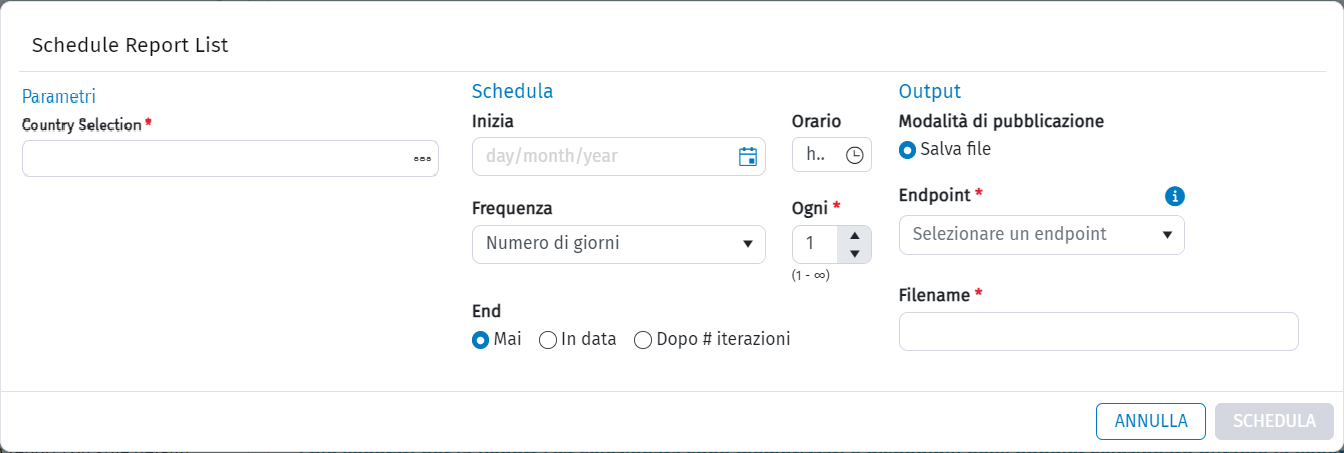
- Select the desired Report List, then click on Schedule.
-
A new window consisting of three sections will pop up: in addition to 'Parameters' and 'Output', similar to those in the generation window, there will also be a 'Schedule' section where the user can set the settings required for scheduling. The 'Start' field indicates the date on which the scheduling is to start. The 'Time' field indicates at what time each report list is to be launched. The 'Frequency' field indicates how often the scheduling is to be repeated:
-
Number of days -> The field 'Every' appears, in which the user indicates how often the scheduling is to be run
- Days of the week -> A list of days of the week appears below where the user can select on which days the scheduling is to be run
- Day of the month -> An 'On day' field will appear in which the user must indicate the day of the month on which to run the scheduling
- Day of the year -> Two fields will appear in which the user must enter the month and day respectively on which to run the scheduling
The 'End' field allows the user to indicate when the scheduling should end:
- Never -> Scheduling will be repeated without an expiry date
- On Date -> Scheduling will end on the day indicated below
- After # iterations -> Scheduling will end after # times
- When clicking on Schedule (only active if all the previously described sections have been filled in correctly) the generation of the selected Report List will be scheduled, based on the parameters entered during the scheduling phase.
Note: Mandatory fields will be marked with a red asterisk and the 'Schedule' button will remain disabled until the user has filled them all in. 4. It is possible to set up a notification e-mail for each possible execution outcome directly from the scheduler.
Note: Currently, in the event of total or partial data processing success, the content and recipients of the e-mail are the same, but the subject line differs. It will be 'Data processing completed successfully' if the operation was successful, or 'Data processing completed with warnings' if there were warnings.
Index explanation
Note: The following applies to both scheduling and generation.
If the Generate Index option was selected in Excel during the creation of a single-file report list, the ZIP created following generation will contain an Excel file incorporating an Index as the first sheet marked with a table to navigate to all the forms in the report list. Each table element on the Sheet Description section is in fact a hyperlink which, once clicked, navigates to the selected form. Similarly, the ZIP file will also contain a Pdf file that also contains a table of contents on the first page with hyperlinks on the Sheet Description section, but in addition will contain the new item Page Number indicating the page on which the form in question is hyperlinked, respectively.
Report List Index on web
In the new Report List, the Table of Contents, which was automatically generated by adding the index to the list, is not supported. The index is still available, but in a different format and without table of contents. The format is tabular and includes a first column for the Form Code, a second for the Form Description, a third for the Sheet Description, and a fourth column (for PDF files only) for the Page Number.
Note: The Sheet Description and Page Number contain a hyperlink to the corresponding page.
Features not supported
When adding a form node to the Report List and not individual forms one by one, it will not be possible to override the filename and file path on this same node
Manage notifications when one or more reports fail in the Report List
When one or more reports, contained in a Report List, fail during data processing, a red light will light up in the end-of-processing notification, highlighting the fact that data processing has ended with errors. Further details on the error are then provided by the Audit.
Support of Explicit Restrictions on the New Report List
Explicit restrictions on the web, defined manually in the parameter definition performed on the Excel add-in, are supported.