Quick Data Loader - Import criteria definition window
 User|
User| 
Processes tile > select process > Contributor > select Overview of details/step sheet > Quick Data Loader > (Quick Data Loader - Source/target definition window) Run
Admin |
Analytical Workspaces > select partitions > select dataset >  > Financial workspace mapping or Datasources mapping
Purpose of window
On this page you can:
- Select the data from the source to be imported into the target.
- Only with target: Data (Amounts, Intercompany), select the type of amount without counterparty.
- Define the criteria for overwriting or deleting data present in the database, pre-import.
What it looks like
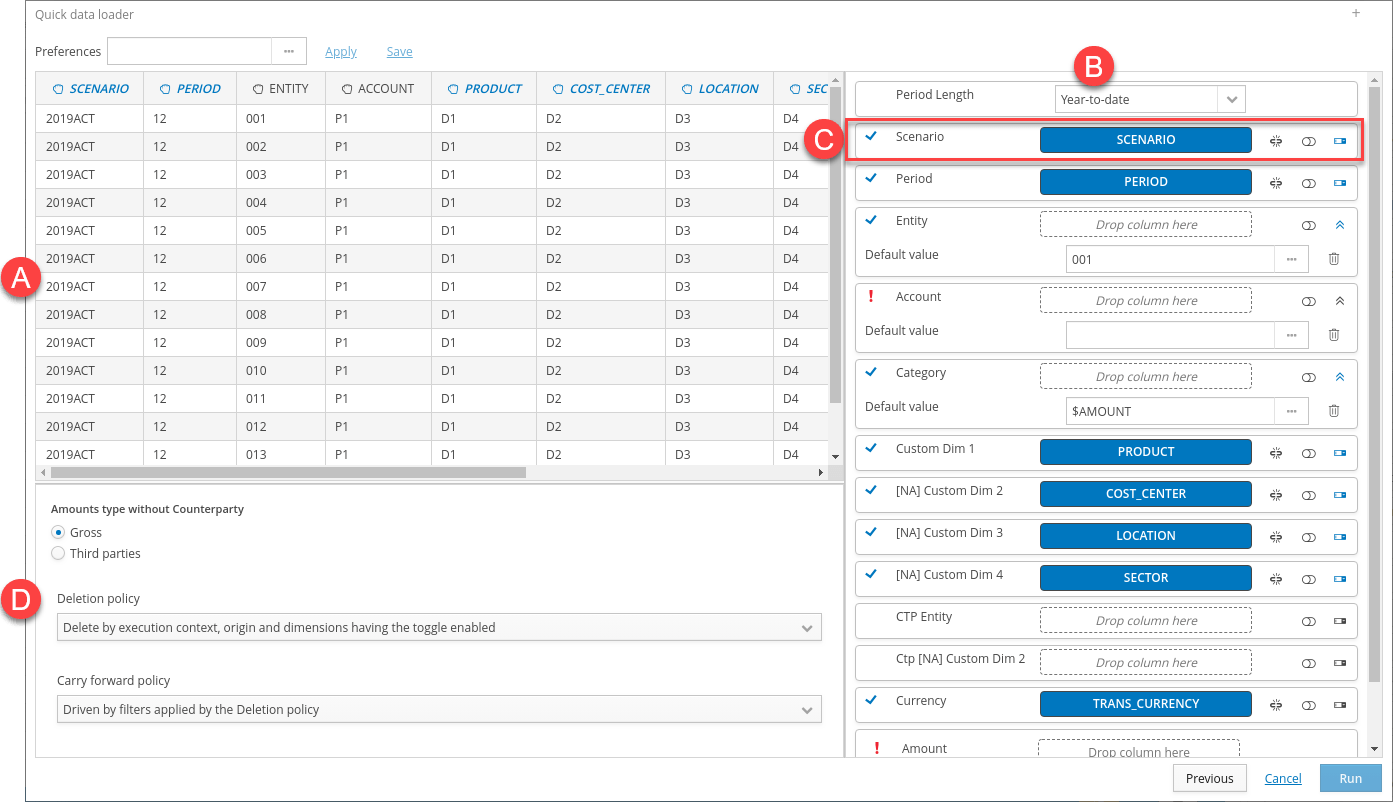
| Element | Description |
|---|---|
| To | Source data display section |
| B | Dimensions mapping management section |
| C | Dimension relationship row |
| D | Calculation and data management options: - Only with target: Data (Amounts, Intercompany). Options for managing the type of amount calculation without counterparty. - Options for deleting data already present in databases before the data import. - Only for submission processes by scenario/period and with Data (Amounts, Intercompany) type target. Options for restoring data from the previous period. |
Source data section
| Element | Description |
|---|---|
| Data columns | Every column shows the values present on the data source, every column will have as its header: - the header that it has in the data source, if present. - the progressive numeric code of the rows in the column if the source does not generate tables with headers: - the column header, if available (only for spreadsheet or query type sources). - the dataset field header (only for Analytical Workspace type sources). Note: data loaded by Analytical Workspace are filtered depending on whether the table or the user rights contain the Analytical Dimensions present in the Dataset. Note: If the data source consists of files with different headers and the header view is selected, the headers of all files will be displayed, without duplication. A maximum of 15 rows are displayed per column. |
Buttons in the source data section
| Element | Description |
|---|---|
| Preferences | Allows you to enter the name of a new set of mapping preferences. |
| Allows you to search for a set of preferences. The displayed preferences are those created by the current user for the current target type. | |
| Apply | Applies the preferences of the selected set. When the following conditions are met, the preference will be applied in any case, where possible. - the name of a header saved in preferences is not present in the current data source - the default value is not present in the range of values that can be selected for the dimension in the current context A warning message informs the user of partial application. |
| Save | Updates or creates a set of preferences. |
| Allows you to click and drag the column, or the data type, and relate it to a dimension. |
Dimension mapping section
| Element | Description |
|---|---|
| Dimension relationship rows | Every row shows the following: - Only with Data (Amounts, Intercompany) type target. Logic dimensions of CCH Tagetik Financial Workspaces. - Only with Analytical Workspace type target. The fields of the dataset of the Analytical Workspace selected in Dataset, in the Quick Data Loader’s import criteria definition window (see Quick Data Loader - source/target definition window). |
Fields for managing target dimensions
| Element | Description |
|---|---|
| Period Length | This allows you to indicate whether the period over which the source amounts are calculated is cumulative (adding amounts), or periodic (monthly, bimonthly, etc.). |
Buttons and icons in the dimension relationship row
| Element | Description |
|---|---|
| Obligatoriness indicator | - : mandatory dimension already managed, management can be done via relating the columns, with default values (see Default value) or both - : mandatory dimension not managed. The import cannot continue if this is not managed. - empty: optional dimension. It can be managed both by relationship and by default. |
| This allows you to relate a source column to a target dimension. | |
| (Toggle) | If active, it includes the dimension as a filter in the deletion step (see Data calculation and management options section). Note: with Data (Amounts, Intercompany)-type target, dimensions that inherit filters from the execution context have the button active by default. |
| Shows advanced options to define the dimension’s default value | |
| Default Value | Allows you to select a default value for the dimension. The default cannot be set manually, but only by selection from the relevant value range. Note: when a Default Value is entered for a data-type dimension, it is necessary to respect the format specified in Date Format. Note: if the default value is defined and related to the column, during the import the system will enter any values present in the source, and replace any null source values with the default value. |
| Remove the dimension’s default value. This is only present if the default field cannot be edited manually. | |
| Remove the relationship with a source column. | |
| Date | Only with File or OData source types and data dimension types, it allows you to enter the date format with which to interpret the text originating from the external source. The entered format must match the data format of the source file and respect the java Oracle SimpleDateFormat class standard. |
| Only for the Amount dimension in “Measures” mode. Remove the relationship with a source column. | |
| Only for the Amount dimension. Allows you to specify the values for the managed dimensions related to the measures. | |
| Only for the Amount dimension. Removes the card related to the Dimensions on which the related Measures must be moved. | |
| Analytical Workspaces > select partitions > select dataset > > Financial workspace mapping Analytical Workspaces > select partition > select dataset > > Datasources mapping | |
| Allows you to define a default function or SQL syntax to define and dynamically transform the data during data processing. See Dynamic mapping. Note: the function definition is alternative to the Default Value definition. |
Data calculation and management options section
| Element | Description |
|---|---|
| Amounts type without Counterparty | Only with target: Data (Amounts, Intercompany). Allows you to define the data management policy when the amount type has no counterparty. - Gross: the system considers all amounts without a counterparty as gross amounts and amounts with a counterparty as intercompany - 3rd party: the system considers both amounts without a counterparty and amounts with a counterparty as intercompany Note: amounts with a counterparty are always also loaded as intercompany in any case. |
| Deletion policy | This allows you to define the deletion policy for the data existing before the import with Quick Data Loader. - Delete by execution context, origin and for the dimensions with toggle enabled: for data originating from Quick Data Loader, the old data value will be deleted when new data with the same identification criteria are entered (e.g. in a context with scenario, period, entity and amount, when a new amount datum is entered on the same scenario, period, entity combination, the old amount is replaced). It also deletes dimensions with active in the dimension relationship row. - No deletion - Delete by execution context and dimensions with toggle enabled: deletes the old data when new data with the same identification criteria is entered (e.g. in a context with scenario, period, entity and amount, when a new amount datum is entered on the same scenario, period, entity combination, the old amount is replaced). It also deletes dimensions with active in the dimension relationship row. |
| Carry forward policy | Only for submission processes by scenario/period and with Data (Amounts, Intercompany) type target. Allows you to define how to reopen data from the previous period when the period length dimension is set to a periodic value and the imported data is not already progressive. - Driven by imported data: the data from the previous period will be carried forward, based on the value that the imported data has over the previous period, for the same dimensions, and will be made cumulative (without considering the origin) - Driven by filters applied by the Deletion policy: the data from the previous period will be carried forward, based on the value of the dimensions used as filters in the Deletion policy and will be made cumulative. |
Buttons on the page
| Element | Description |
|---|---|
| Reverse | Closes the current window without saving the data. |
| Previous | Where present, returns to the source and target selection step. See Quick Data Loader - source/target definition window. |
| Run | Where present, only with mandatory dimensions already added, it starts the data import. |
| Delete | Deletes any previously-saved mapping. |
| Save | Where present, it saves the mapping. |