ETL execution window
 Admin /
ETL > Execution
Processes > select process > Contributor > select Overview/step tab > select entity or node > (Actions section) > ETL
Processes > select process > Consolidator > select Overview/step tab > select entity or node > (Actions section) > ETL
Forms tile > click grouping of forms > (next to form) 
User /
ETL > Execution
Purpose of the page
This window allows you to manage the setup of the ETL routines to be run. Here, you can edit the definition configured in the setup for the current execution, via the following sections:
- Process and Job/Routine selection
- Routines
- Extractions
- Transformations
- Loading
- Uploads
- Parameters

IMPORTANT: Any missing information that blocks the ETL execution is reported to the user by changing the colour of the information caption (to red).
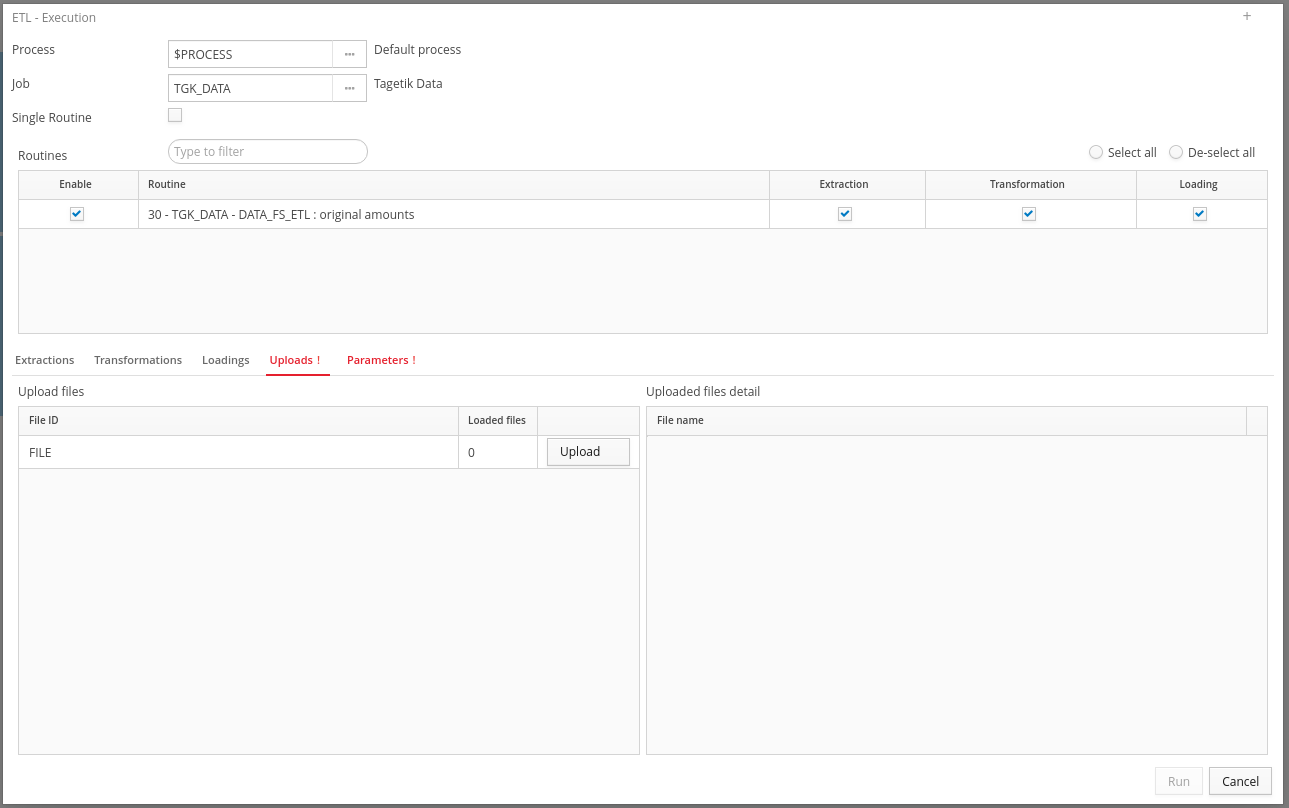
Process and Job/Routine selection section
| Section | Description |
|---|---|
| Process | Process on which to run the ETL If the execution takes place from the process cockpit, the Process will be defined automatically as the cockpit process and will not be editable If the execution takes place from a workflow task, the Process will be defined automatically as the cockpit process and will not be editable |
| job | ETL job to be run The system shows the Jobs restricted to the current user as selectable. If the execution takes place from the process cockpit, the selectable jobs will be those present in the execution plan of that process for the selected entities. If the execution takes place from a workflow task: the job will not be selectable and will be defined automatically as the one set in the task definition. |
| Single Routine | The job’s ETL routine to be run If the execution takes place from a workflow task. If the task is related to an ETL routine, the Single Routine option will be activated automatically. |
Note: Once the Job has been selected or the Single Routine option has been activated, the system will update the contents of the window.
Routines section
This section can be populated using the following options:
- all routines belonging to the Job not restricted for the current user or for the Process execution plan, if a Job has been selected,
- all the routines of all the ETL domains visible by the user if the Single Routine option has been activated and the window was opened in one of the following ways:
- from the processes cockpit, we will only see the routines belonging to the execution plan of that process for the selected entities.
- from a task flowchart whose type is ETL routine, we will only see the routine set in the task definition.
| Field | Description |
|---|---|
| Enable | - indicates whether the routine must be run. If the Single Routine option is active, you will only be able to activate one routine. If the window was opened from a task flowchart whose type is ETL Routine, you will not be able to deactivate the option activated by default on the individual routine shown. |
| Routine | - reports the order of the routine within the job (if a job has been selected), the ETL domain code, the routine code and its description. |
| Extraction | indicates whether the extraction step must be run for the routine. The option cannot be deactivated if extracted data storage is not active in the definition and it is therefore not possible to start with the transformation step. |
| Transformation | indicates whether the transformation step must be run for the routine. The option cannot be deactivated if transformed data storage is not active in the definition and it is therefore not possible to start with the loading step. |
| Loading | indicates whether the loading step must be run for the routine. |
IMPORTANT: The activation/deactivation of options generates the update of the following sections...
Extractions tab
This section is populated with all the extractions of all the routines active in the Routines section. If a job has been selected, only Routines defined in the extractions of the selected job will be show.
IMPORTANT: The activation/deactivation of tasks or the editing of attributes generates the update of the Upload and Parameters tabs.
| Field | Description |
|---|---|
| Enable | - indicates whether the extraction task must be run. |
| Routine | - routine to which it belongs. |
| Extraction task | sorting and description of the task, code and description of the data source. |
| Input type | allows you to select the input type from those configured in the task’s data source. The default value is defined in the job’s extractions. |
| Extraction type | allows you to select the extraction type from among: - Application Server: loading is carried out either from queries or from files present on directories visible by the application server indicated in the Permitted dictionaries. - Client: loading is carried out via the uploading of files by the client. - Endpoint/Tagetik Data Loader: loading is carried out using an Endpoint that also allows you to use the Tagetik Data Loader. |
| Endpoint/Tagetik Data Loader | - allows you to select an endpoint that will be used if the Extraction type is Endpoint/Tagetik Data Loader. |
| Directory | allows you to define a directory that will be used if the Input type is from file and the Extraction type is not from Client. |
| File names | allows you to indicate a list of file names (comma separated) that will be used if the Input type is from file and the Extraction type is not from Client |
| File ID | allows you to indicate the ID of the file to be loaded via upload if the Input type is from file and the Extraction type is Client. This is used by the system to identify the extraction tasks that utilize the same data source in order to limit the number of uploads of files that contain data to extract. By labelling two or more tasks with the same File ID the system will require the upload of one single file, thus preventing it from requesting the uploading of superfluous files that have already been loaded. |
| File management type | allows you to select the action to be carried out on the loaded file, if the Input type is from file and the Extraction type is not from Client, choosing between: - None: no operation will be carried out. - Delete: the file will be deleted if loading is completed successfully. - Store: the file will be moved to an ” archive file if loading is completed successfully. |
IMPORTANT: If the configuration of an extraction task is not complete or if the same File ID has been defined for different Data source types, the “Extractions” label in the panel will turn red and it will not be possible to run the ETL.
Note: If extraction tasks have been defined for the selected routines but none of them is active, the “Extractions” label in the panel will become yellow but it will be possible to run the ETL.
Transformations tab
This panel is populated with all the transformations of all the routines that are active in the Routines panel.
| Field | Description |
|---|---|
| Enable | - indicates whether the transformation task must be run. |
| Routine | - routine to which it belongs. |
| Transformation task | the sorting, type and description of the task. |
Note: If transformation tasks have been defined for the selected routines but none of them is active, the “Transformations” label in the panel will become yellow but it will be possible to run the ETL.
Loadings tab
This panel is populated with all the loadings of all the routines that are active in the Routines panel.
Please find below the most important fields.
| Field | Description |
|---|---|
| Enable | - indicates whether the loading task must be run. |
| Routine | - the routine to which it belongs. |
| Loading task | the sorting, type and description of the task. |
| Detail task | description of the macro loading type and the descriptions of the detail tasks |
| Filter by origin | filter type to be applied to the origin in the deletion step. |
Note: If loading tasks have been defined for the selected routines but none of them is active, the “Loadings” label in the panel will turn yellow but it will be possible to run the ETL.
Upload tab
This panel is populated with all the loadings of all the routines that are active in the Routines panel.
It includes all the uploads to be carried out, identified with the File type and the File ID if tasks with Input type set to from file and Extraction type set to from Client are present in the Extractions panel.
The fields and buttons in the tab are shown below.
| Field | Description |
|---|---|
| Upload files section | |
| File type | value of the Data source type field defined in the Extractions panel. |
| File ID | value of the field of the same name defined in the Extractions panel. |
| Loaded files | number of files currently loaded for that File ID. |
| Loaded detail files section | |
| File name | - This includes the names of the files loaded for every record selected in this panel. |
| - allows you to remove the loading of the file |
IMPORTANT: If the uploaded file includes a Mime type that is not the one required by the File type, the system will show the “Invalid file type” error and block the upload.
Parameters tab
This panel is populated with all the parameters used in all the active tasks in the Extractions, Transformations and Loadings panels of all the routines that are active in the Routines panel.
| Element | Description |
|---|---|
| Main section | |
| Description | This includes the ETL domain code, and the parameter code and description. |
| Additional loading parameters section | |
| Options on the parameters that are present only if defined for at least one routine that is active in the Routines panel. | |
| Step | filter on the steps belonging to the selected process so that only data related to accounts present in those steps are loaded. This option is only visible if the Step option has been activated for at least one active routine |
| Account hierarchy and Nodes of the account hierarchy | - filter on the nodes of the account hierarchy so that only data related to accounts related to the indicated nodes are loaded. These options are only visible if the Account hierarchy option has been activated for at least one active routine. IMPORTANT: If the account hierarchy has already been specified in the routine definition step, you need only specify the nodes to be used. |
IMPORTANT: If the execution takes place from the process cockpit or a flowchart task, any ETL parameters related to ETL dimension whose Identity is Scenario, Period or Entity and any additional parameter related to the steps will not be editable and will be defined automatically with the input parameters inherited from the process cockpit.
The system will also show the following elements, based on the parameter type:
| Parameter type | Element shown |
|---|---|
| Tagetik or From dimension dictionary | A lookup for selecting the value and a check box for activating the automatic definition option. |
| Free | a text input for manually defining the value. |
| From imported data | a check box for activating the automatic definition option. |
Execution buttons
| Element | Description |
|---|---|
| Run | allows the execution of ETL data processing. Only active in the following cases: - if at least one routine has been activated in the Routines panel - if at least one Extraction, Transformation or Loading step has been selected for the active routines - If at least one active routine requires the selection of the process in its definition, the Process filter must be defined. - if there are active tasks that must be configured consistently in the Extractions panel (see fields description in the panel named Extractions). - if some extractions require the loading of files via upload, these must be carried out in the Uploads panel (at least one for every File ID). - if parameters are present in the Parameters or Additional loading parameters panel, they must be defined. - if a job has been selected, the ETL data processing related to the job (ETL_ESECUZIONE_JOB) will be run. - If the Single Routine option has been activated, the ETL data processing related to the Routine (ETL_ESECUZIONE_ROUTINE) will be run. |
| continue | allows you to resume the data processing in case it was stopped, by applying the loading logics to the data not signalled by the editability check. |
| Skip | Only active if the post loading task stop has returned warnings. Allows you to move on to the next loading task. The following tasks can return warnings: - extraction tasks that do not load any record. - Check type transformation tasks. - loading tasks that apply editability checks. The ETL only stops if the option related to the stop in case of warnings has been defined on the task’s routine. |
IMPORTANT: ETL data processing can only be stopped to allow the user to perform the following operations:
- select the values of the ETL parameters whose type is from Imported Data for which the Define automatically option has not been activated. The system will show a window containing as many records as there are parameters to be defined, which include the description of the parameter and a lookup allowing the value to be selected. The parameters must all be defined in order to continue with the ETL’s execution.
- after a task that has returned warnings