Work with Purchase Orders
If your product is configured to work with inventory, your Supply Management Process may have a Submit Purchase Requisitions task in your workflow. A purchase requisition is a document used as part of the accounting process to initiate a merchandise or supply purchase. By processing a purchase requisition, the appropriate controls can monitor the legitimacy of a purchase and identify the business needs for the products.
To work with purchase requisitions
- From the Daily Supply Management Process screen, click on the Submit Purchase Requisitions task.
- The Purchase Requisition grid displays these fields automatically. You can add fields, if needed.
Purchase Order Grid Columns
| Fields | Description |
|---|---|
| Source | Name of the supplier or manufacturer of an item |
| Source Code | Unique code assigned to the source |
| Destination | Final destination of the item |
| Worst Stockout | Probability the supplier's inventory will go to zero |
| Items | Number of items the supplier has (by pallet) |
| Total Units | Total number of units |
| Approved Units | How many units have been approved |
| Total Cost | Cost if all units were approved. |
Purchase Order Screen
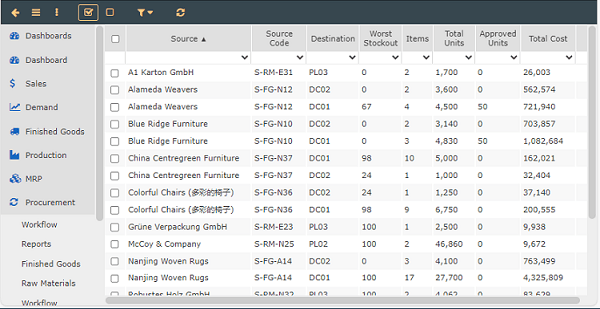 3. Click on a row in the table to see the Purchase Requisition for an item.
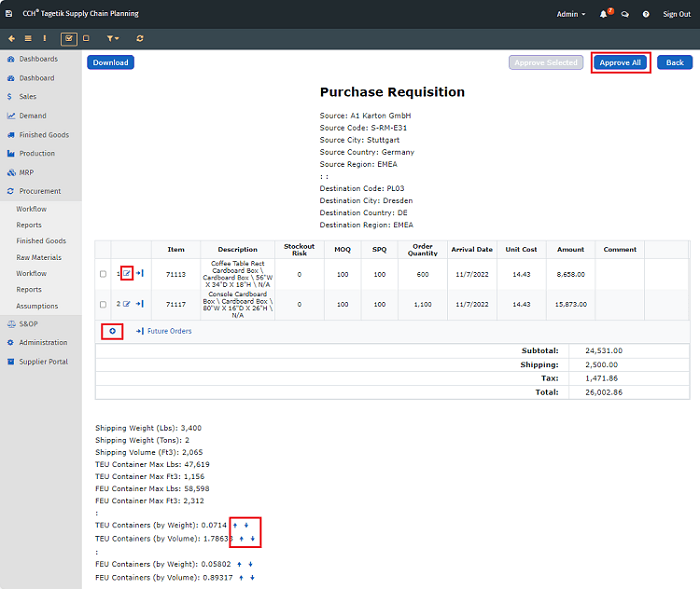
If needed, make changes to the Schedule and click Order.
4. Click on the Edit Source icon ( ) to make a change to the record in the Schedule of the item
record.
) to make a change to the record in the Schedule of the item
record.
Purchase Requisition Screen
See also About the Inventory Section.
See also Multiple Sources of Inventory.
5. Click  to add a future order to the Purchase Order.
If needed, click  in the last column to delete the new order.
6. Click
in the last column to delete the new order.
6. Click  to select from a list of items due to be
ordered.
to select from a list of items due to be
ordered.
List of Future Order Items
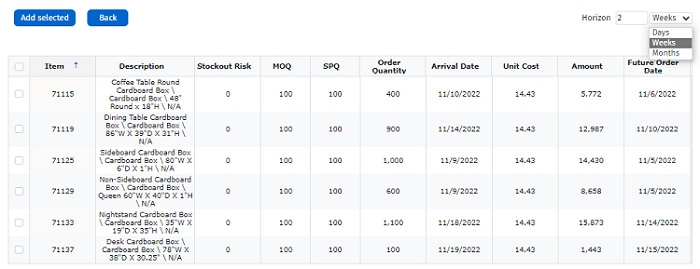
To see more or less items, change the Horizon and timeframe (Days, Weeks, or Months).
Select the checkboxes to add the items to the Purchase Order and click Add Selected. The new orders are highlighted. 7. Click Approve All at the top of the screen to Approve the Purchase Order and go back to the Purchase Requisition screen.
The Edit icon changes to a checkmark, which means it has been ordered.
8. If needed, click the up or down arrow (
 ) to change the shipping containers to the nearest whole number to
prevent partial pallets.
9. Click OK.
) to change the shipping containers to the nearest whole number to
prevent partial pallets.
9. Click OK.