Execution plan
After defining the structure of the allocations and closing rules (routine, rules, details), it is necessary to configure its relationship with data to which it has to be applied. To do this, it is necessary to define an execution plan. Each execution plan includes, for each scenario / period / entity, the following information:
- the routine / job to run and their execution order
- the period length
- the various scenarios for filtering data which to process if the user wants to set such information at plan level (with the possibility of using different scenarios for different sets of scenario / period / entity) rather than on each single routine
The execution plan has to be defined by process, so different processes can have different execution plans.
The management of the execution plan can be accessed from the administrator user web interface by following the path Setup & Admin > Process > select process > actions ( ) > Process definition> Data Processing are > Allocation and Closing > Execution plan.
Navbar > Processes & Workflow > Process > select process > actions () > Process definition> Data Processing are > Allocation and Closing > Execution plan.
) > Process definition> Data Processing are > Allocation and Closing > Execution plan.
Navbar > Processes & Workflow > Process > select process > actions () > Process definition> Data Processing are > Allocation and Closing > Execution plan.
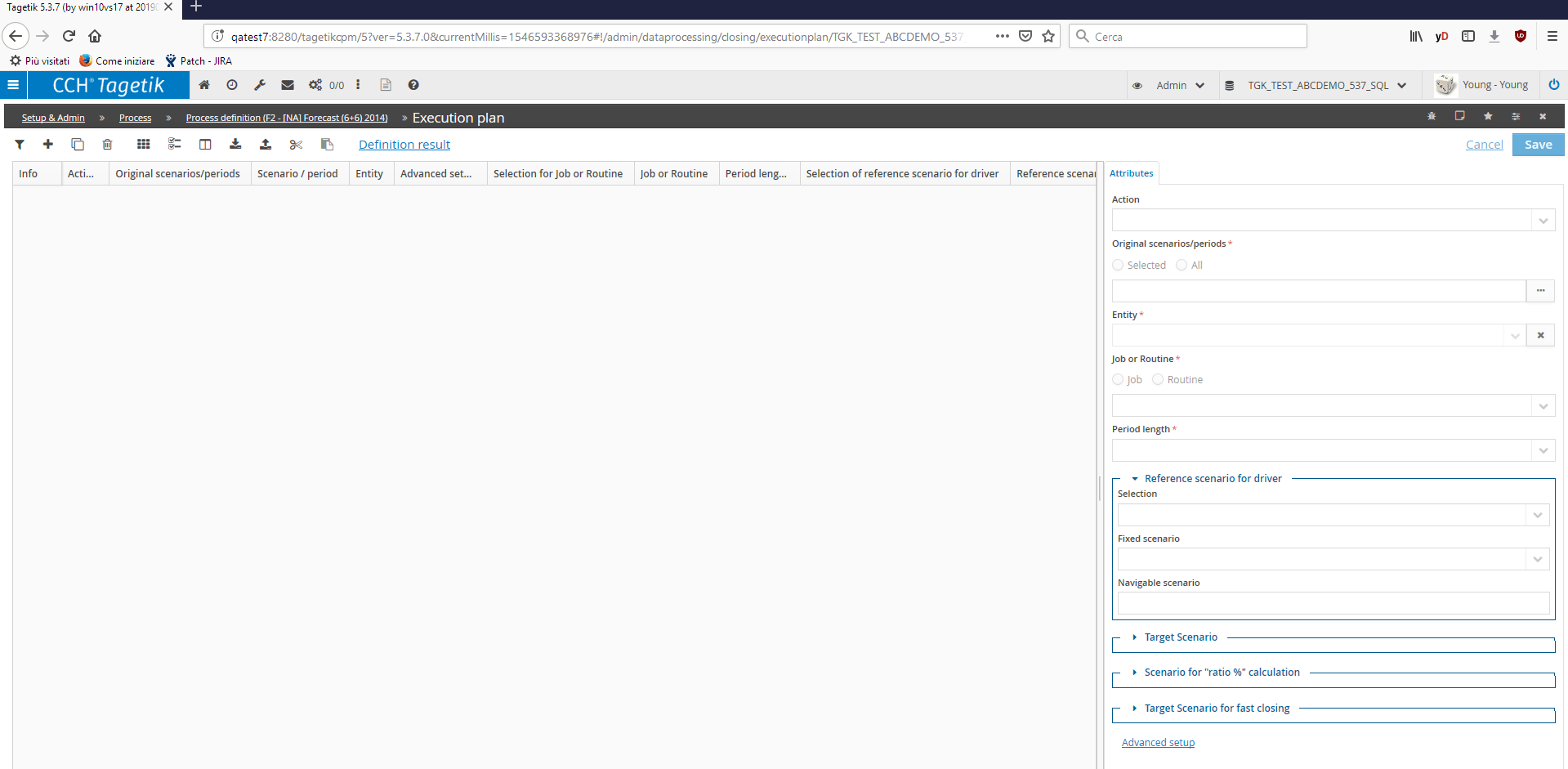
Add one row in the right hand area and configure it from the left tab attributes :
-
Action to run. Possible values:
-
Include
-
Exclude
-
Original Scenarios /periods
-
Selected. In the next row, it is possible to select the selected scenario or scenarios
-
All
-
Entity entity or entities node
- Period length to use with periodic rules
the scenarios to use to filter the data to process if on the rule the user has specified that such information is given at plan level. In particular
- Reference scenario for driver. Scenario used to recover the values of the driver for the allocation
- Target Scenario . For the "Target Matching" rules. Target scenario for target data
- Scenario for "ratio %" calculation.For the "Calculated Target Matching (through "calculated %" as a ratio)" rules. Target scenario for target data
- Target Scenario for fast closing. Only for the "Target Matching" rules with fast closing. It is the previous actual scenario that must be added to the monthly target data to obtain the cumulated target data
they have two fields:
Selection Specifies how the scenarios to run, fill or use are managed. Possible values:
- Fixed in this case, it is necessary to specify the scenario for the allocation driver
- Parametric in this case, it is necessary to specify the scenario for the navigable allocation driver
Fixed Scenario / Navigable Scenario
the Navigable Scenario can get the following values
- PREV the scenario is the one preceding the processed scenario
- NEXT the scenario is the one following the processed scenario
- REF1...REF5 the scenario is the reference scenario 1 ... 5 related to the processed one
 If you select a node of an entities hierarchy and you want to use a different tax for a given entity, you have to add that specific entity in this window (besides the node) with the relevant setting.
- Definition result.
After completing and saving ( ) the execution plan definition, it is possible to access the deployed table through the Definition Result link.
Advanced setup
By default, if the job has been used to define the execution plan, the defined settings are valid for each routine included in it. Nevertheless, it is possible to define a different setting for each routine of the job. Such advanced setup can be accessed by double-clicking on theAdvanced setup link on the bottom right of the Attributes tab.
The parameters to manage are the same as those described for the definition of the execution plan.
If the user uses an advanced setup for the single routines of a job, the system, after saving the settings, enables the "Advanced setup" option on the execution plan. This allows recognizing the elements of the execution plan for which the attributes definition is advanced.