Run from form
The "Allocation & closing" data processing can be run also from a data entry form. The user has to:
- open the form in Design mode;
- click on the
 Data processing button of the "Design" ribbon bar or select in the "Open items" left pane the row related to the form into which the data processing has to be inserted and then right-click and select Run Data processing > New Data processing.
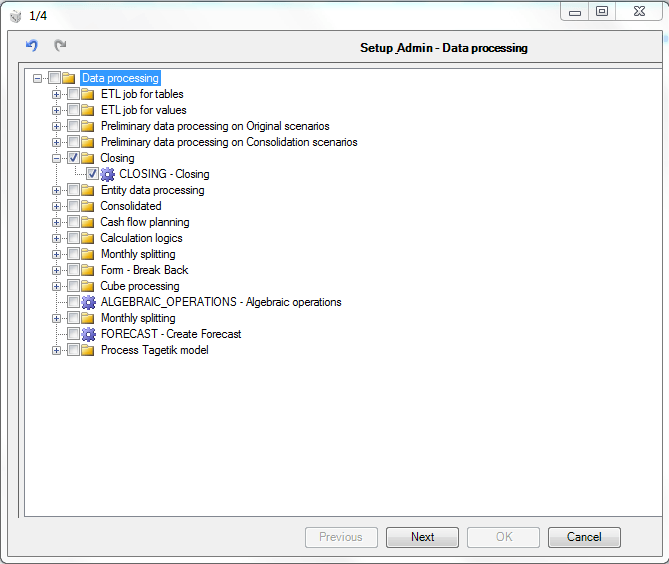
The system displays a window in which the user must select the Closing check in order to run the data processing and then click on the Next button.
At this stage, it is necessary to define the parameters needed for the data processing. The parameters highlighted in bold are mandatory.
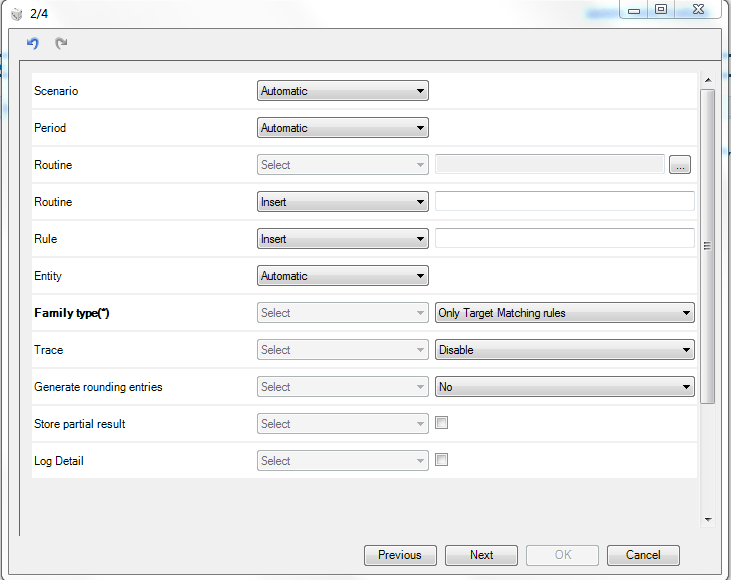
The parameters definition requires the selection of the method by which the parameter's value has to be retrieved. The available methods are:
- Automatic. The system retrieves the parameter's value directly from a form filter, a tab filter, a matrix filter, a row/column filter. If the filter is defined using a parameter (thus its value is chosen by the user at run-time) the retrieved value will depend on the user's choice. If a parameter is optional or not important for the current data processing, its value can be retrieved automatically
- Excel cell. The system retrieves the parameter's value from an Excel cell. The user must specify the cell containing the value using the syntax ${H30} (cella H30).
- Insert. The user must insert the parameter's value into the corresponding text box
- Select. The user must select the parameter's value from a list of possible values
- Cell field. The system retrieves the parameter's value from a cell field.
The user must specify:
- a possible filter on the original scenario / period on which to run the data processing
- a possible filter on the entities to which data to process are allocated
- a possible filter on the routines to run
- a possible filter in the rules to run
-
a possible filter on the sequences to run
-
whether or not all the defined data processing types have to be run (Family type). The possible values are:
- Only Target Matching rules
- Only Allocation Rules
-
All
-
the detail to store in the journals generated by the system. The following Trace options are available:
-
Disable. The system does not trace the steps performed to generate data
-
*Last source*. The system traces and displays only the last step performed. For example, if the rule 001 provides that the cost center C01 is allocated on the cost centers C02 and C03 and that the C02 is allocated on the cost center C04. The system displays for the allocated data C04 the last data that generated it, namely C02
-
*Detail*. The system traces and displays all the steps performed to generate data. In this case, for the allocated data the system displays the concatenation of the last sources.
-
From rule. It allows displaying all the allocation steps which have generated the result, except the rules not included in the execution.
 Using the last two options is highly inadvisable since they generate a high number of entries that would slow down the data processing and the record layout would be so long that it could not be contained in the field.
- whether or not the rounding entries have to be generated. In the first case the system calculates the allocated values and, if such values do not "empty" completely data to process, it creates a balancing entry. For example, assume that we have to allocate the value of the cost center C00, equal to Euro 100, on the three cost centers C01, C02 and C03 and assume that the value to allocate to each one is one third of the value of C00 and that the estimated number of decimals for the Euro currency is 3. The system calculates for each cost center a value equal to 33,333 and generates a balancing entry equal to 0,001. If the rounding entries do not have to be generated, the system just calculates the allocated values regardless of whether or not they zero data to process.
- whether or not the history of the data processing has to be stored with the detail of each element involved, namely the collection of data to allocate, the targets, the drivers, etc. (*Store partial result*)
- whether the detail information (Log detail) has to be calculated in relation to the execution of the steps defined for the rules to process. For example, in case of slowness this may help understand which detail causes it.
After setting the parameters, it is possible to click on the "Next" button in order to specify some options which allow the system to understand how the data processing has to be run within the form (for further details see Setup & Admin - Data Processing window). Finally, it is necessary to assign a code and a description to the data processing to be inserted in the form.
In order to run the data processing, it is necessary to open the form in data entry mode and then click on the  Data processing button present in the Data entry ribbon bar and click on the name of the data processing to be run.