Query
Utility
Queries allow you to obtain information from internal or external databases, in addition to that extracted from matrices, such as FX rates, tax rates and other rates saved in customised tables. To obtain this information, SQL queries can be created in the form.
Queries can be of the following types: Normal, Data Validation and Drill-through.
Note: details of the CCH Tagetik Data Model can be consulted in the Tagetik Data Model Repository document, available to download from CCH Tagetik’s main toolbar >  > Download (see The home page of CCH Tagetik).
Normal query
Query defined using standard SQL language. This is used to extract data from the database and view it in the form in table format. The table generated by the query can be edited using standard Excel functionalities.
Cell fields can be inserted into the query to make it parametric. This allows you to filter the data to be extracted and write queries that can be used in several contexts.
Example
Query defined to extract data from the table of FX rates: SELECT cod_valuta, cambio_medio, cambio_finale FROM dati_cambio. Since the data are not filtered by scenario/period, the query returns all the FX rates defined for all scenarios/periods.
If, for a form, you want to only extract the FX rates of a specific scenario/period, the query must be made parametric using cell fields: SELECT cod_valuta, cambio_medio, cambio_finale FROM dati_cambio where cod_scenario = ${$Scenario.code} and cod_periodo = ${$Period.code}.
If the query is run in a form that has the scenario and period as parameters, the expressions ${$Scenario.code} and ${$Period.code} will be replaced with the selected values.
To make the scenario and/or period value fixed, the expressions ${$Scenario.code} and ${$Period.code} must be replaced with the desired value written between double quotation marks (" ").
Data Validation query
Query which allows you to define the value of a cell by selecting it from a list of predefined values. This list is the result of a Data Validation query associated with an element of the matrix. Data Validation queries do not appear in the Excel sheet.
Example
Given a matrix to enter information related to products managed on custom dimension 1. Every row must contain the product code and the respective price. To ensure that the inserted products are those actually being produced, the user’s choice can be limited and a query that reads data from the custom dimension 1 table can be defined.
If Enable free text insertion is selected, the system disables the validation notice and the user can also insert values not included in the results of the Data Validation query.
It is possible to make the results of a data validation query dependent on various types of filter defined on the form. The greater the number of filters on which the query results depend, the longer it will take to run the form. See Types of filter for Data Validation queries.
Drill-through
Query that allows you to analyse the data that make up a value that has been imported into CCH Tagetik via ETLs. For more details on how to use the query in Navigation mode, see Drill-through queries.
This type of query is filtered on the basis of what is defined in the cell in which it is positioned. It can be used to show details of several values in the matrix, according to the selected cell. Drill-through queries are not run when the form is run, but are run explicitly by the user. They are run based on a cell of the matrix. This allows you to take advantage of all the matrix filters, not just the tab filters and form filters.
Example
Suppose the generic Insurance account has been fed with values imported from accounting records. Only the total figure is present in CCH Tagetik, not the details of the various types of insurance (e.g. auto, fire, legal). Creating a drill-through query allows you to query the staging table used by the ETL (as an intermediate step for loading) to obtain those details.
The query must be run on the MAP_DATI_TRASFORMATI table, which contains the details of every type of insurance and every invoice. To do this, the system must know which MAP_DATI_TRASFORMATI fields correspond to the fields for which we want to show the values. The result is as follows:
SELECT campo1 as "GL ACCOUNT", campo2 as "ACCOUNT CODE", campo3 as "INVOICE No', campo4 as "AMOUNT" FROM MAP_DATI_TRASFORMATI where cod_mappatura='ETL_IMPORT' and cod_import='ETL_ROUTINE and campo5=${$Account.code} and campo6=${$Scenario.code}'
In the example, the values are filtered based on the accounting account, which corresponds to field 5, and on the scenario, which corresponds to field 6.
Of a form contains a drill-through query and the 0002868 - Reporting .NET - Navigation - Drill-through function is enabled for the user, then the  button will appear when the form is opened in Navigation or Data entry mode. This button allows you to open the left-hand Drill-through panel, in which the system shows the drill-through queries present in the form, grouped by template.
Types of filter for Data Validation queries
The possible types of filter for Data Validation queries can be selected in Affected by and are as follows:
- Cell filters
- Row/column filters
- Parameters/Tab filters/Matrix filter
- Parameters/Tab filters
Cell filters
The query recalls the cell fields related to dimensions present in the row and column filters. The system runs the query once for every editable cell with which it is associated.
Example
Suppose we have defined one filter on the scenario dimension in the query and one filter on the period dimension in a matrix with the following row and column filters:
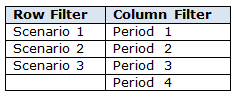
In this case, to generated the list of selectable values, the system runs 12 queries, i.e. one for every scenario/period intersection.
Row/column filters
The query recalls the cell fields related to dimensions present in the row filters or column filters. The system runs the query for every row or column with which it has been associated.
Example
Suppose a Data Validation query has been defined in the matrix from the previous example and that matrix has been filtered on the period dimension only. In this case, the system runs four queries, i.e. one for every element present in the filter (row or column).
Parameters/Tab filters/Matrix filter
The query recalls the cell fields related to dimensions present in the parameters and tab filters or matrix filters. The system runs the query for every sheet/matrix combination.
Parameters/Tab filters
The query calls up the cell fields related to dimensions present in the parameters and tab filters. The system runs the query for every sheet.
Data Validation properties
After a Data Validation query has been created, the Data Validation property is enabled in the Matrix Wizard properties table. This property allows you to link a validation query to a row or column element defined in the matrix and shows the following options:
- Query, to specify the identifier of the query to be associated with the selected row or column element
- Field, to specify the column of the table generated by the query to be used to populate the list of selectable elements
Example
We have created the PRODUCT query, which returns all products actually in production. To associate that query and see the product code in the list, the Query option must be defined as PRODUCT and the Field option must be defined as COD_DEST1.
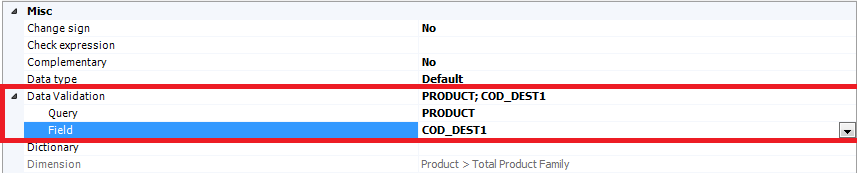
In the data entry step, the following appears in every cell with which a Data Validation query is associated:
- a drop-down list, to select the value to be assigned to the cell
- the
 button, to search for the value to be defined on the cell from among several values in the list, by typing * and ?
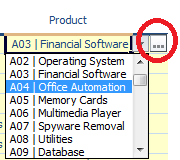
Dependent cells can be obtained by selecting the same validation query, but different fields, on two or more of the matrix rows or columns. In data entry, selecting a value in the first field on a cell of the first row allows you to select, on the corresponding cell in the second row, only the values of the second field which generate combinations that exist in the query results.
If you want to enable multiselection on a cell that has both a Data Validation query and an associated dictionary, multiselection must be configured on the dictionary.
Use of Layout options for formulas
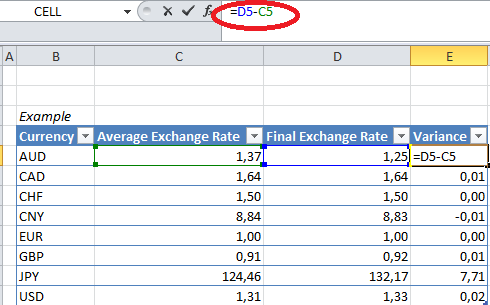
It is possible to define Excel formulas that have the elements of a query as arguments. For example, this is useful for calculating the difference between two columns of the query. Moreover, with specific layout options, CCH Tagetik allows you do automatically copy formulas inserted to the right or left of the query for all rows generated by the same query.
Example
Suppose a query that extracts the average and final FX rates and an Excel formula for a subtraction between the two fields have been defined. When the query is run, the formula is replicated for all rows for all pairs of FX rates extracted by the query.
Data visibility settings for users
To prevent unauthorised access to data, data visibility must be defined for each user in the role setup phase. This allows the system to know whether to apply user rights when an SQL query is run in a form and whether to allow access to the tables of the ETL module. The following functions are available:
- 0003100: allows unrestricted access to the data tables via SQL queries contained in shared forms.
- 0003101: allows unrestricted access to the data tables via SQL queries contained in ad hoc forms.
- 0003102: allows access to the tables of the ETL module via SQL queries contained in shared forms.
- 0003103: allows access to the tables related to the ETL via SQL queries contained in ad hoc forms.
Note: if functions 0003102 and 0003103 are disabled, an error message indicated that access is not permitted will appear when a query referring to the table of the ETL mode is run.