Journals Hub
Page purpose
The Journals Hub is a tool designed to enhance the experience and efficiency of analysing and managing journals by providing access to multiple data views.
The Journals Hub is available for both entity and consolidation journals, accessible from the Process Cockpit with Entity dimension as well as from the Process Hub.
In the Process cockpit Entity dimension:
- the Journals Hub for Entity journals can be accessed from the Detail Summary tab and from the tabs by step, for both the Contributor Cockpit and the Consolidator Cockpit
- the Journals Hub for consolidation journals can be accessed from the Overview tab and from the tabs by step, but only for the Consolidator Cockpit
In the Process Hub:
- the Journals Hub for entity journals can be accessed from the Contributor's tabs by step and from the Consolidator's tabs by step
- the Journals Hub for consolidation journals can be accessed from the Consolidator's tabs by step
What it looks like
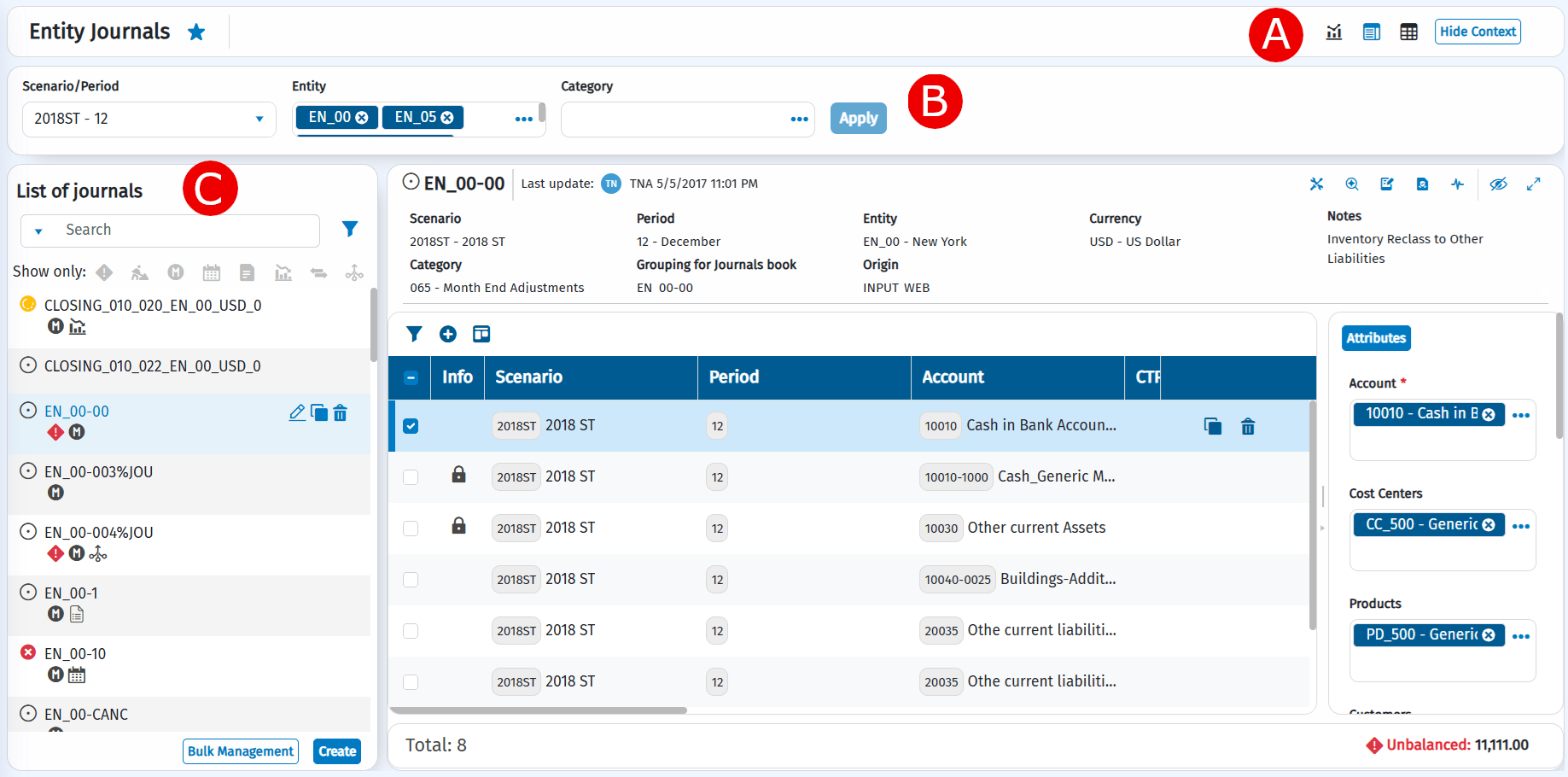
| Element | Description |
|---|---|
| A | Title bar |
| B | Main Filter Panel |
| C | Journal management panel |
Actions on this page
| Element | Description |
|---|---|
| Show Dashboard: allows you to view a dashboard for analyzing journals. | |
| Show Journals Headers: allows you to efficiently manage header attributes using the multiple selection option. | |
| Show Journals : Allows you to work on journal headers and rows within the same page, focusing on the relevant information. This is the default view. | |
| Show Bulkloader: allows you to work with journals using a spreadsheet, with the ability to enter headers and rows together. | |
| Hide Context / Show Context | Allows you to hide/show the main filter panel. |
Main Filters
Through the main filters you can filter the journals be analysed. These filters are retained even when switching between views.
| Source filter | Description |
|---|---|
| Scenario /Period | Mandatory filter. A single scenario/period can be selected. By default, the scenario/period used to access the dashboard is filtered. In single-submission processes, the scenario/period linked to the process with the longest start/end date is filtered. |
| Entity | Only in the Entity Journals Hub Mandatory filter. A list of entities can be selected. By default, the entities selected in the cockpit are filtered. If nodes (contributor, consolidator or even non-significant) are selected in the cockpit, the child entities of these nodes are filtered. |
| Consolidator nodes | Only in the Consolidation Journals Hub. A list of consolidation nodes can be selected. By default, the nodes selected in the cockpit are filtered. The selected nodes are turned into a list of relationships between entities. You must select at least one of the Consolidator Nodes or Entity 1 filters. |
| Entity 1 | Only in the Consolidation Journals Hub. A list of entity nodes can be selected. This filter is applied to the header field containing Entity 1 of the relationship. You must select at least one of the Consolidator Nodes or Entity 1 filters. |
| Category | Optional filter. In the Entity Journals Hub, you can select from a list of entity journal category types. In the Consolidation Journals Hub, you can select from a list of consolidation journal category types. |
Clicking on the 'Apply' button applies the filters to the data in the selected view.
Once the filter has been applied, the 'Apply' button is disabled.
When the filter values in the panel are changed, the 'Apply' button is enabled again, giving the user an immediate view of a mismatch between the filter value and what is displayed in the selected view.